
- Creating a calculated field
- Types
- Configuration
- Debug
- Rule Engine integration
- Data reprocessing
- Built-in methods for rolling arguments
- Merging time series arguments
- Export / Import calculated field
- Managing calculated fields
- Calculated fields overview video
- Your feedback
| Available since TB Version 4.0.0 |
Calculated fields allow you to transform raw data into actionable insights in real time. Think of Calculated Fields as a built-in “logic layer” for your IoT entities. Instead of just storing raw data, you can automatically generate high-value metrics as soon as data arrives.
By combining data from multiple sources — such as incoming telemetry, existing entity attributes, or even data from related assets — you can execute custom logic the moment your data arrives. The resulting output is automatically stored as either time-series data or attributes, ensuring your calculated insights are immediately ready for visualization, reporting, or further automation.
To support complex workflows, calculated field execution can be chained: the output of one field can automatically trigger the execution of another, allowing you to build sophisticated data processing pipelines step-by-step.
Calculated fields can be applied at two different levels within the system:
- Entity Level: At this level, the calculation is applied to a single, specific entity - Device or Asset.
- Profile Level: When a calculated field is defined within a Device profile or Asset profile, the logic is inherited by every entity associated with that profile.
This flexibility allows users to either define unique calculations per entity or apply standardized logic across a group of similar entities, optimizing data processing and management.
In addition to real-time processing, ThingsBoard supports calculated field reprocessing, which allows you to apply the same calculation logic to historical telemetry data and generate missing or updated results for a selected time range.
Creating a calculated field
The process of creating a calculated field is the same for Devices, Assets, Device profiles, or Asset profiles.
- Open the “Calculated fields” page from the left-hand menu.
- Click the “+” button in the top-right corner.
- Select Create new calculated field from the dropdown menu.
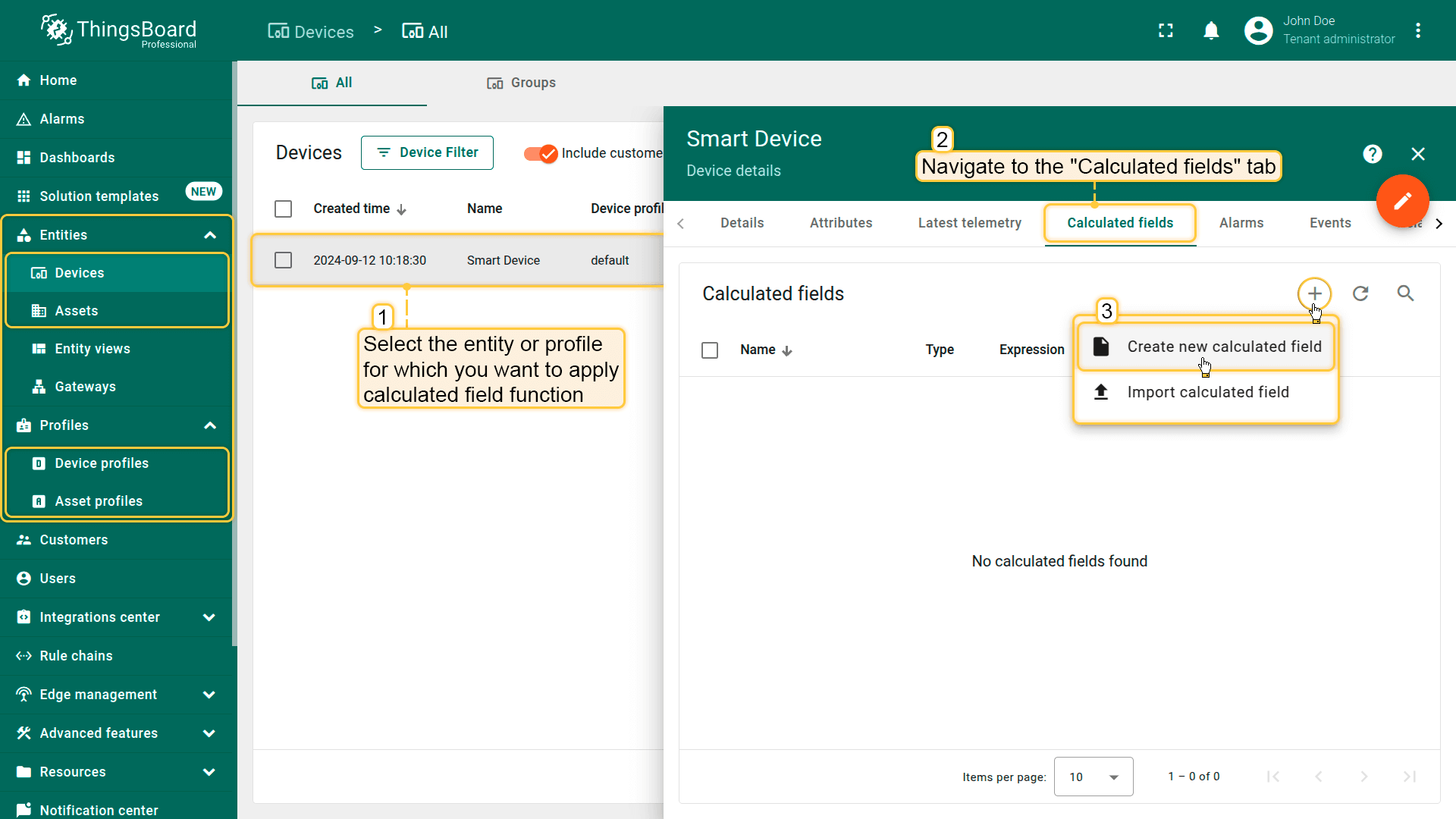
Open the Calculated fields page from the left-hand menu.
Click the “+” button in the top-right corner and select Create new calculated field from the dropdown menu.
Types
ThingsBoard supports several types of calculated fields, each designed for a specific class of tasks:
-
 Simple
Basic arithmetic expressions and standard functions.
-
 Script
Complex computations using TBEL, with the ability to return multiple values.
-
 Geofencing
Determining an entity's position relative to geozones, detecting enter/exit events, and generating notifications.
-
 Propagation
Propagation or transformation of data to related entities based on the relationship direction and type.
-
 Related entities aggregation
Aggregating latest data (min, max, avg, sum, count, etc.) from related entities.
-
 Time series data aggregation
Aggregating historical data from a current entity.
Configuration
General
The “General” section defines the basic configuration of the calculated field:
- Title — descriptive name for the calculated field that reflects its purpose.
- Entity type - the target entity or entity profile where the calculated field will be applied.
- Type - the calculated field type that defines the calculation model and available configuration blocks.
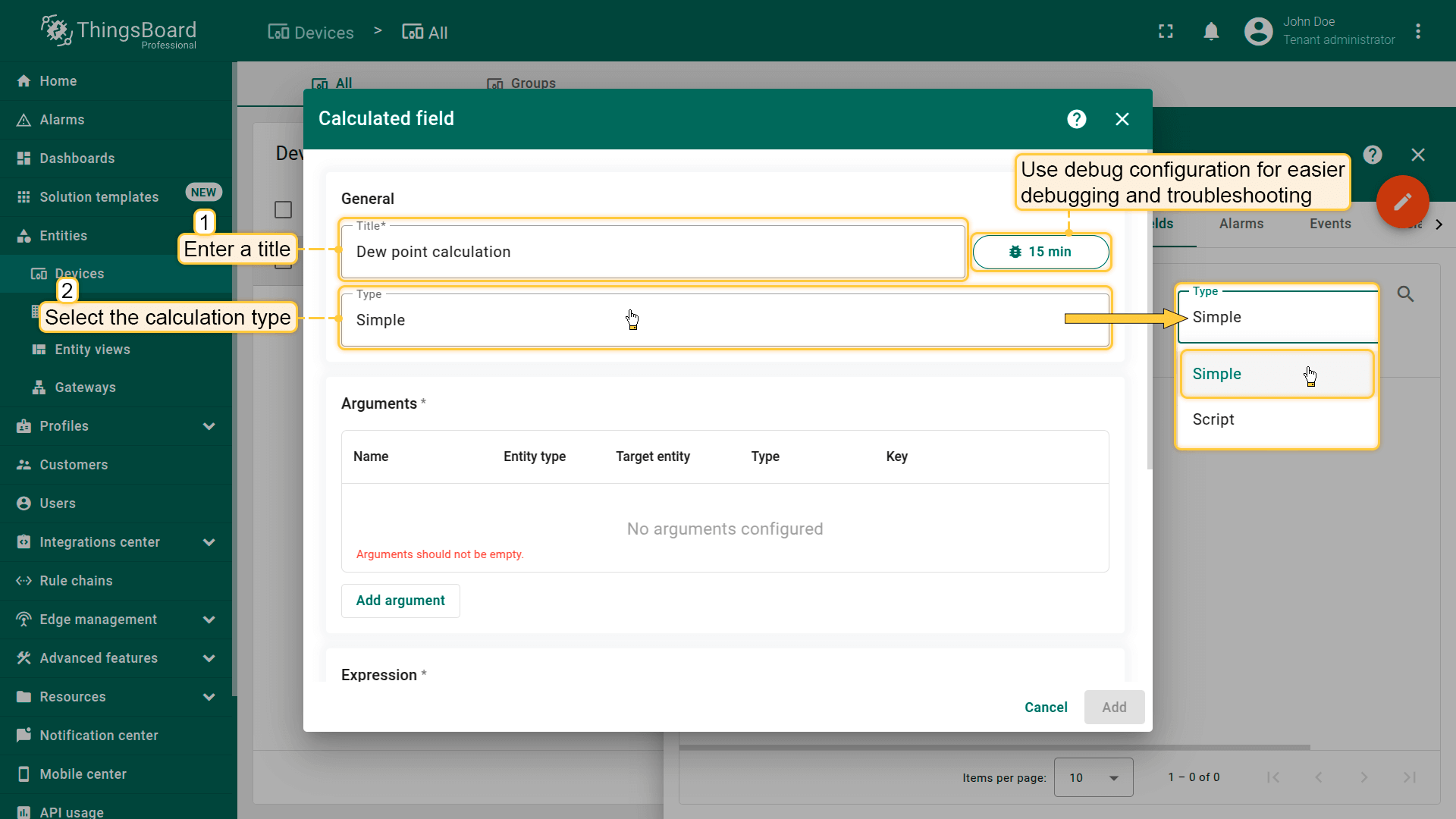
Enter a descriptive name for the calculated field, select the entity or entity profile to which the calculated field will be applied, and choose calculated field type.
Arguments
Arguments define which data the calculated field reads and exposes as variables for the calculation logic. Each argument maps to a specific data source (attributes or telemetry) from a selected entity, so it can be referenced in a Simple expression, TBEL script, or other calculated field types.
Click the Add argument button and fill in the required fields:
Entity type
Define where the data is read from:
- Current entity — the same device/asset (device profile/asset profile) to which the calculated field is applied.
If the field is created at the Device profile or Asset profile level, the calculation is performed for each entity associated with that profile. - Another Device / Asset — a specific referenced entity
- Customer — the customer associated with the entity
- Current tenant — the tenant entity
- Current owner — the owner of the current entity
- Related entities (for specific calculated field types) — entities resolved dynamically via relations
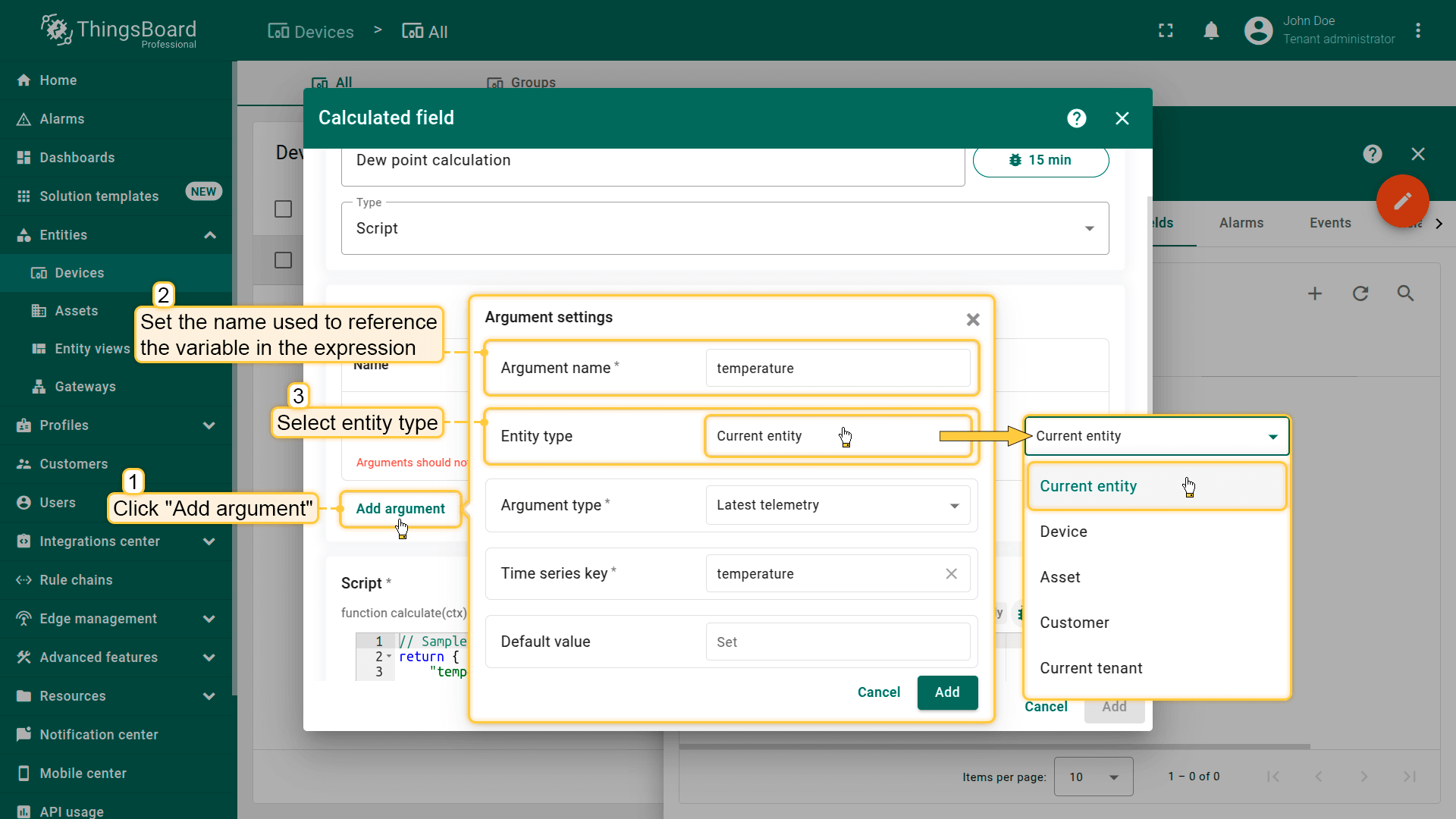
Click the Add argument button (1) and fill in the required fields:
Defines the data source (2) that will be used in calculations.
Choose the desired argument type (3).
Argument types
Calculated fields support the following argument types:
Uses static or semi-static data stored as entity attributes Examples: model, maxTemperature, safeZone, buildingId Configuration:
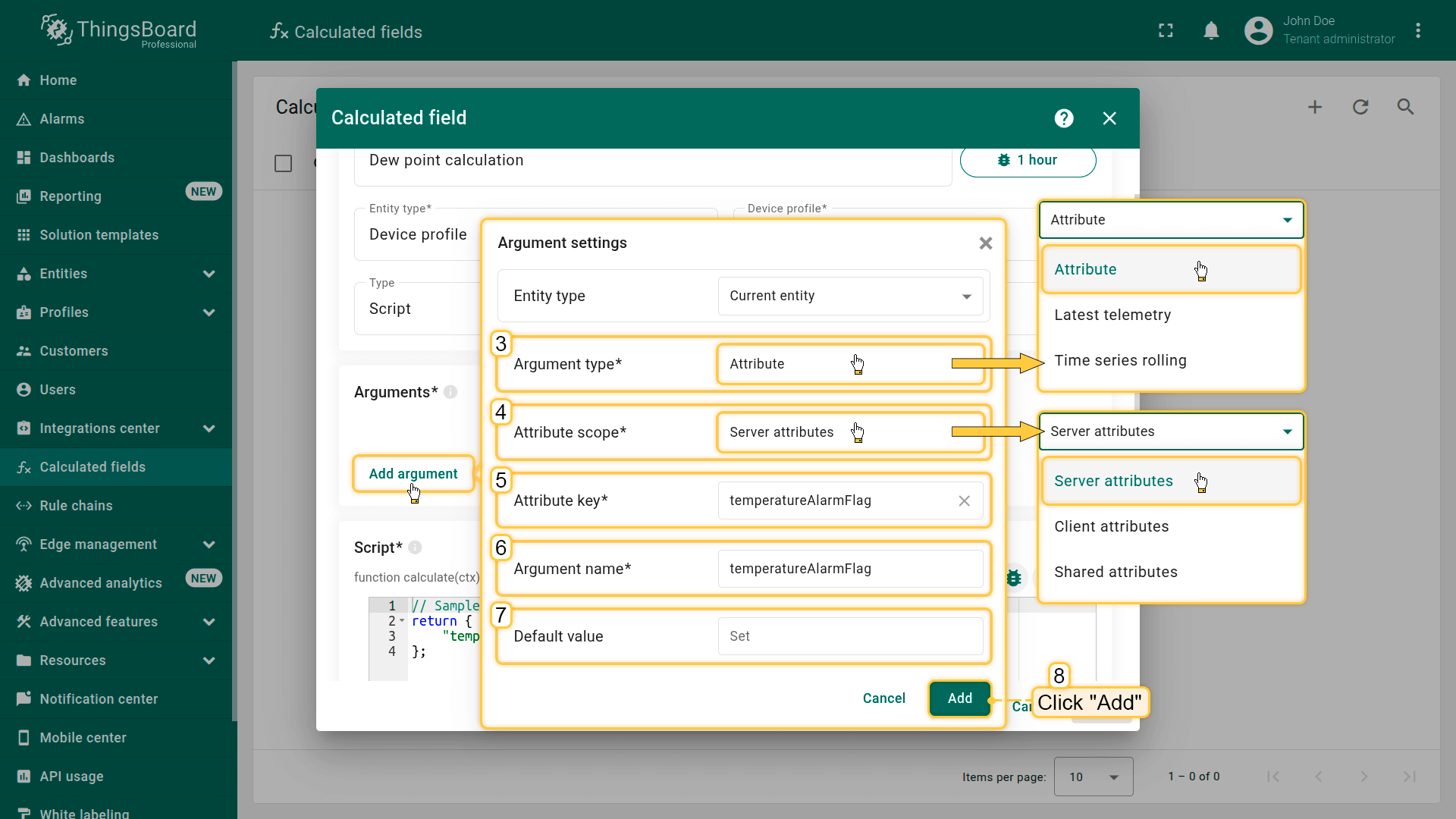 Select the attribute argument type (3), choose the attribute scope (4), specify the attribute key (5), and set the argument name (6). Optionally, define a default value (7). Click Add (8) to add the argument. |
Uses the most recent latest telemetry value for the specified time series key. Examples: temperature, humidity, latitude, longitude Configuration:
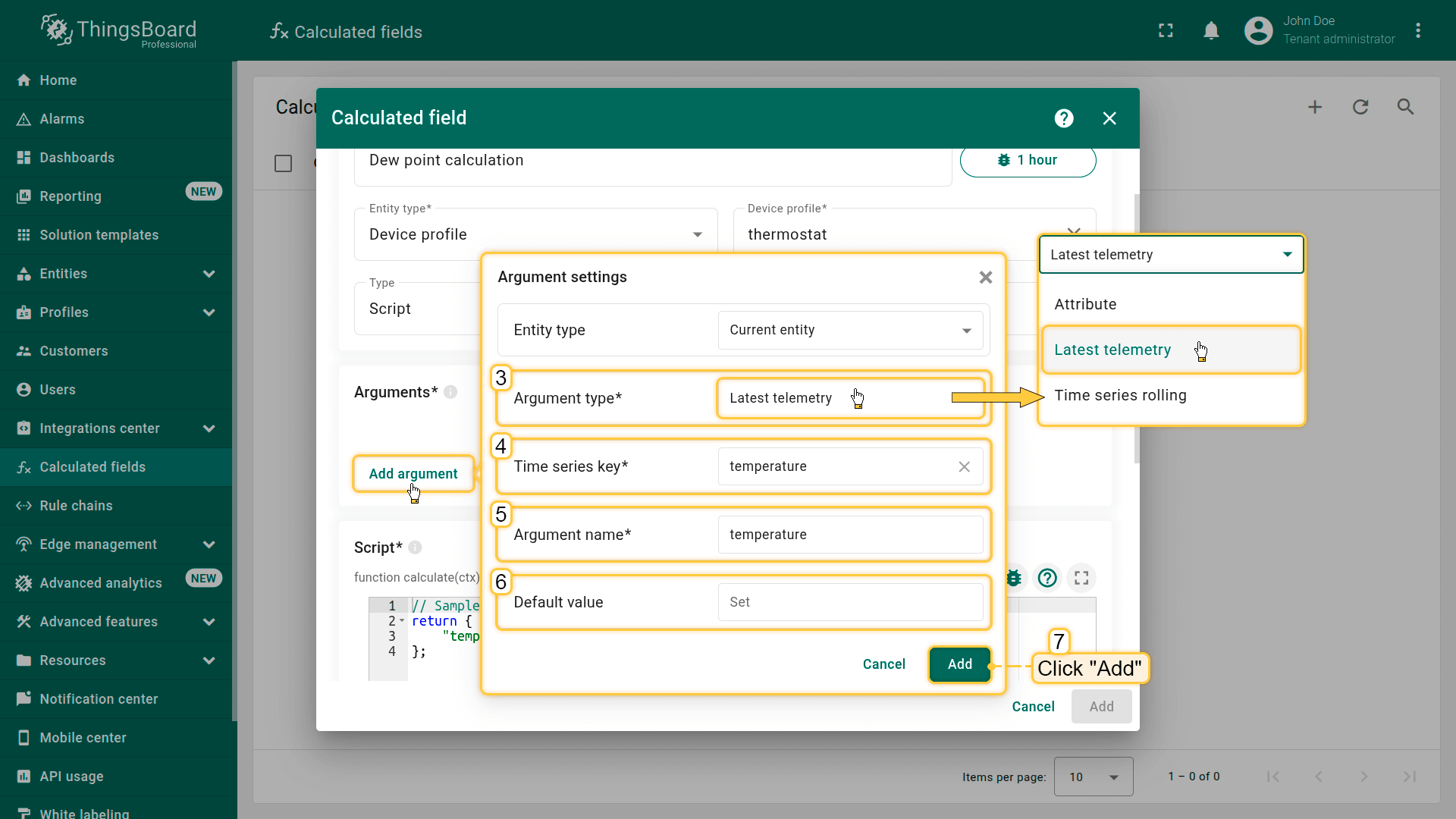 Select the latest telemetry (3) argument type, specify the time series key (4), and set the argument name (5). Optionally, define a default value (6). Finally, click Add (7). |
Uses historical time series data over a specified time window for trend analysis. Examples: speed, voltage Configuration:
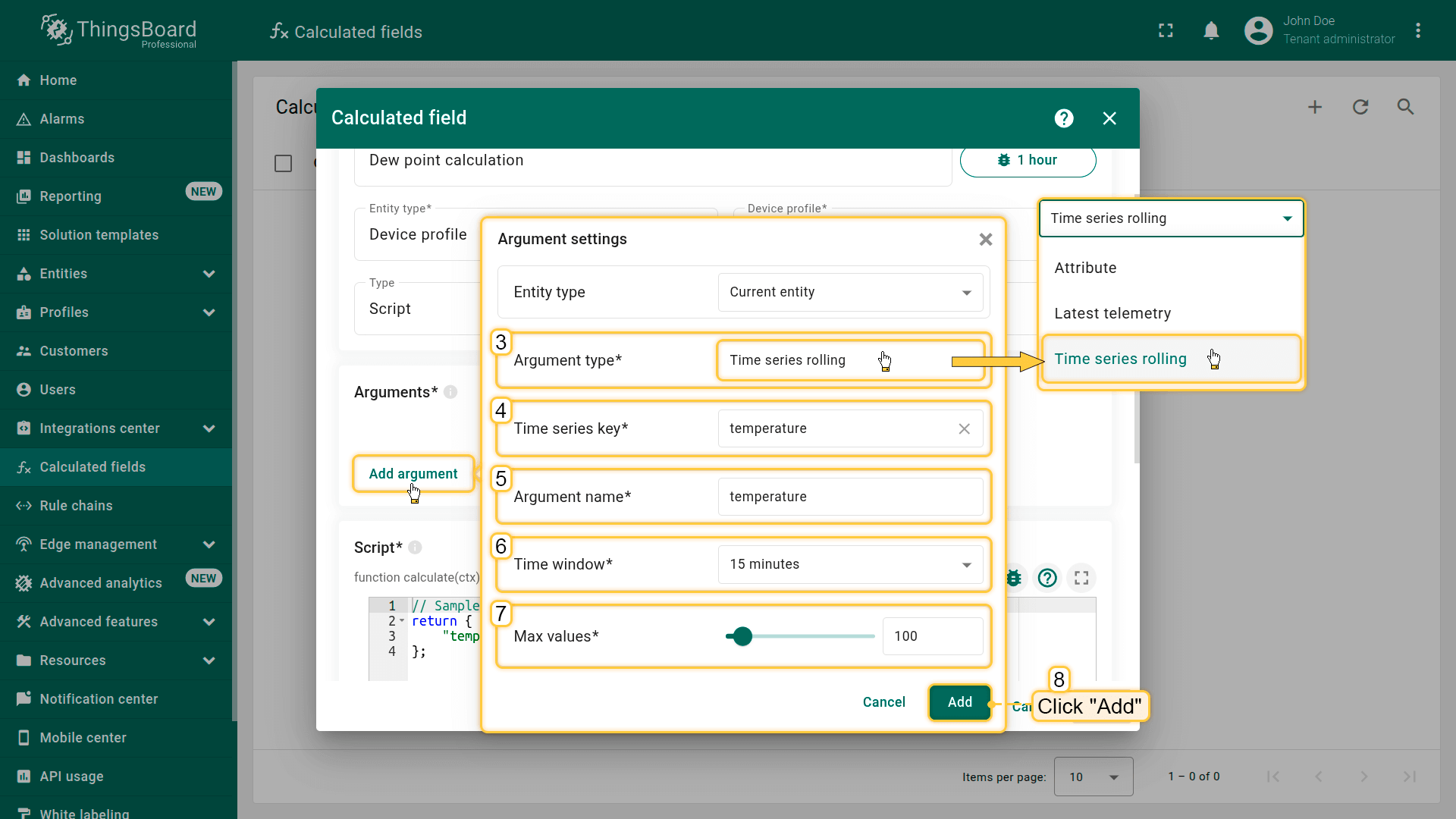 Select the time series rolling argument type (3), specify the time series key (4), and set the argument name (5). Define the time window for data collection (6) and the maximum number of values (7) to be processed, then click Add (8). |
Calculation
Calculated fields support multiple calculation models depending on the selected type. A calculation can be defined as a single expression, a TBEL script, a geospatial zone evaluation, a value propagation to related entities, or an aggregation.
For more details about the capabilities and configuration options, refer to the documentation for the corresponding calculated field type.
Output
Regardless of the type, the calculated field produces one or more output values that are then stored as telemetry or attributes and processed according to the configured output strategy (immediately or via Rule Chains).
The result can be stored as:
- Time series — the function returns a JSON object or an array of JSON objects with or without a timestamp containing the computed value(s).
- Attribute — the function returns a JSON object without timestamp information containing the computed value(s). Attributes can be stored in Server or Shared scope.
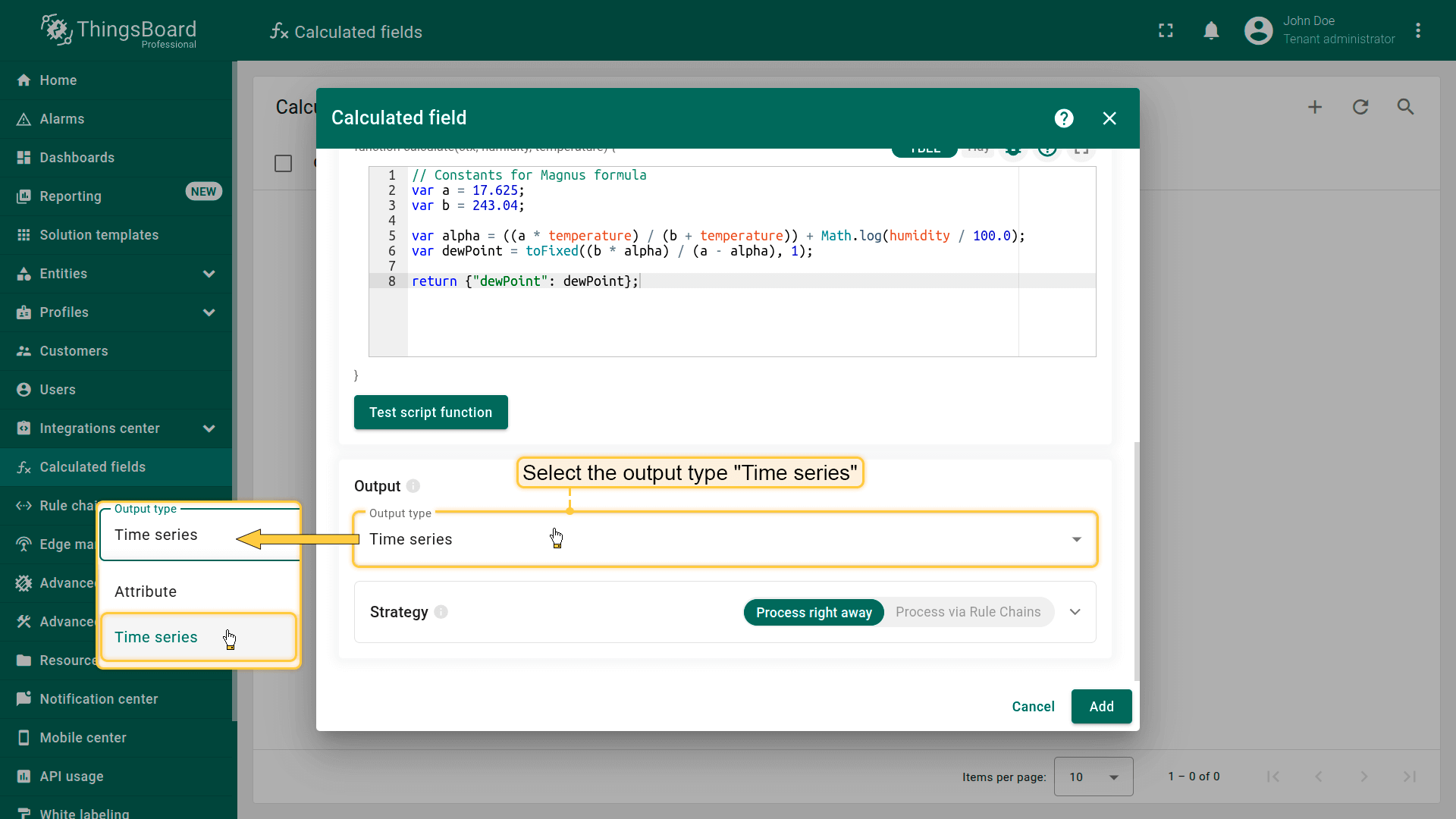
Time series: function must return a JSON object or array with or without a timestamp containing the computed value.
To finish adding the calculated field, click Add.
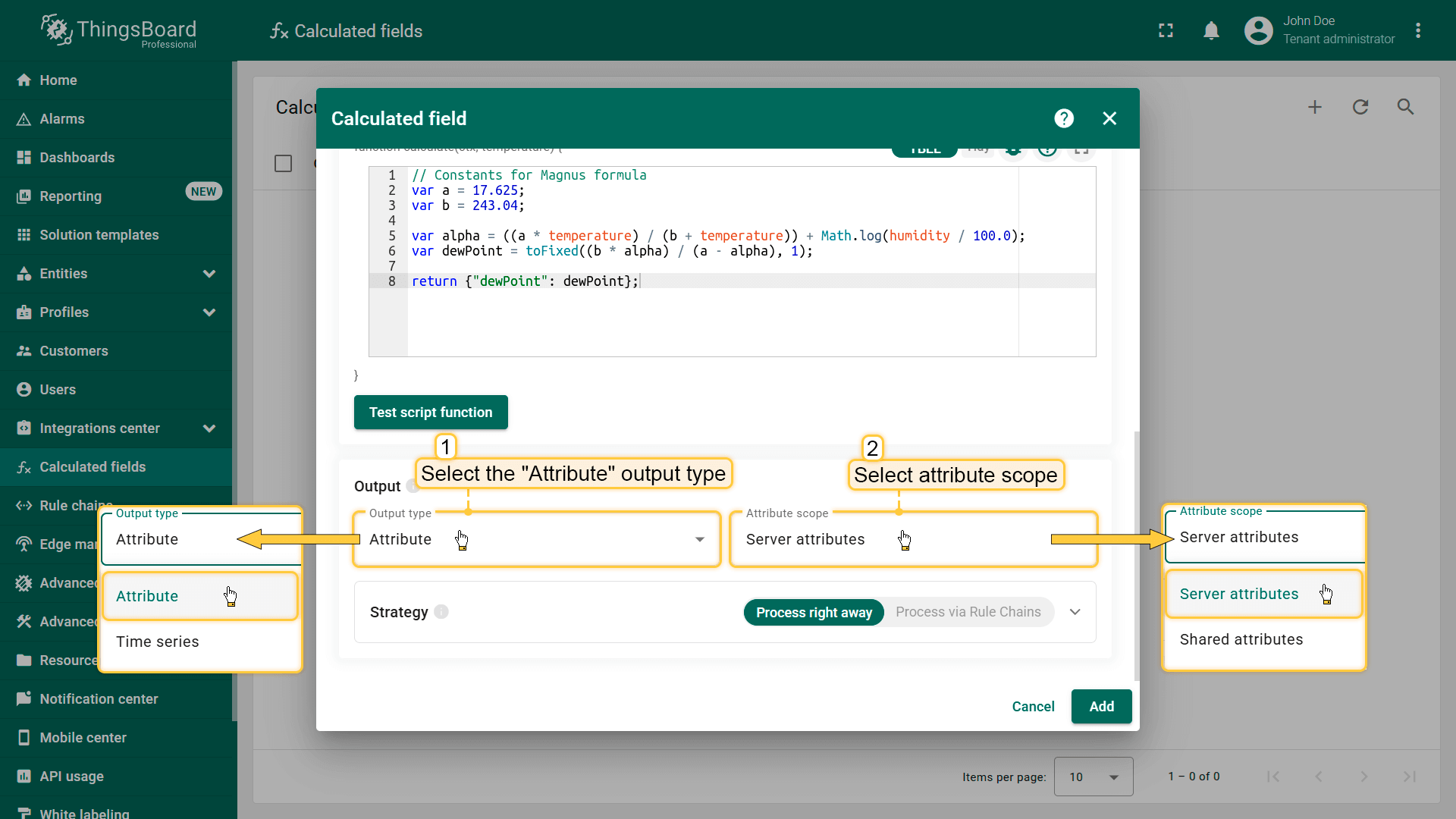
Attribute: function must return a JSON object without timestamp information containing the computed value.
To finish adding the calculated field, click Add.
Output strategy
The output strategy defines how the calculated field result is processed. Two strategies are available:
- Process immediately (default) — the result is processed and stored right away, without using a Rule Chain.
- Process via Rule Chains — the result is passed to a entity's Default Rule Chain for additional processing logic.
The result is processed right away without using a Rule Chain, ensuring minimal latency and direct handling based on the selected options. Options for Time series:
Options for Attributes:
|
The result is not stored directly on database. Instead, ThingsBoard generates an internal message:
and routes it to the entity's Default Rule Chain. Use this strategy when you need:
To store the result, the Rule Chain must include a save time series or save attributes node.
|
Debug
ThingsBoard provides built-in tools that help you validate and troubleshoot calculated fields in real time.
Enable debug mode (* recommended during development)
Each calculated field can be switched to Debug mode. When enabled, ThingsBoard records execution details for every run, including the input arguments that triggered the execution (e.g. incoming telemetry or attribute updates) and the calculation result or any execution problems (script errors, missing arguments, invalid values).
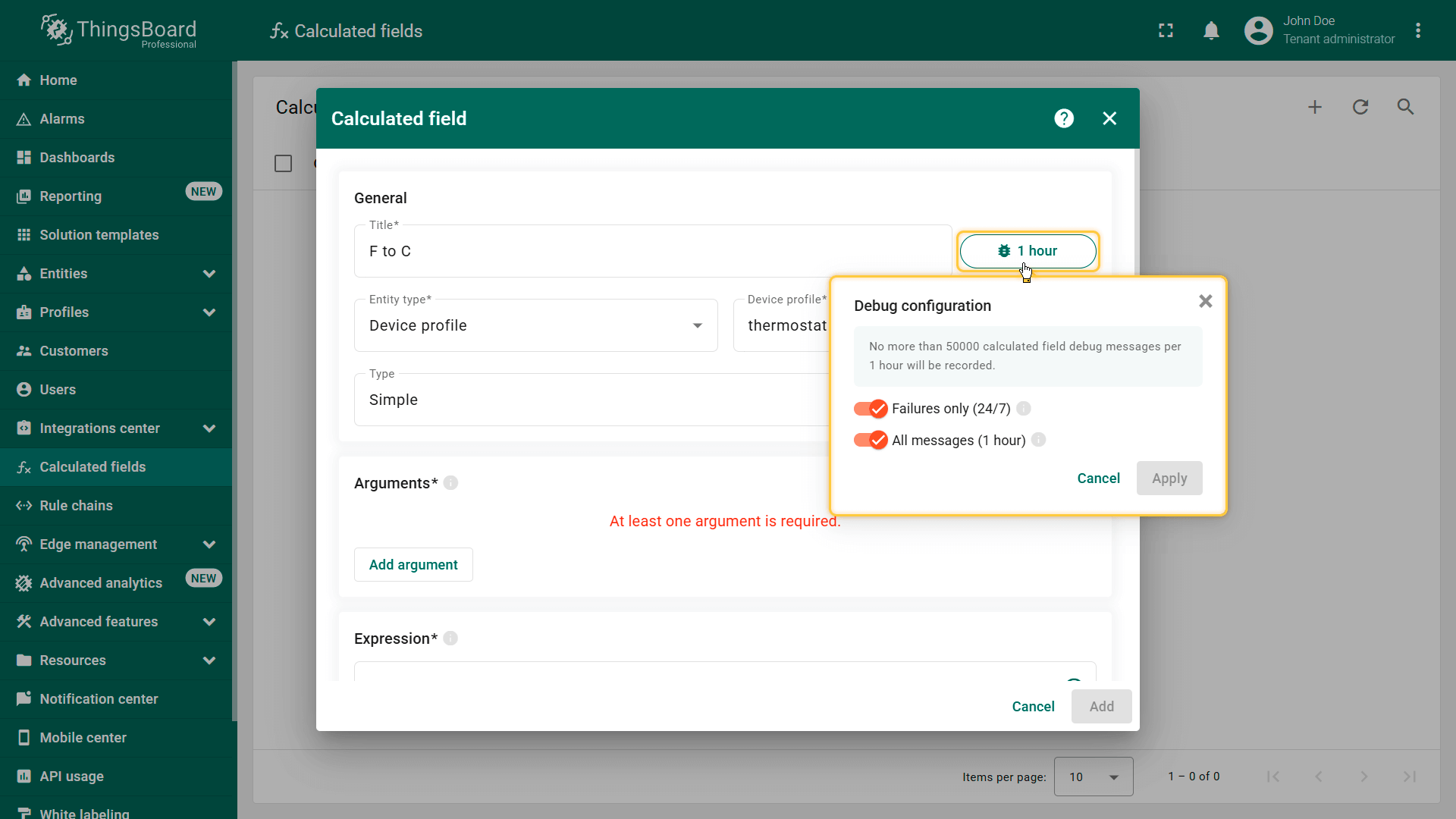
Enable/manage debug mode when creating a calculated field.
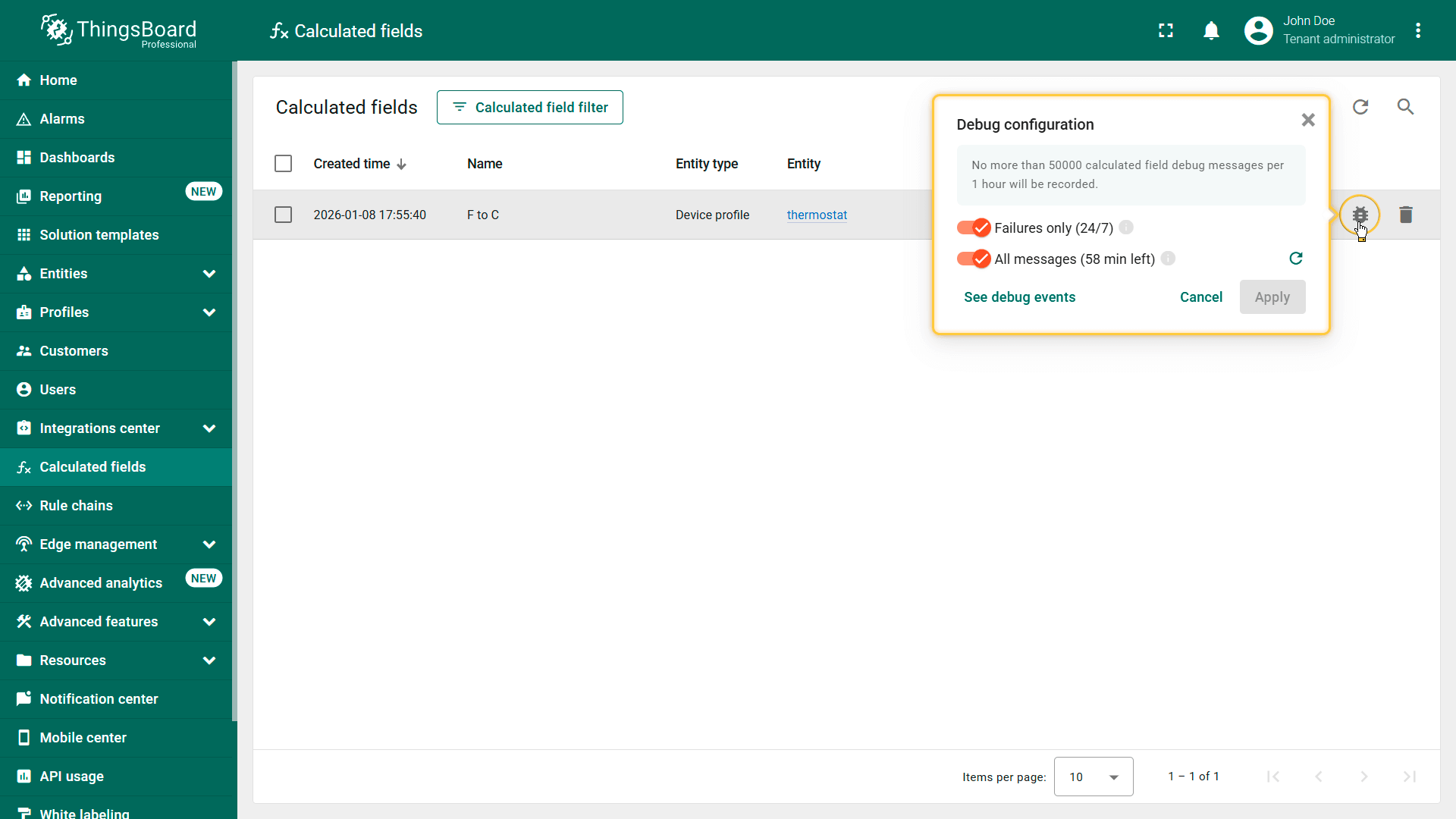
Enable/manage debug mode for an existing calculated field.
Debug mode
Enabling debug mode allows you to track events, states, and potential errors related to the execution of . This greatly simplifies development and troubleshooting.

Note: Debug mode can quickly increase disk usage because all debug events are stored in the database. Starting from ThingsBoard 3.9, the platform stores the full set of debug events only during the first 15 minutes after the is created; afterward, only error events are retained.
Debug mode settings can be combined or disabled entirely.
Review debug events
Click the Events icon in the calculated field row to view recorded debug events
Each event includes:
- Entity ID — the ID of the entity where the calculated field was executed (the target entity)
- Message ID — unique execution identifier
- Message type — indicates which type of internal request triggered the calculated field execution
- Arguments — the resolved argument values used during execution, including timestamps where applicable
- Result — generated output by the calculated field
- Error — execution failure reason (appears if the execution failed)
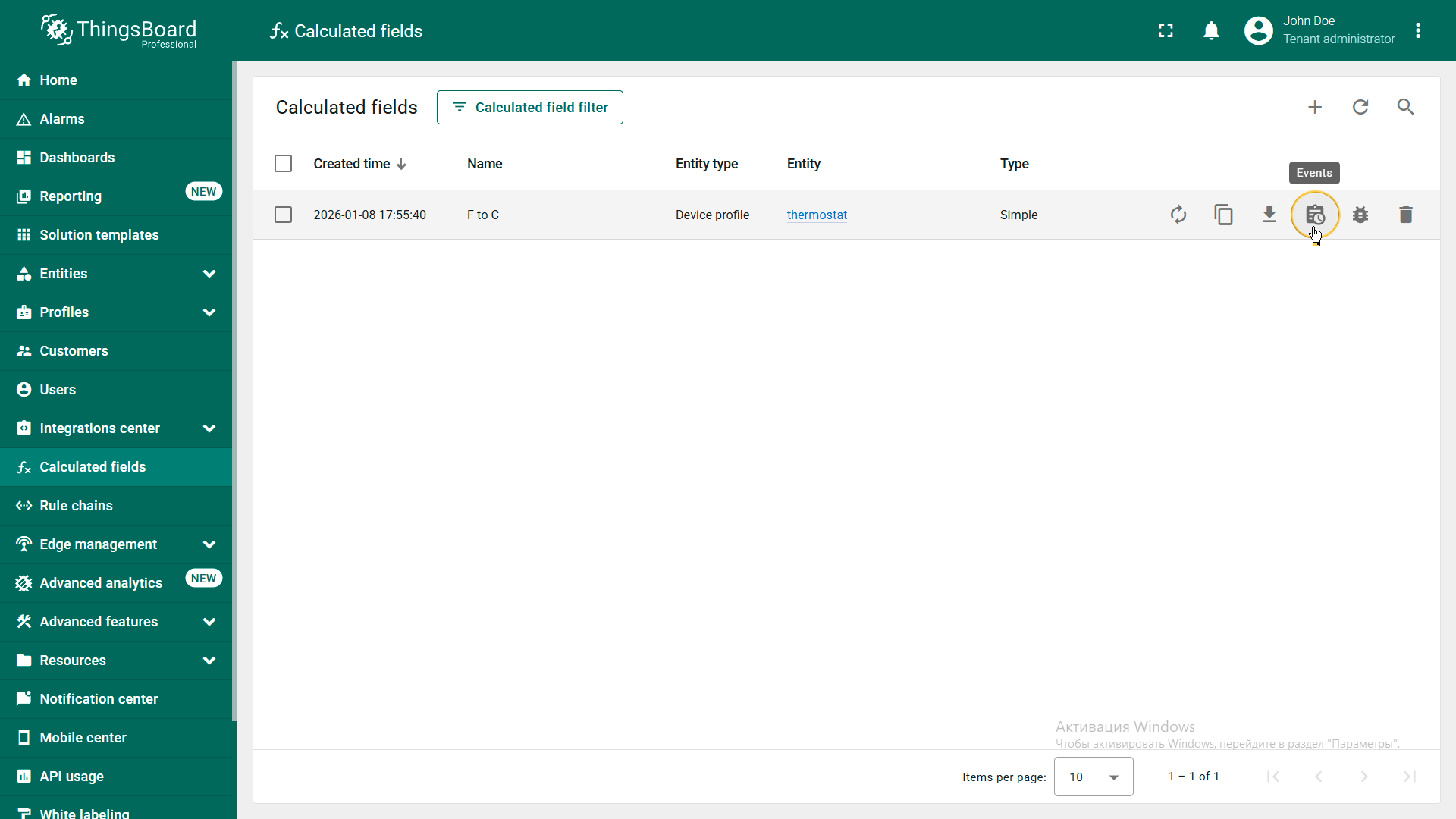
Click the Events icon in the calculated field row to view recorded debug events
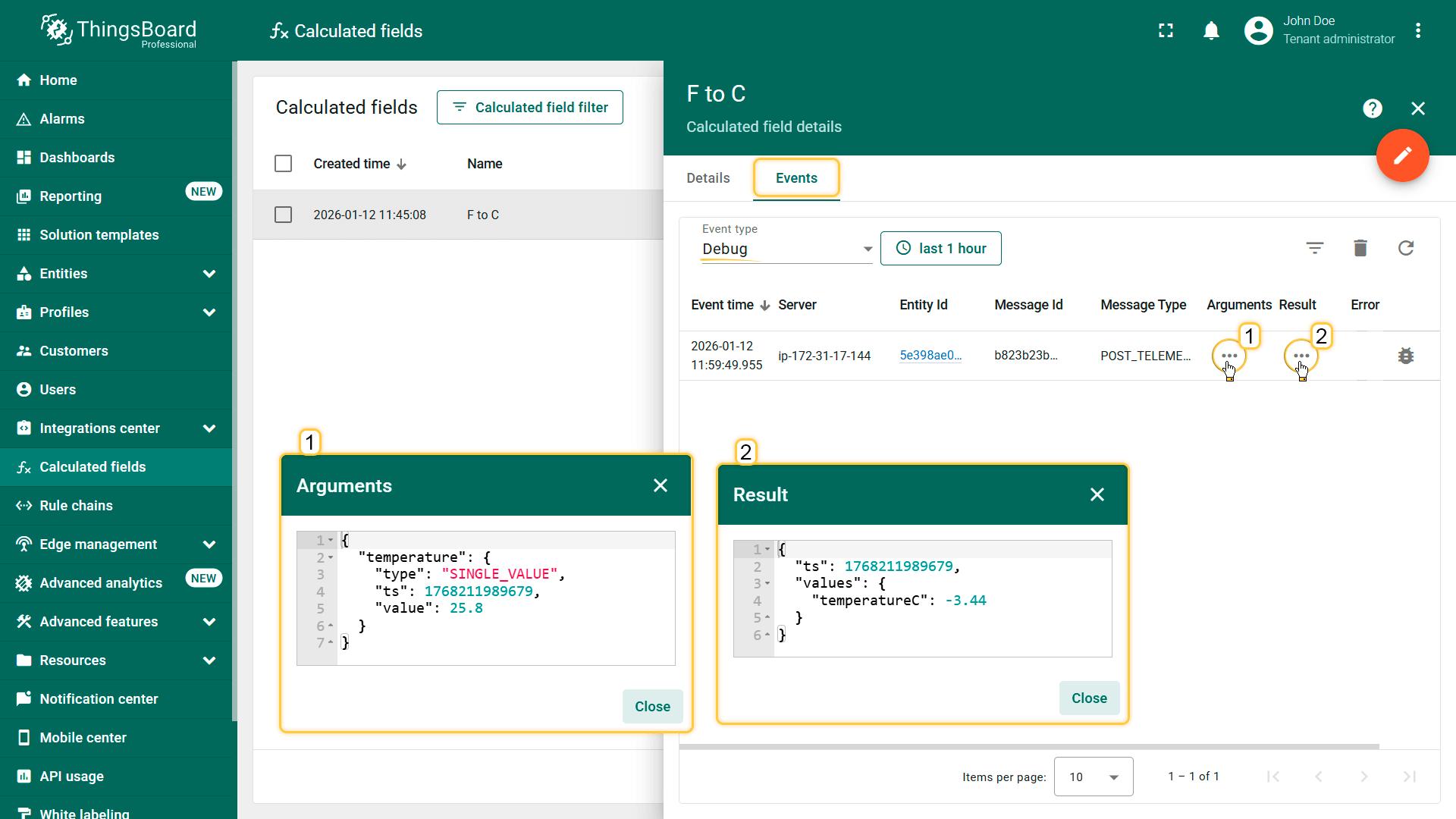
Testing mode for script-based calculated fields
For script-based calculated fields (for example, Script, Propagation (Calculation result mode), ThingsBoard provides a Test script function (TBEL) mode that helps you validate execution using real input data before applying changes.
This allows you to:
- re-run the calculation using the same input data
- temporarily modify argument data or script logic (without saving configuration changes)
- validate output JSON structure and timestamps
- see the exact script execution output
- quickly reproduce errors and fix the logic
How it works:
Click Test with this message in the event row to run the testing function.
- Left panel — Script editor
Shows the TBEL calculate(ctx, …) function used by the calculated field. You can modify the script directly in this window. - Top-right panel — Arguments
Displays the list of arguments used in the calculation. You can adjust the argument value, type, and timestamp to simulate different incoming data. - Bottom-right panel — Output Shows the result returned by the script after execution (or an error message if execution fails).
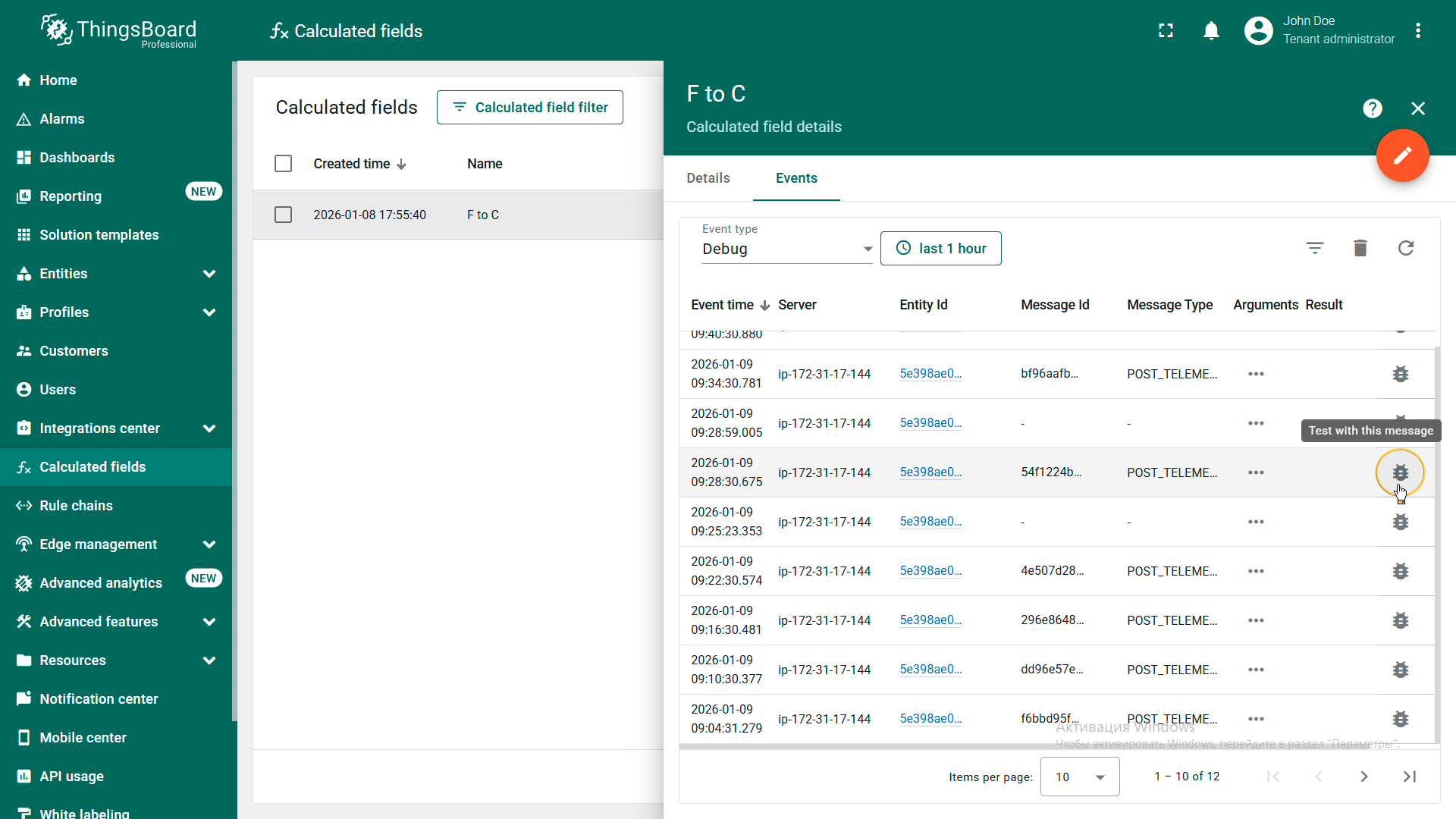
Click Test with this message in the event row to run the testing function.
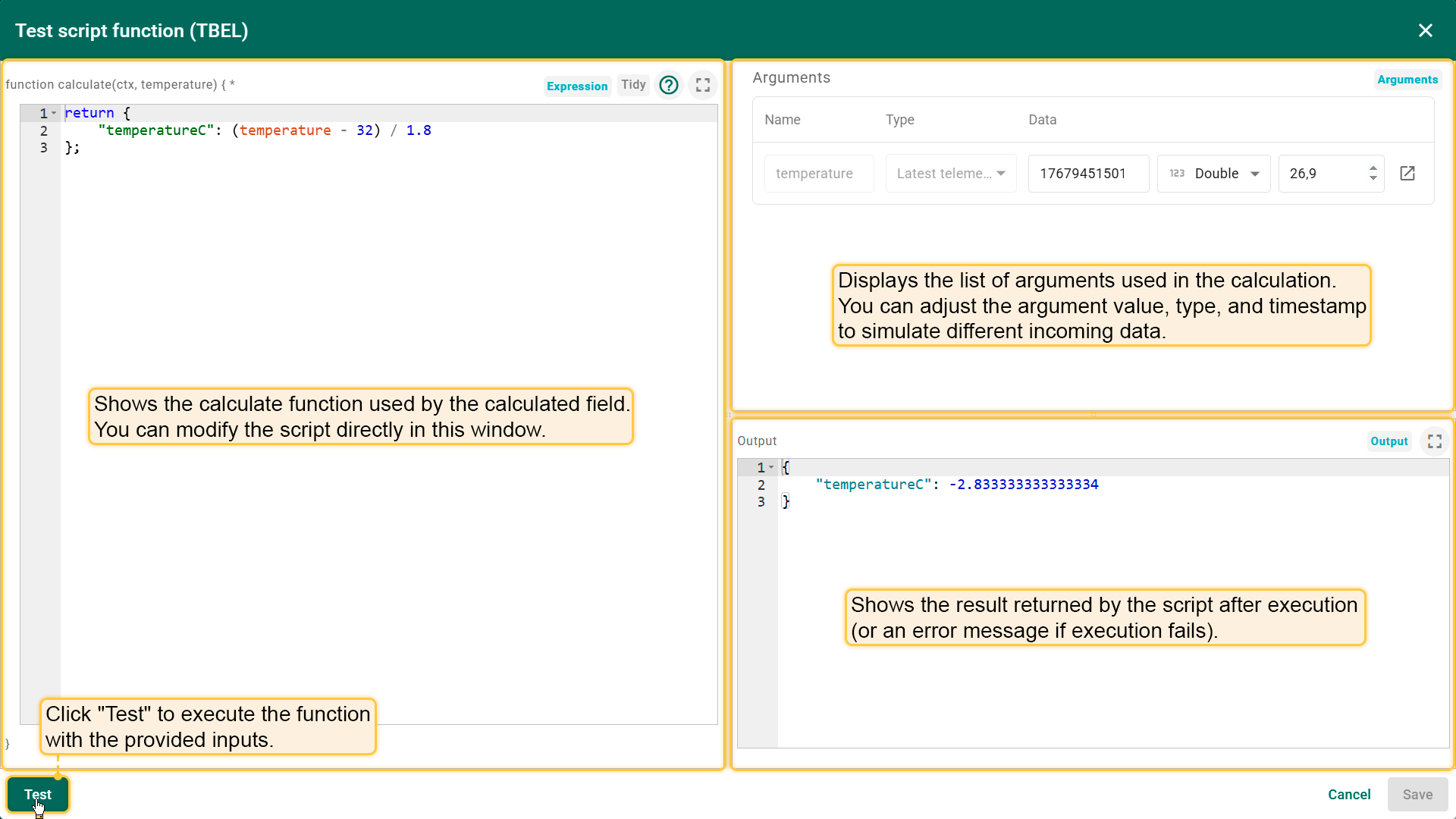
Left panel — Script editor. Shows the TBEL calculate(ctx, …) function used by the calculated field. You can modify the script directly in this window.
Top-right panel — Arguments. Displays the list of arguments used in the calculation. You can adjust the argument value, type, and timestamp to simulate different incoming data.
Bottom-right panel — Output. Shows the result returned by the script after execution (or an error message if execution fails).
Workflow:
- Update the script and/or the argument values.
- Click Test to execute the function with the provided inputs.
- Review the Output section to confirm the returned JSON structure and values.
- When the result is correct, click Save to keep the changes.
- If needed, apply the changes to the calculated field configuration to activate the updated logic.
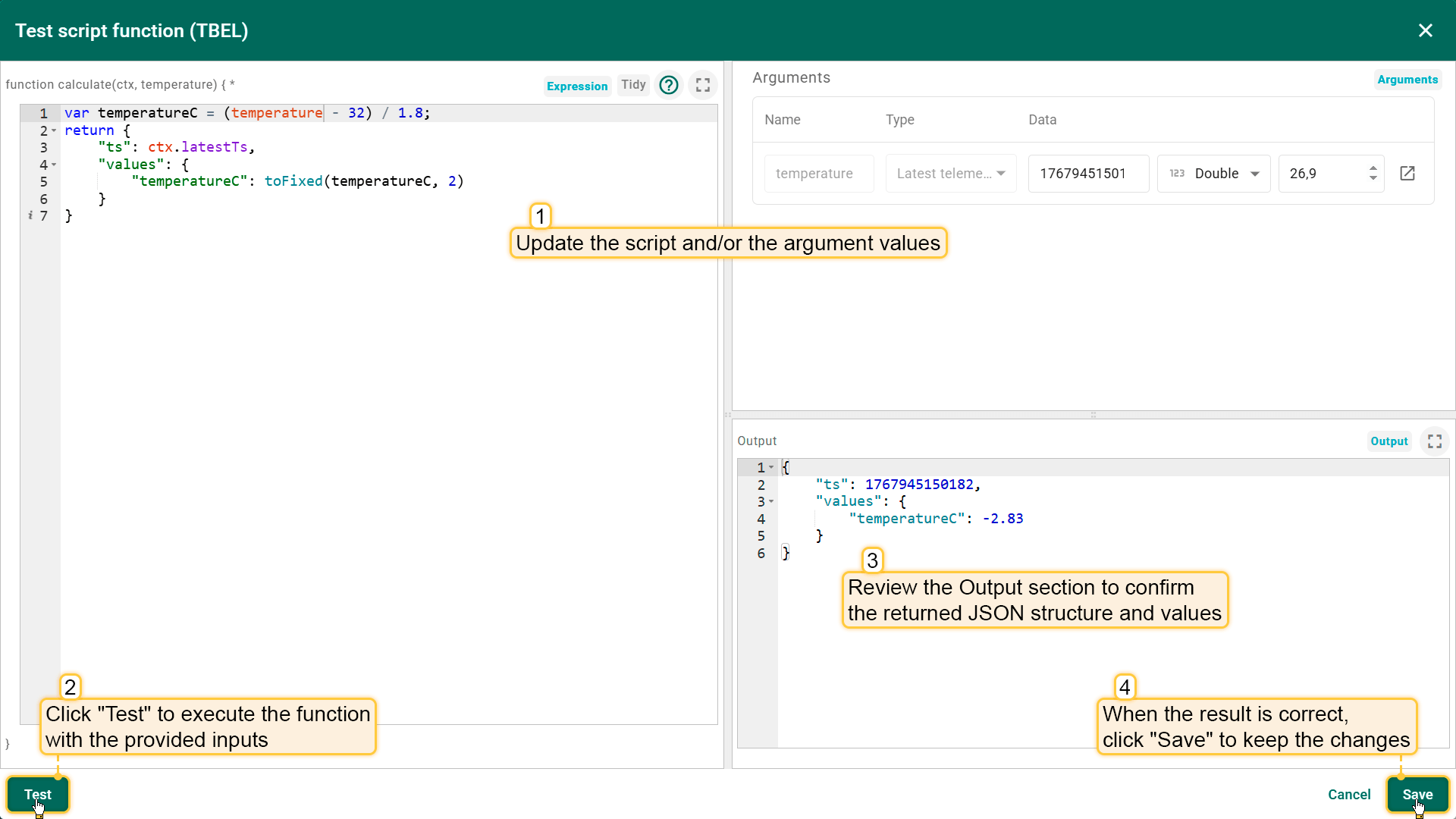
1. Update script and/or argument values.
2. Click Test to run the function.
3. Review Output JSON
4. Click Save to apply changes.
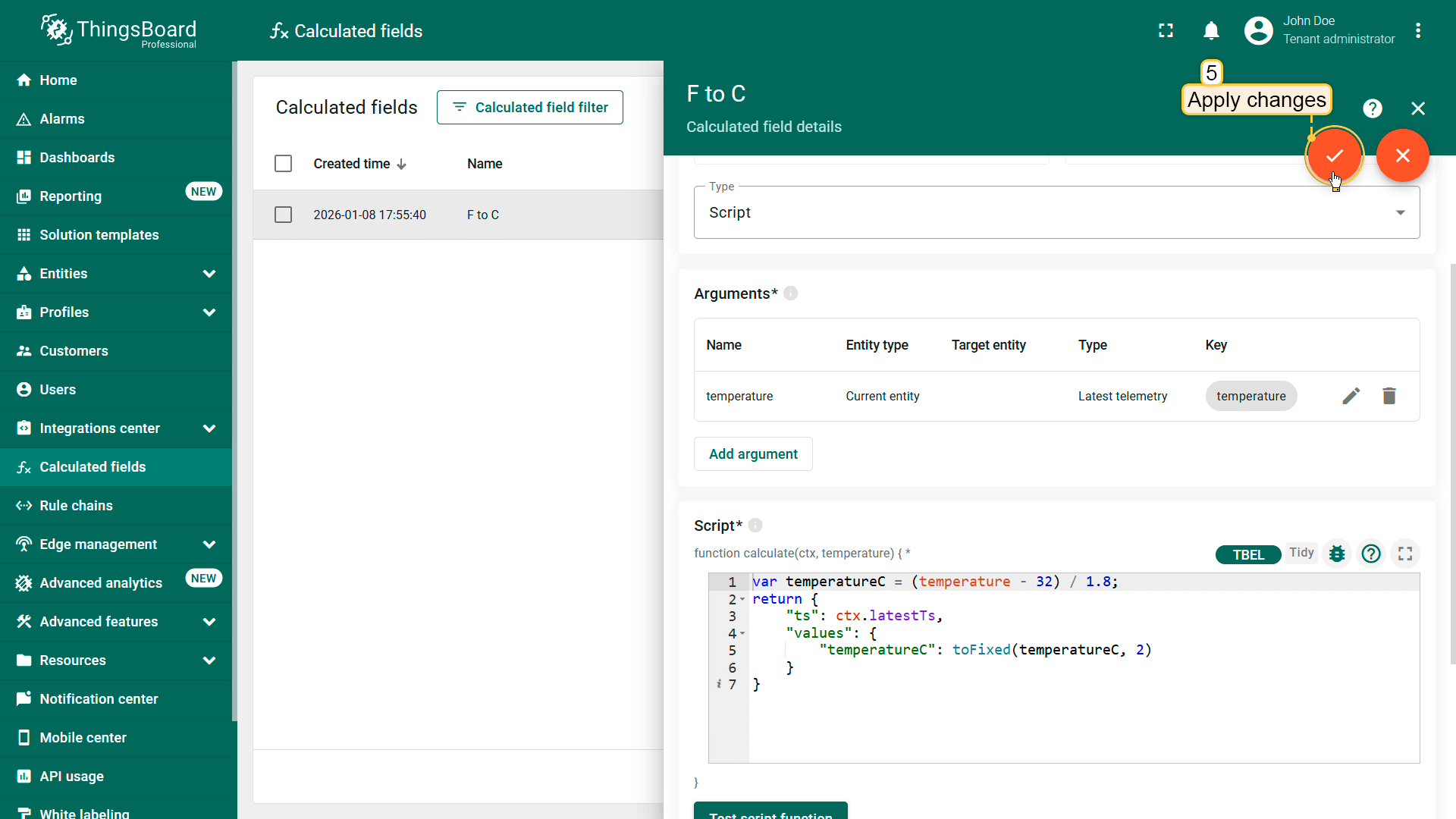
5. If needed, apply changes to the calculated field configuration.
Rule Engine integration
Calculated fields are integrated with ThingsBoard Rule Engine, the platform's flexible system for routing and processing messages. The execution is seamlessly integrated into your data workflow, triggered automatically whenever telemetry or attributes are processed by the following rule nodes:
- Save Time Series: Triggers calculations when new telemetry is persisted.
- Save Attributes: Triggers calculations when client, shared, or server-side attributes are updated.
- Calculated Fields: A dedicated node used to manually invoke field evaluations or facilitate complex chaining.
Data reprocessing
| The telemetry data reprocessing feature is available only in ThingsBoard PE and ThingsBoard Cloud editions. |
Calculated field reprocessing is a mechanism that allows you to apply calculated field logic to historical data.
This is especially useful when you modify existing calculations or add new fields and want those changes to affect not only new data but also previously collected telemetry.
Note: reprocessing cannot be applied to a calculated field that contains only attribute-based arguments. The Calculated field must include at least one argument based on a time series — either “Latest telemetry” or “Time series rolling” data.
Key features
- Recalculation of historical data — apply updated logic to previously collected telemetry.
- Flexible time range selection — choose a specific time period for reprocessing.
- Store results as telemetry — processed data is saved in ThingsBoard as telemetry, enabling further use in widgets, rules, or analytics.
How to configure
- Choose the target Entity or Profile, go to the “Calculated fields” tab, and either create a new calculated field or select an existing one that needs historical telemetry reprocessing.
- Click the “Reprocess calculated field” icon next to the desired field.
- In the pop-up window, define the time interval for which you want to reprocess telemetry data.
- Click “Reprocess” — the system will start recalculating and update historical telemetry data according to the latest logic.
- Once the data reprocessing is complete, click Finish.
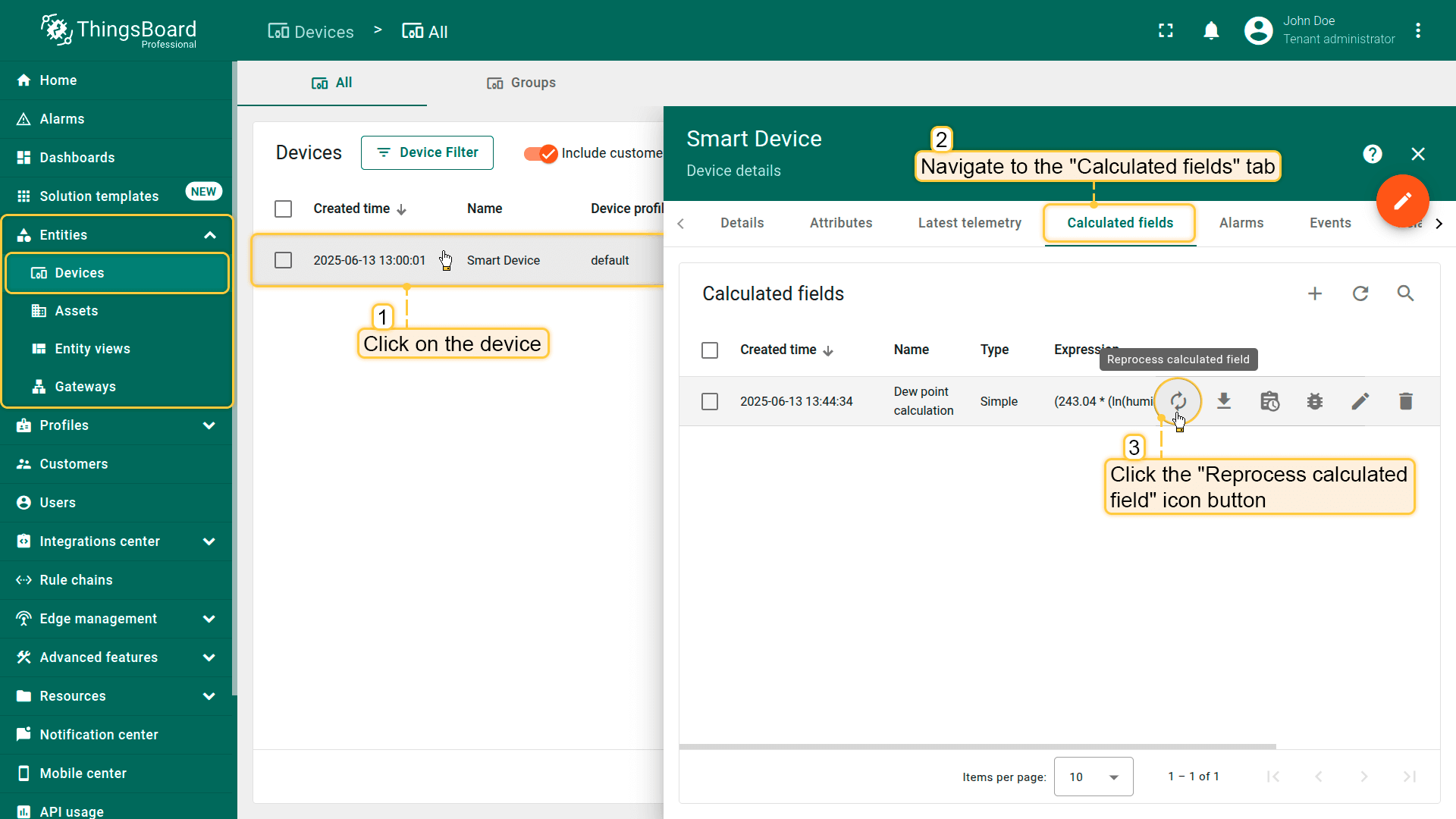
Choose the target Entity or Profile, go to the Calculated fields tab, and either create a new calculated field or select an existing one that needs historical telemetry reprocessing.
Click the Reprocess calculated field icon next to the desired field.
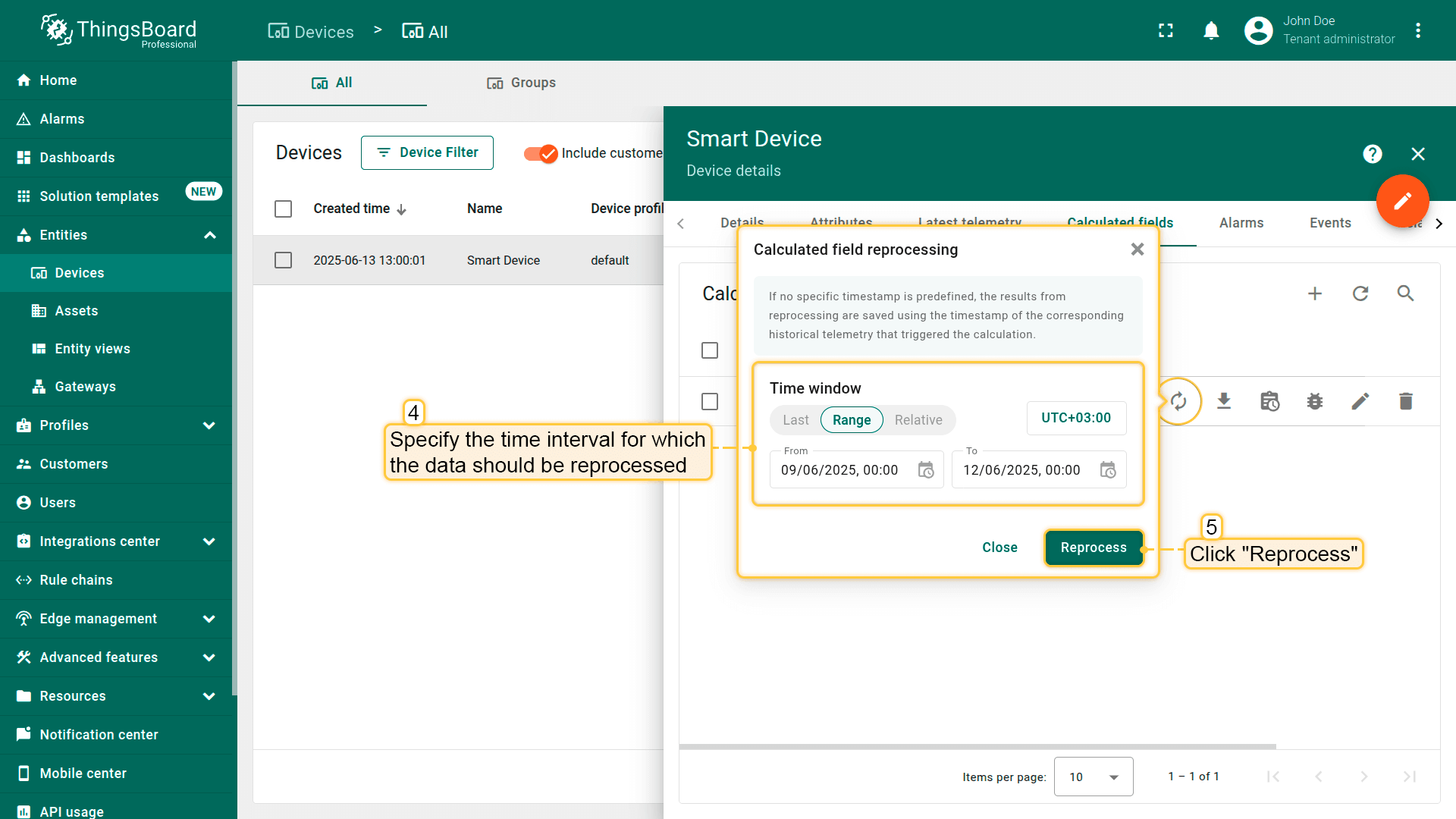
In the pop-up window, define the time interval for which you want to reprocess telemetry data, and click Reprocess — the system will start recalculating and update historical telemetry data according to the latest logic.
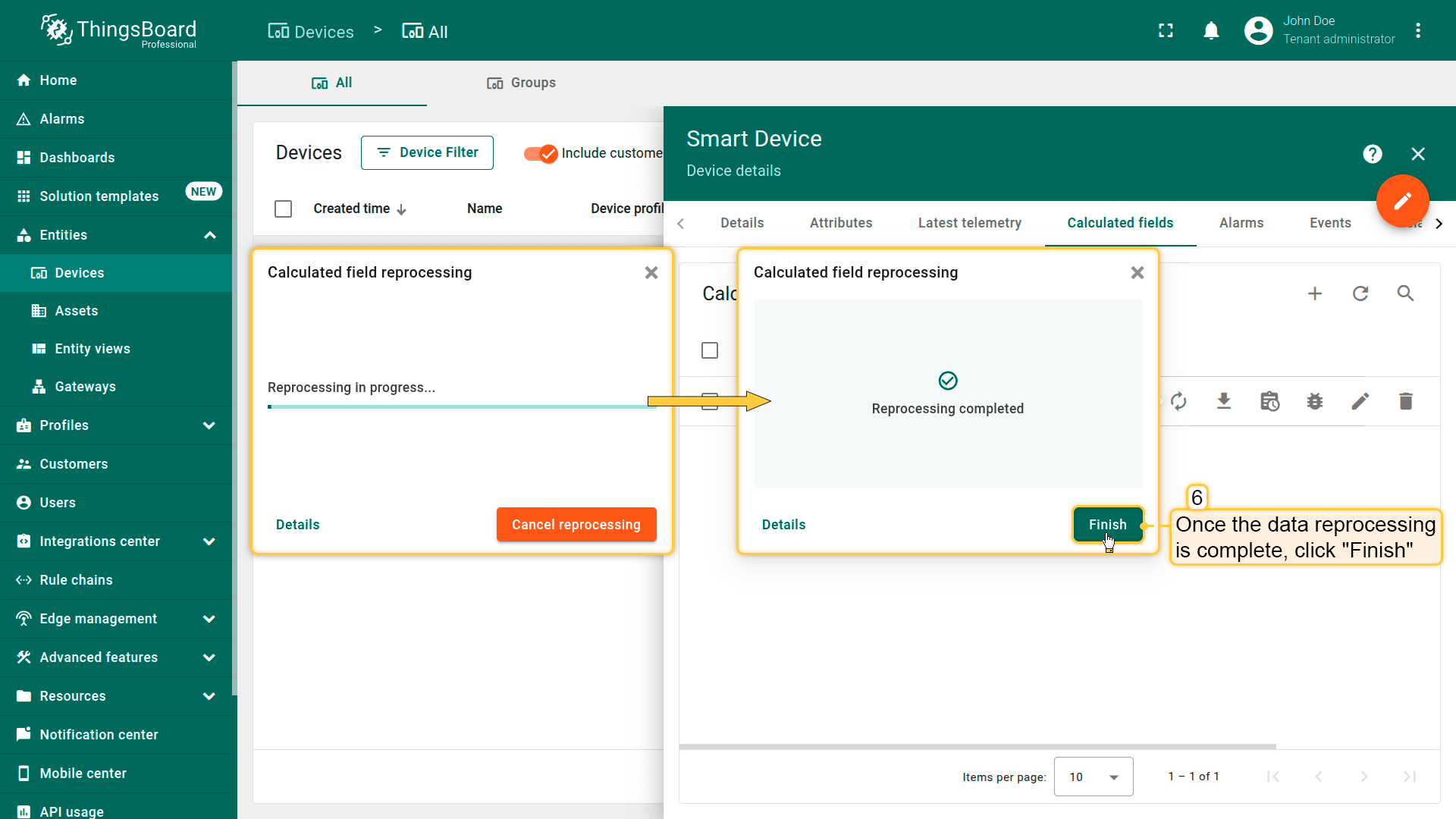
Once the data reprocessing is complete, click Finish.
Example of using the data reprocessing feature
Assume that the Smart Device sends temperature and humidity data in real time. Later, you configure a calculated field to compute the dew point. On the time series widget, you can see that dew point values start appearing only from 13:44:35 — before that moment, the calculation was not performed.
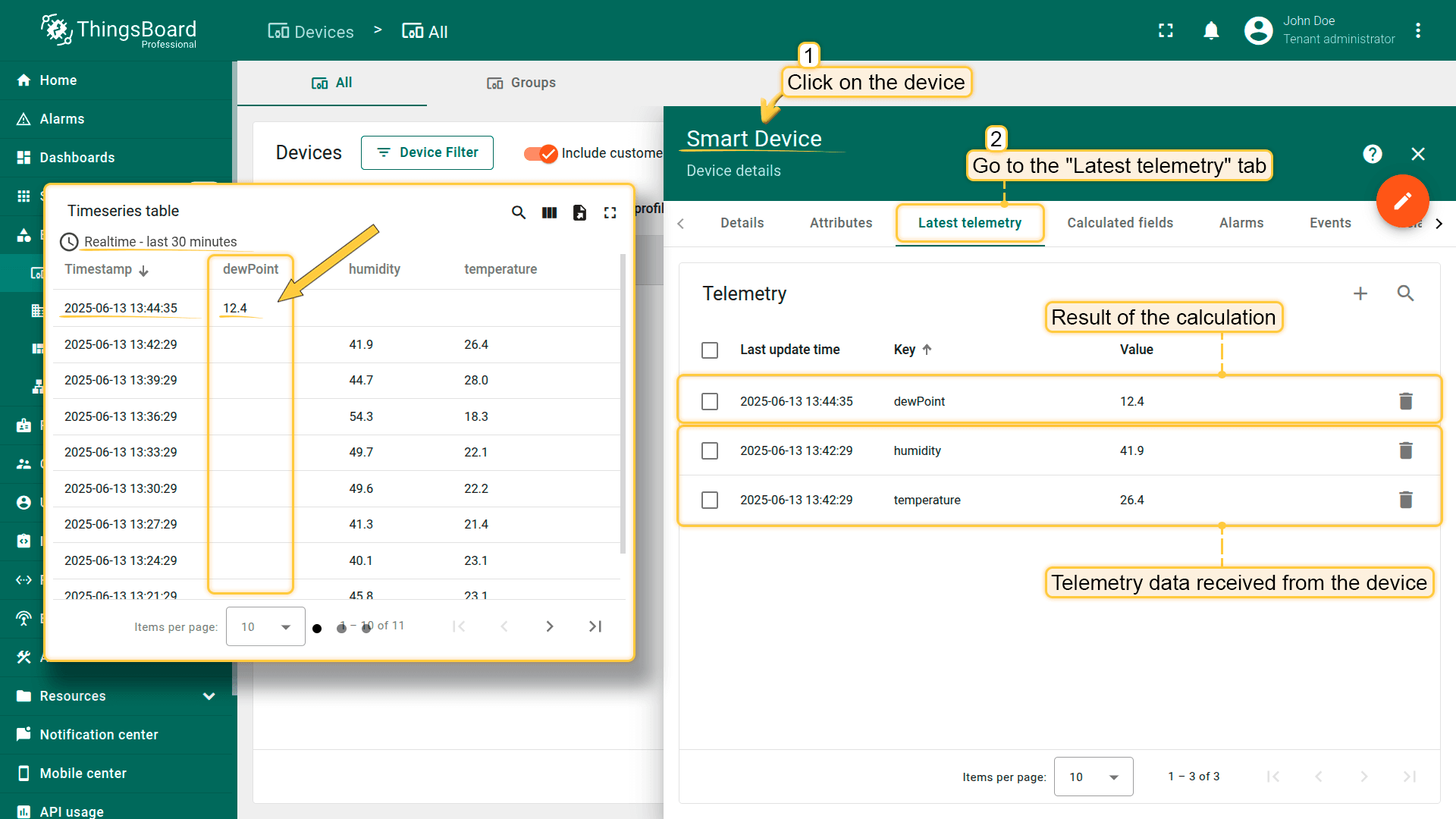
On the time series widget, you can see that dew point values start appearing only from 13:44:35 — before that moment, the calculation was not performed.
To recalculate the dew point for a historical period (before the calculated field was created), follow these steps:
-
Go to the Calculated fields tab of the corresponding Smart Device. Click the Reprocess calculated field icon in the row of the required field.
-
In the dialog window, specify the time interval for recalculation and click Reprocess.
-
After the process is completed, click Finish.
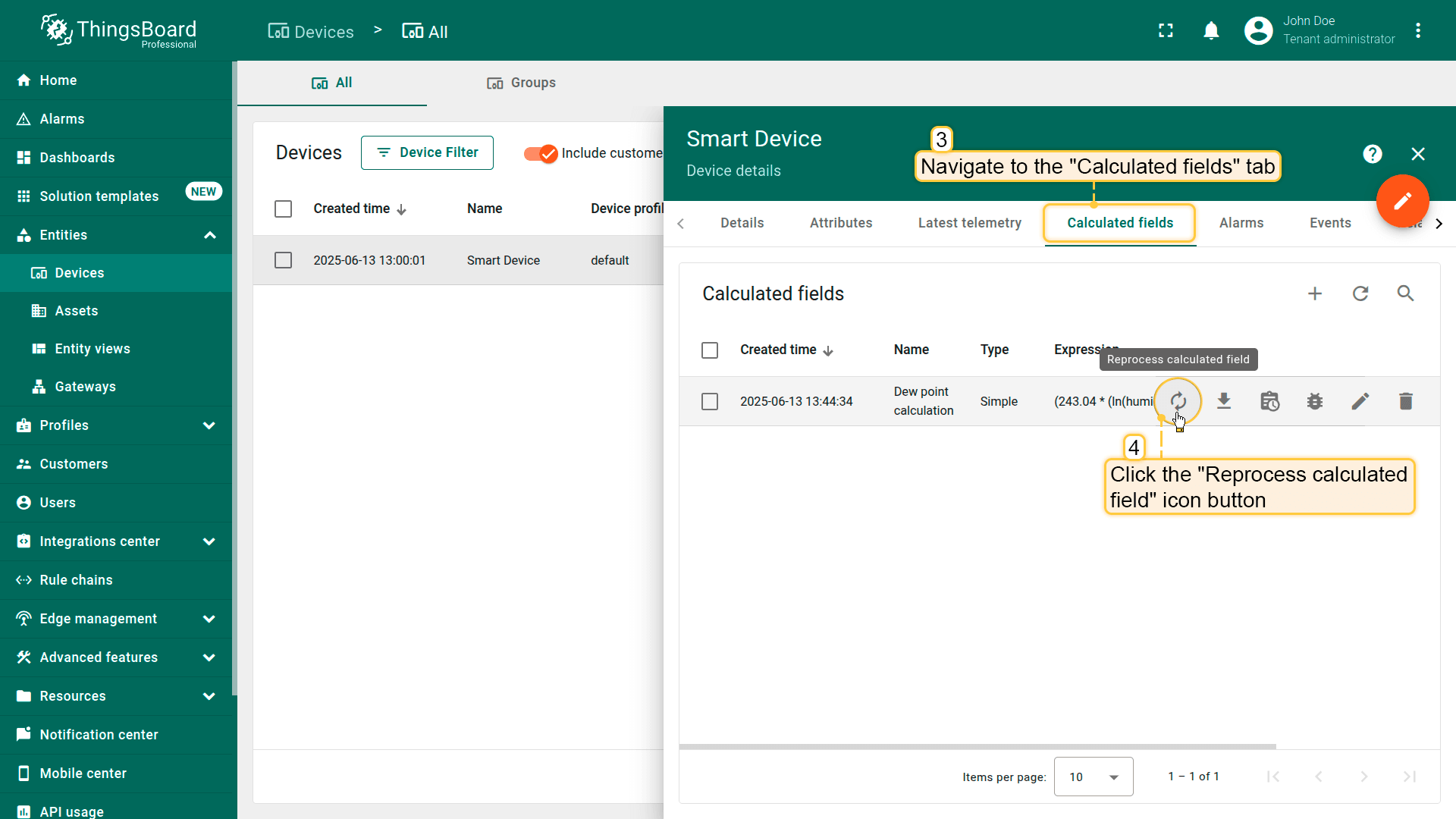
Go to the Calculated fields tab of the corresponding Smart Device. Click the Reprocess calculated field icon in the row of the required field.
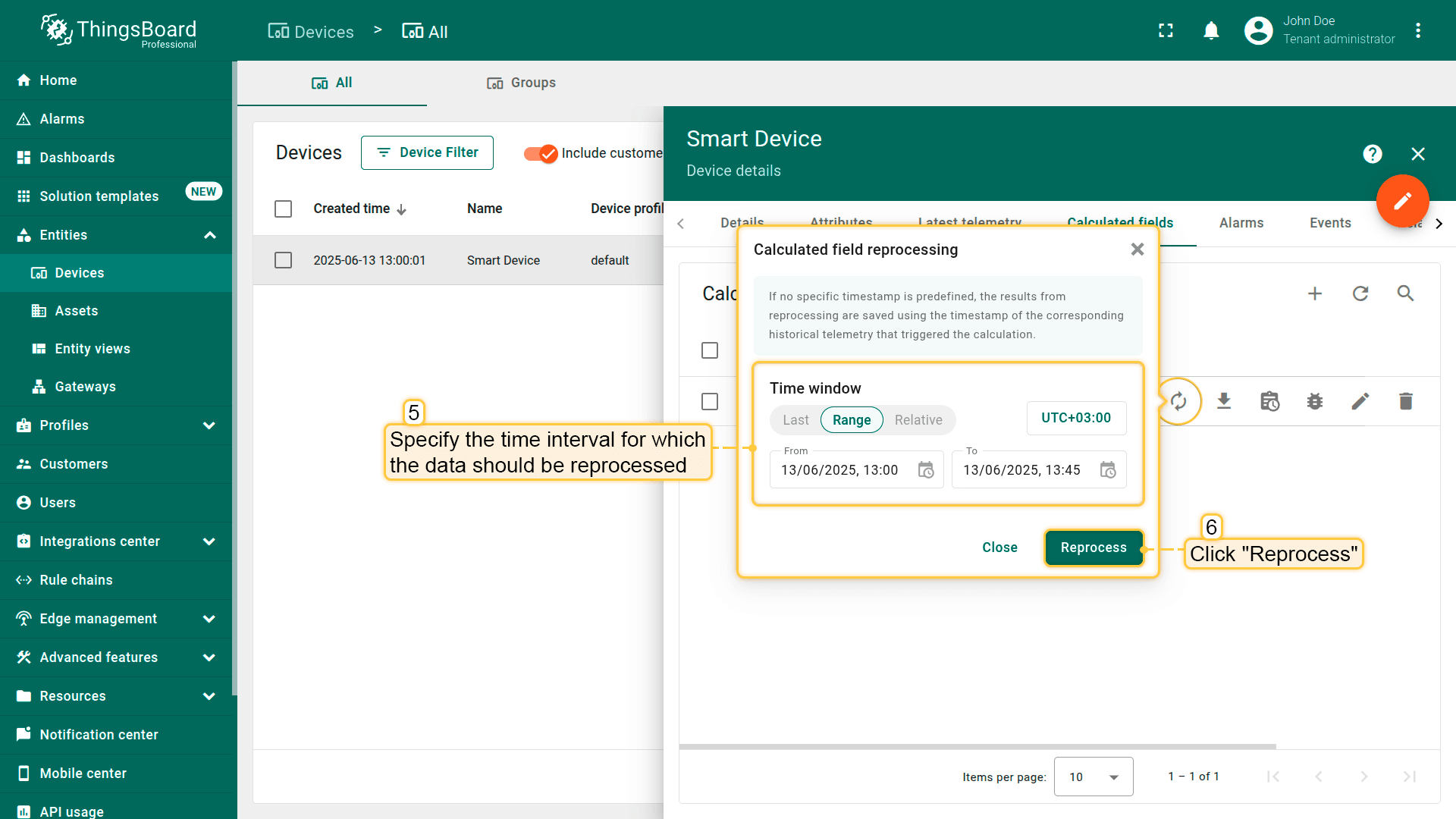
In the dialog window, specify the time interval for recalculation and click Reprocess.
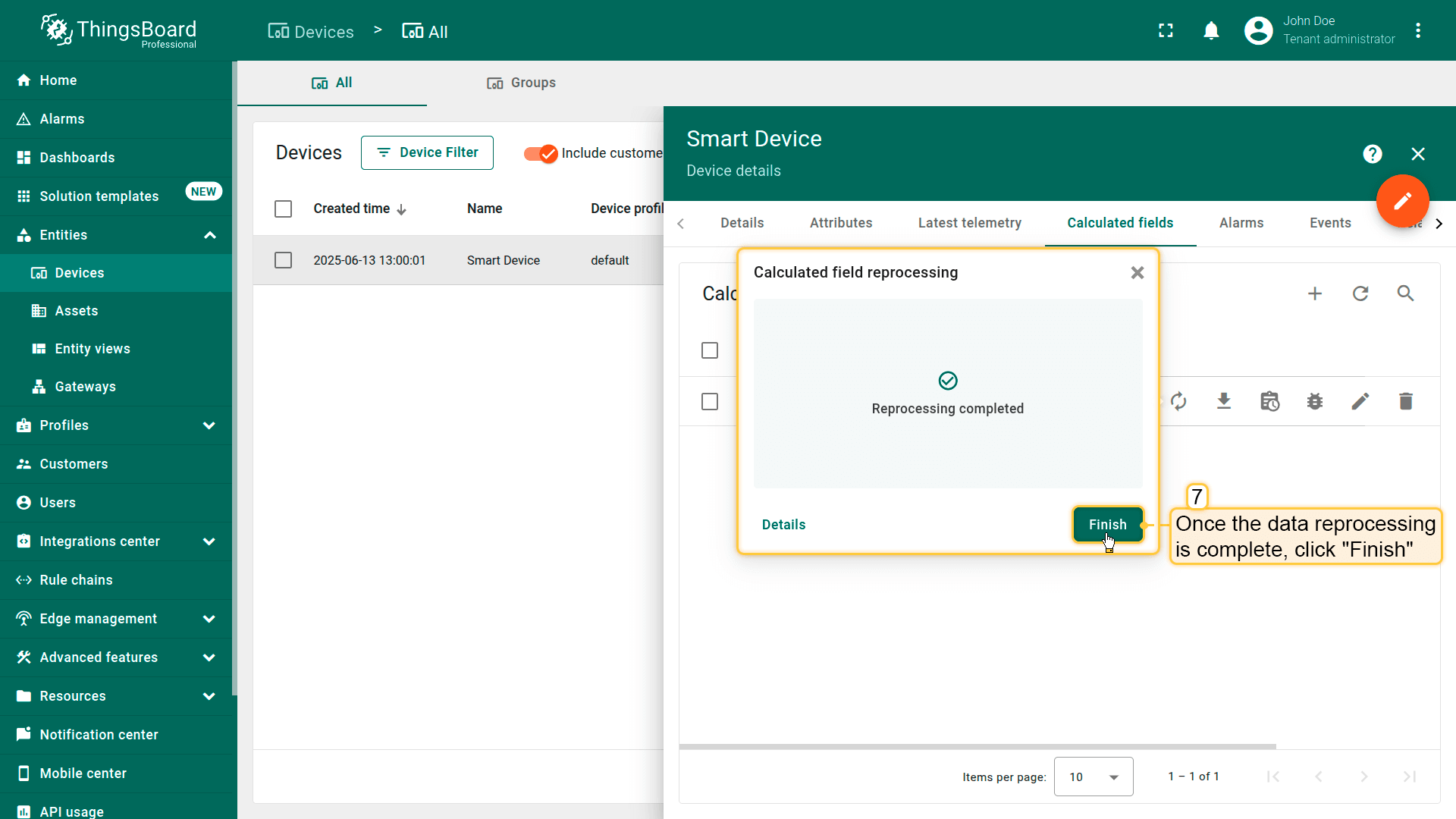
After the process is completed, click Finish.
As a result, the dewPoint values will be generated and stored for the entire selected historical period.
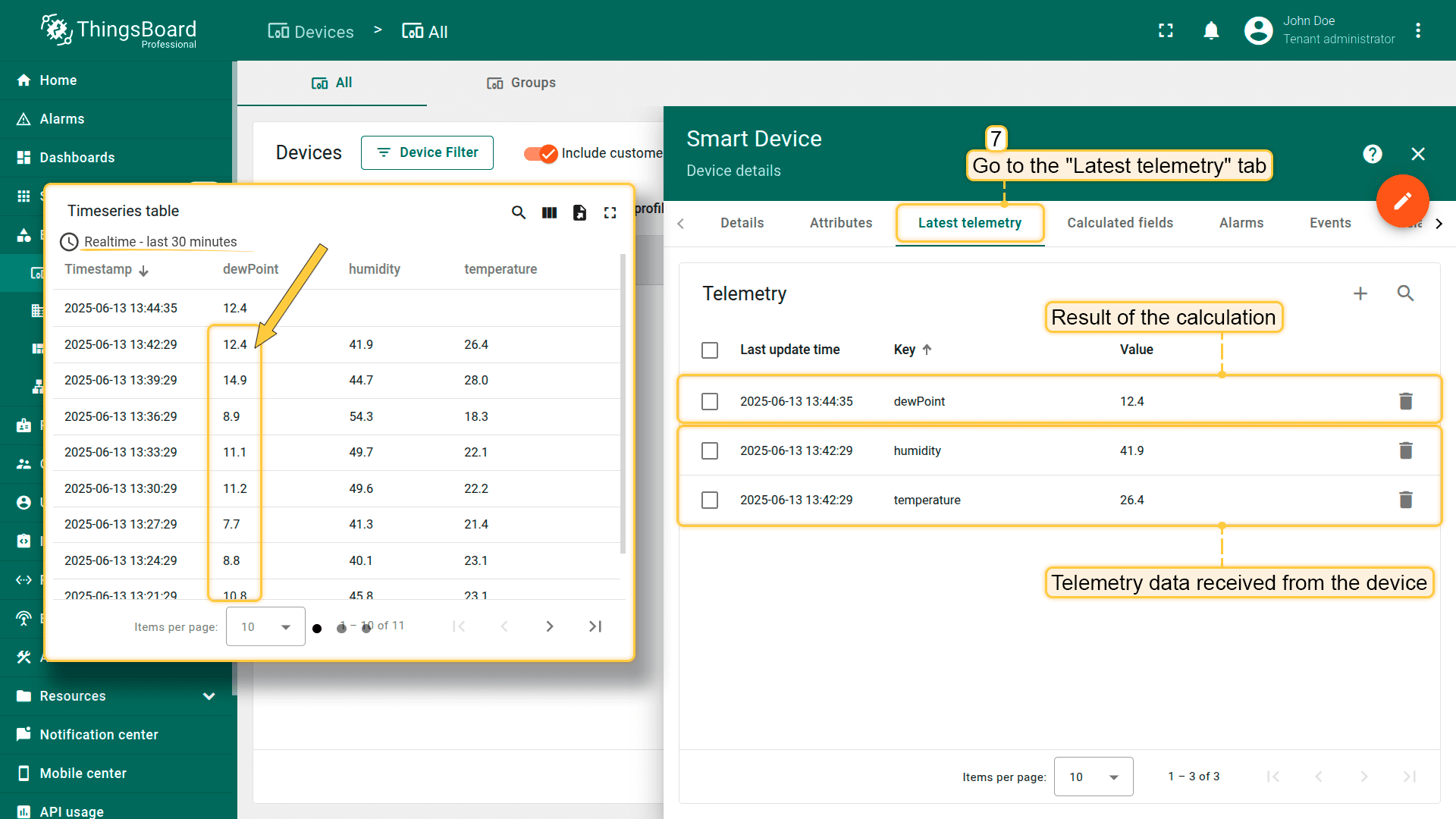
As a result, the dewPoint values will be generated and stored for the entire selected historical period.
Task manager
The Task manager allows you to view the status of tasks, track their progress, see results, and identify any errors that occurred during data processing.
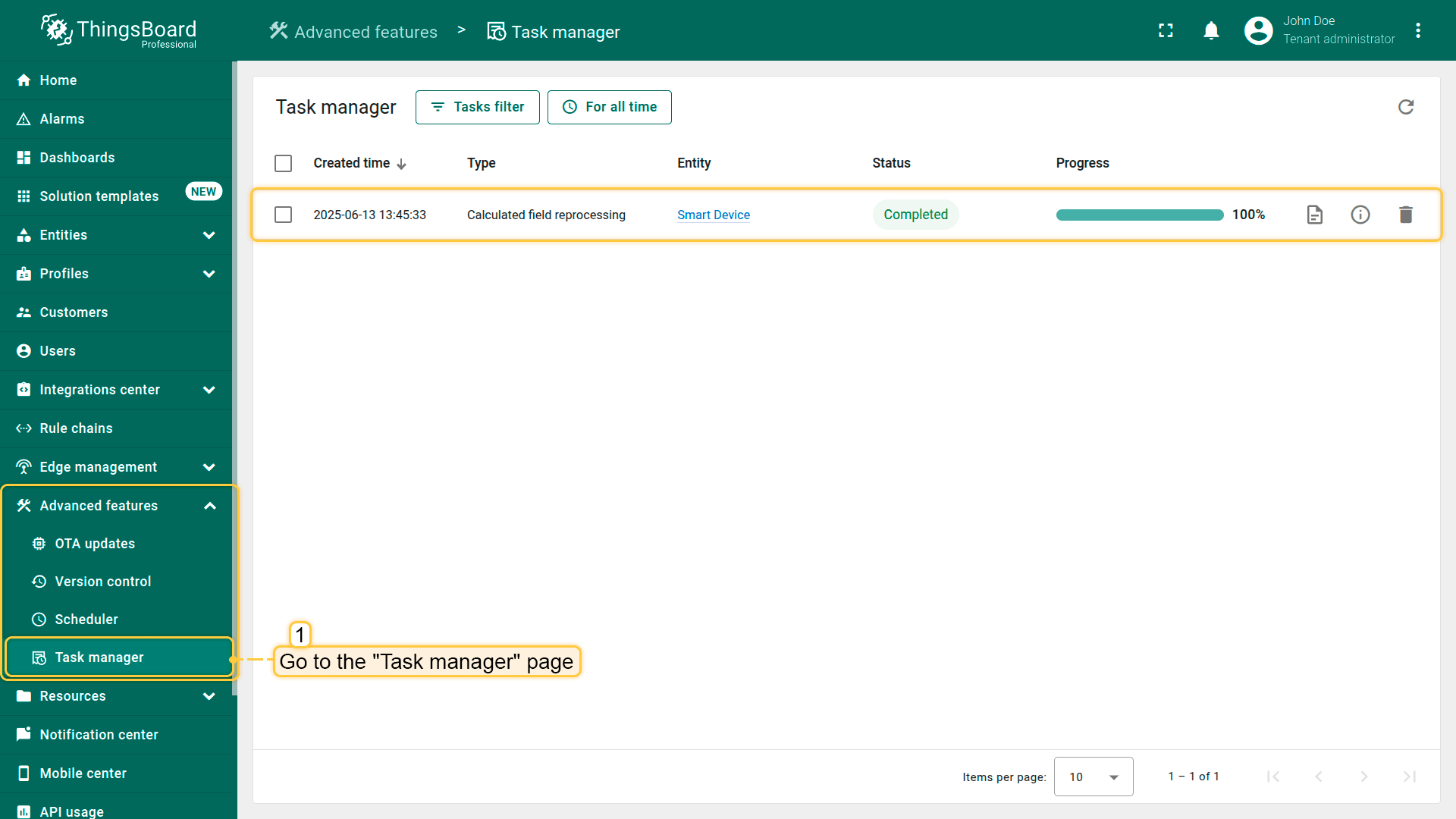
The Task manager allows you to view the status of tasks, track their progress, see results, and identify any errors that occurred during data processing.
Built-in methods for rolling arguments
Time series rolling arguments support built-in functions for calculations. These functions accept an optional ignoreNaN boolean parameter.
| Method | Default Behavior (ignoreNaN = true) |
Alternative (ignoreNaN = false) |
|---|---|---|
max() |
Returns the highest value, ignoring NaN values. | Returns NaN if any NaN values exist. |
min() |
Returns the lowest value, ignoring NaN values. | Returns NaN if any NaN values exist. |
mean(), avg() |
Computes the average value, ignoring NaN values. | Returns NaN if any NaN values exist. |
std() |
Calculates the standard deviation, ignoring NaN. | Returns NaN if any NaN values exist. |
median() |
Returns the median value, ignoring NaN values. | Returns NaN if any NaN values exist. |
count() |
Counts values, ignoring NaN values. | Counts all values, including NaN. |
last() |
Returns the most recent value, skipping NaN values. | Returns the last value, even if it is NaN. |
first() |
Returns the oldest value, skipping NaN values. | Returns the first value, even if it is NaN. |
sum() |
Computes the total sum, ignoring NaN values. | Returns NaN if any NaN values exist. |
Assuming the following time series rolling argument
1
2
3
4
5
6
7
8
9
10
11
12
13
14
{
  "temperature": {
    "timeWindow": {
      "startTs": 1740643762896,
      "endTs": 1740644662896
    },
    "values": [
      { "ts": 1740644350000, "value": 72.32 },
      { "ts": 1740644360000, "value": 72.86 },
      { "ts": 1740644370000, "value": 73.58 },
      { "ts": 1740644380000, "value": "NaN" }
    ]
  }
}
Usage and result
1
2
3
4
5
6
7
var avgTemp = temperature.mean(); // Returns 72.92
var tempMax = temperature.max(); // Returns 73.58
var valueCount = temperature.count(); // Returns 3

var avgTempNaN = temperature.mean(false);  // Returns NaN
var tempMaxNaN = temperature.max(false);   // Returns NaN
var valueCountNaN = temperature.count(false); // Returns 4
Where it can be useful
- statistical analysis: computing mean, median, and standard deviation for trend analysis.
- data filtering: identifying maximum and minimum values within a time window.
- quality control: detecting missing or outlier values with count() and std().
- energy efficiency monitoring: summing up power consumption over a period to evaluate energy usage patterns.
Merging time series arguments
Time series rolling arguments can be merged to align timestamps across multiple datasets.
The merge function combines two or more rolling arguments by taking all timestamps from all arguments and merging the values based on these timestamps.
If value by timestamp does not exist in an argument, it assigns the previous value from that argument; if no previous value exists, it assigns NaN.
The result is a new rolling argument that contains a time window and an array of values corresponding to each argument value by each timestamp.
| Method | Description | Returns |
|---|---|---|
merge(other, settings) |
Merges with another rolling argument. Aligns timestamps and filling missing values with the previous available value. | Merged object with timeWindow and aligned values. |
mergeAll(others, settings) |
Merges multiple rolling arguments. Aligns timestamps and filling missing values with the previous available value. | Merged object with timeWindow and aligned values. |
Parameters
| Parameter | Description |
|---|---|
other or others |
Another rolling argument or array of rolling arguments to merge with. |
settings(optional) |
Configuration object that supports: - ignoreNaN - controls whether NaN values should be ignored.- timeWindow - defines a custom time window. |
Assuming the following arguments and their values:
1
2
3
4
5
6
7
8
9
10
11
12
13
14
15
16
17
18
19
20
21
22
23
24
25
26
27
28
29
30
31
32
33
34
35
36
37
38
39
40
41
42
43
44
{
  "humidity": {
    "timeWindow": {
      "startTs": 1741356332086,
      "endTs": 1741357232086
    },
    "values": [{
      "ts": 1741356882759,
      "value": 43
    }, {
      "ts": 1741356918779,
      "value": 46
    }]
  },
  "pressure": {
    "timeWindow": {
      "startTs": 1741356332086,
      "endTs": 1741357232086
    },
    "values": [{
      "ts": 1741357047945,
      "value": 1023
    }, {
      "ts": 1741357056144,
      "value": 1026
    }, {
      "ts": 1741357147391,
      "value": 1025
    }]
  },
  "temperature": {
    "timeWindow": {
      "startTs": 1741356332086,
      "endTs": 1741357232086
    },
    "values": [{
      "ts": 1741356874943,
      "value": 76
    }, {
      "ts": 1741357063689,
      "value": 77
    }]
  }
}
Usage:
1
var mergedData = temperature.merge(humidity, { ignoreNaN: false });
Output:
1
2
3
4
5
6
7
8
9
10
11
12
13
14
15
16
17
18
19
20
21
{
  "mergedData": {
    "timeWindow": {
      "startTs": 1741356332086,
      "endTs": 1741357232086
    },
    "values": [{
      "ts": 1741356874943,
      "values": [76.0, "NaN"]
    }, {
      "ts": 1741356882759,
      "values": [76.0, 43.0]
    }, {
      "ts": 1741356918779,
      "values": [76.0, 46.0]
    }, {
      "ts": 1741357063689,
      "values": [77.0, 46.0]
    }]
  }
}
Usage:
1
var mergedData = temperature.mergeAll([humidity, pressure], { ignoreNaN: true });
Output:
1
2
3
4
5
6
7
8
9
10
11
12
13
14
15
16
17
18
19
20
21
{
  "mergedData": {
    "timeWindow": {
      "startTs": 1741356332086,
      "endTs": 1741357232086
    },
    "values": [{
      "ts": 1741357047945,
      "values": [76.0, 46.0, 1023.0]
    }, {
      "ts": 1741357056144,
      "values": [76.0, 46.0, 1026.0]
    }, {
      "ts": 1741357063689,
      "values": [77.0, 46.0, 1026.0]
    }, {
      "ts": 1741357147391,
      "values": [77.0, 46.0, 1025.0]
    }]
  }
}
Where it can be useful
Merging time series arguments is useful in scenarios where multiple sensors provide data streams at different intervals. By aligning timestamps and filling missing values, merging enables:
- sensor data synchronization: aligns readings from different sensors measuring related parameters, such as temperature and humidity.
- anomaly detection: merges multiple telemetry sources to identify inconsistencies or deviations in system performance.
- energy consumption analysis: combines power usage data from various devices to provide a unified view of energy trends.
- predictive maintenance: merges vibration, temperature, and operational status data to predict equipment failures.
Export / Import calculated field
You can export the calculated field to a JSON file and import it into the same or another ThingsBoard instance.
Export calculated field
- Navigate to the Calculated fields page.
- Click the Export button located in the corresponding calculated field row.
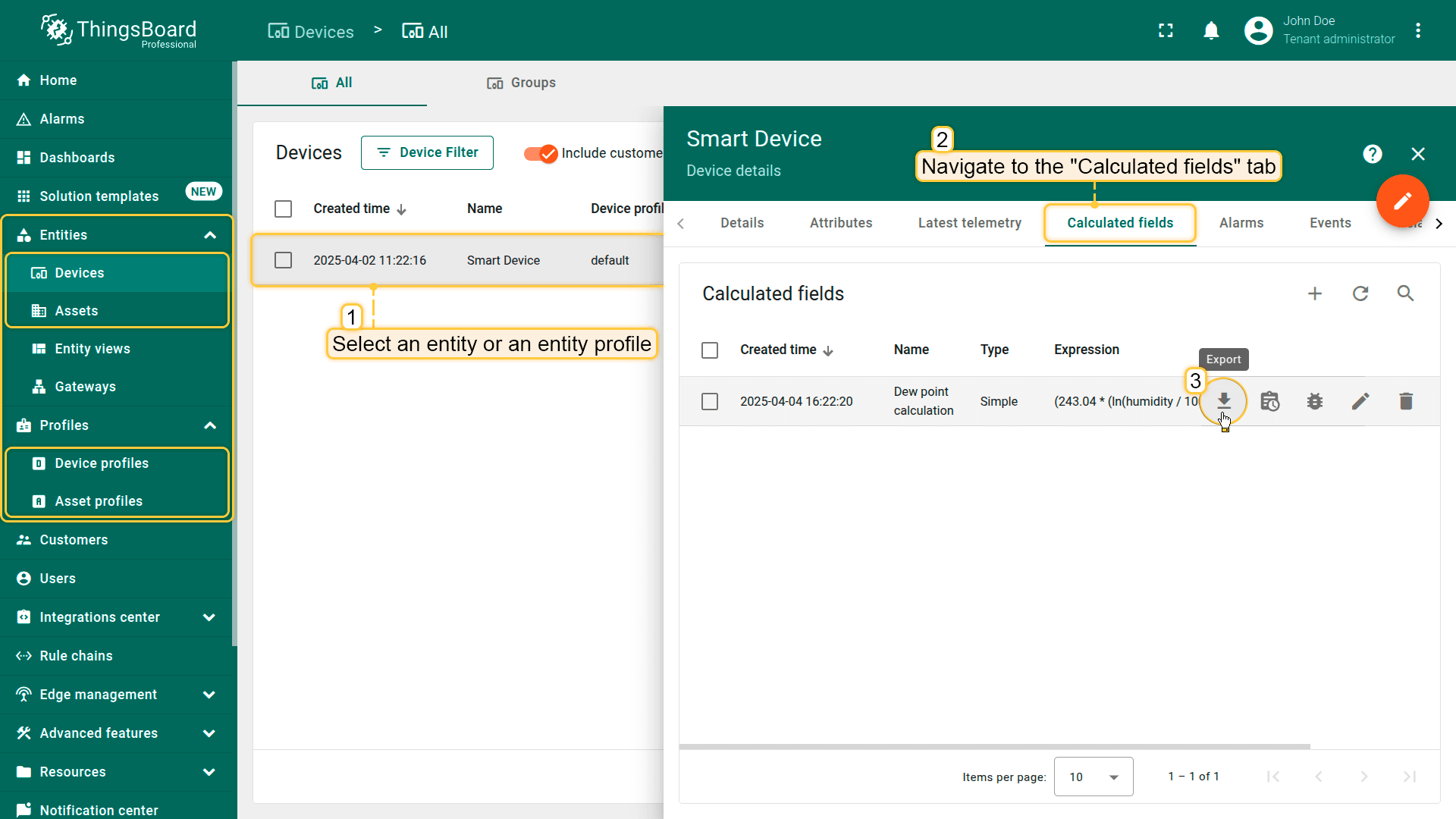
Navigate to the Calculated fields page and click the Export button located in the row of the specific calculated field.
Import calculated field
You can import a calculated field configuration from a JSON configuration file. This feature is particularly useful when transferring calculated field configurations between entities or profiles, ensuring consistency and reducing manual setup efforts.
Steps to import:
-
Navigate to the Calculated fields page. Click the “+” icon button, and select Import calculated field from the dropdown menu.
-
In the opened window, upload the JSON file with the calculated field configuration and click Import.
-
In the dialog that opens, specify the entity or profile to which the calculated field will be applied.
-
If there are any problems with arguments, they will be highlighted.
-
Ensure the imported field is correctly applied and update any necessary parameters.
-
Click Add to complete the import.
-
You have imported the calculated field configuration.
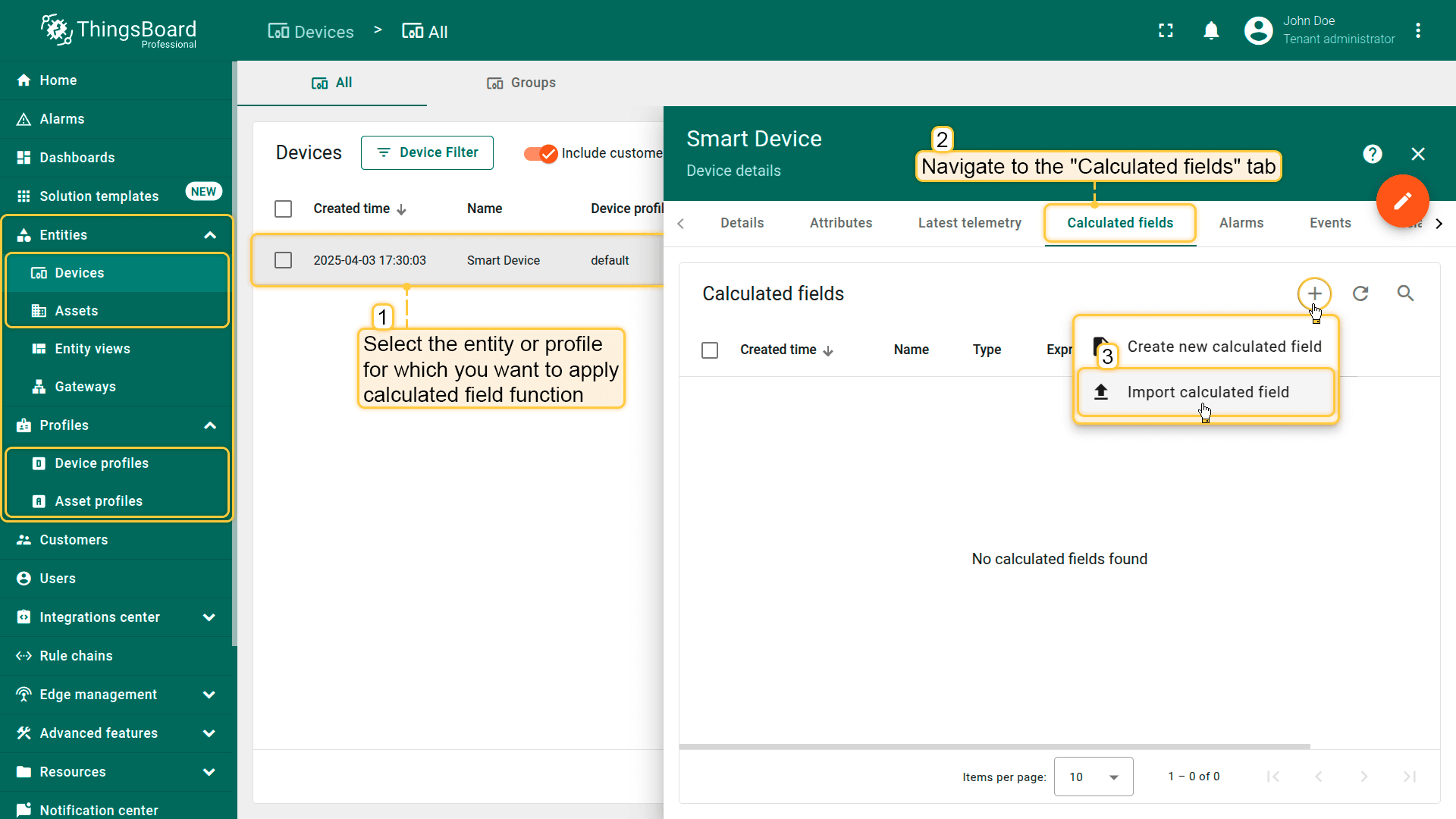
Navigate to the Calculated fields page. Click the “+” icon button, and select Import calculated field from the dropdown menu.
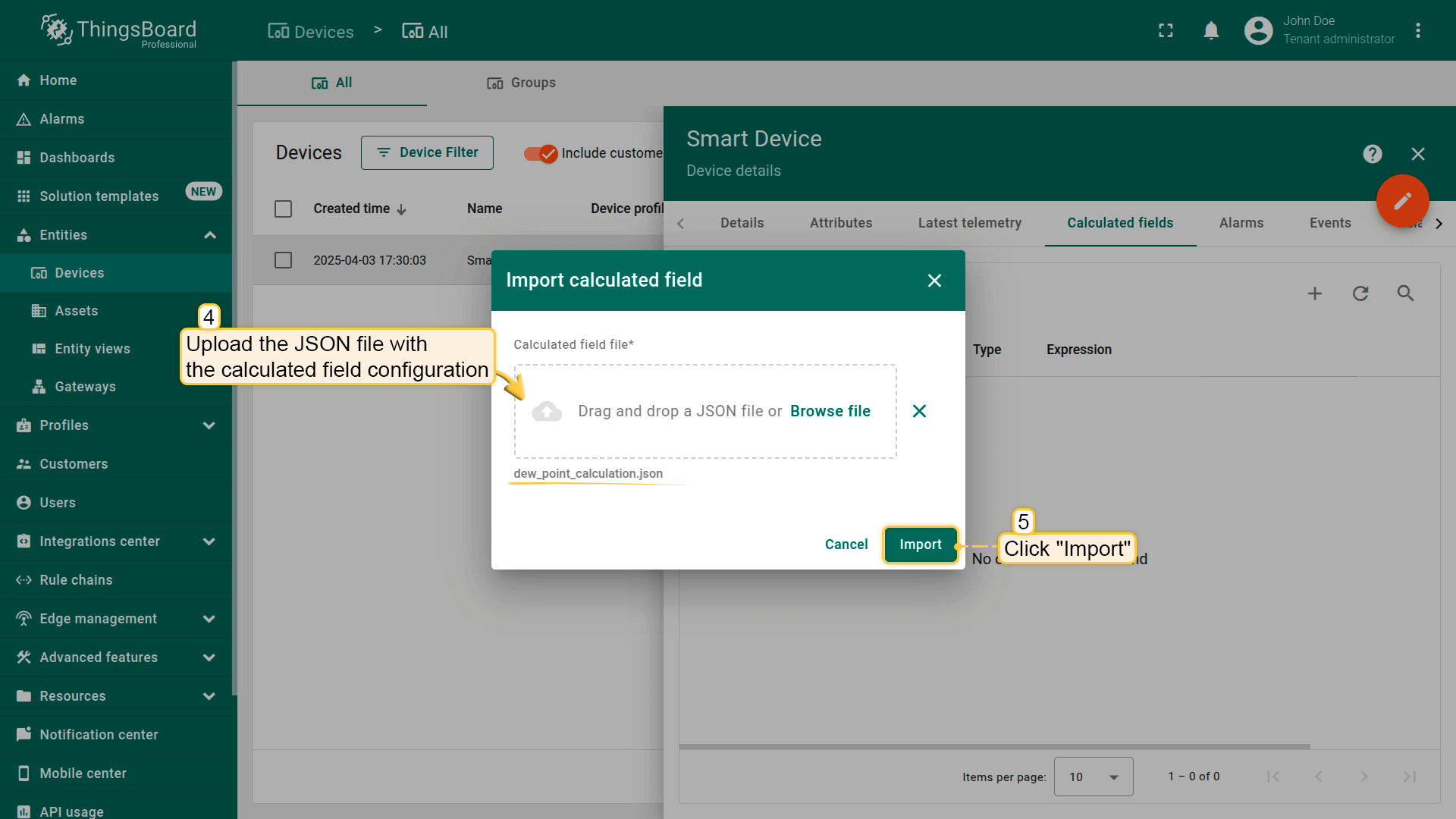
In the opened window, upload the JSON file with the calculated field configuration and click Import.
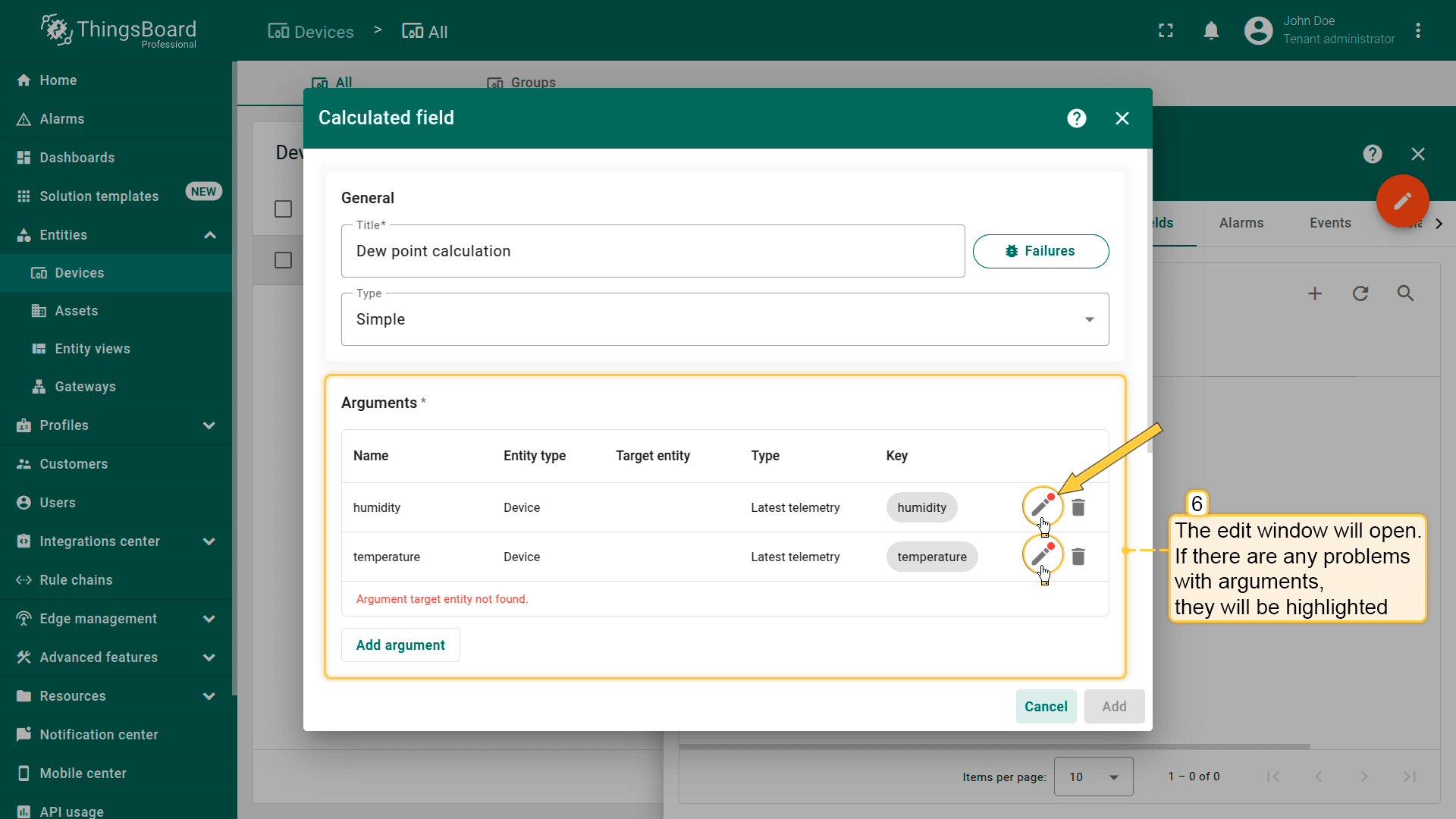
In the dialog that opens, specify the entity or profile to which the calculated field will be applied.
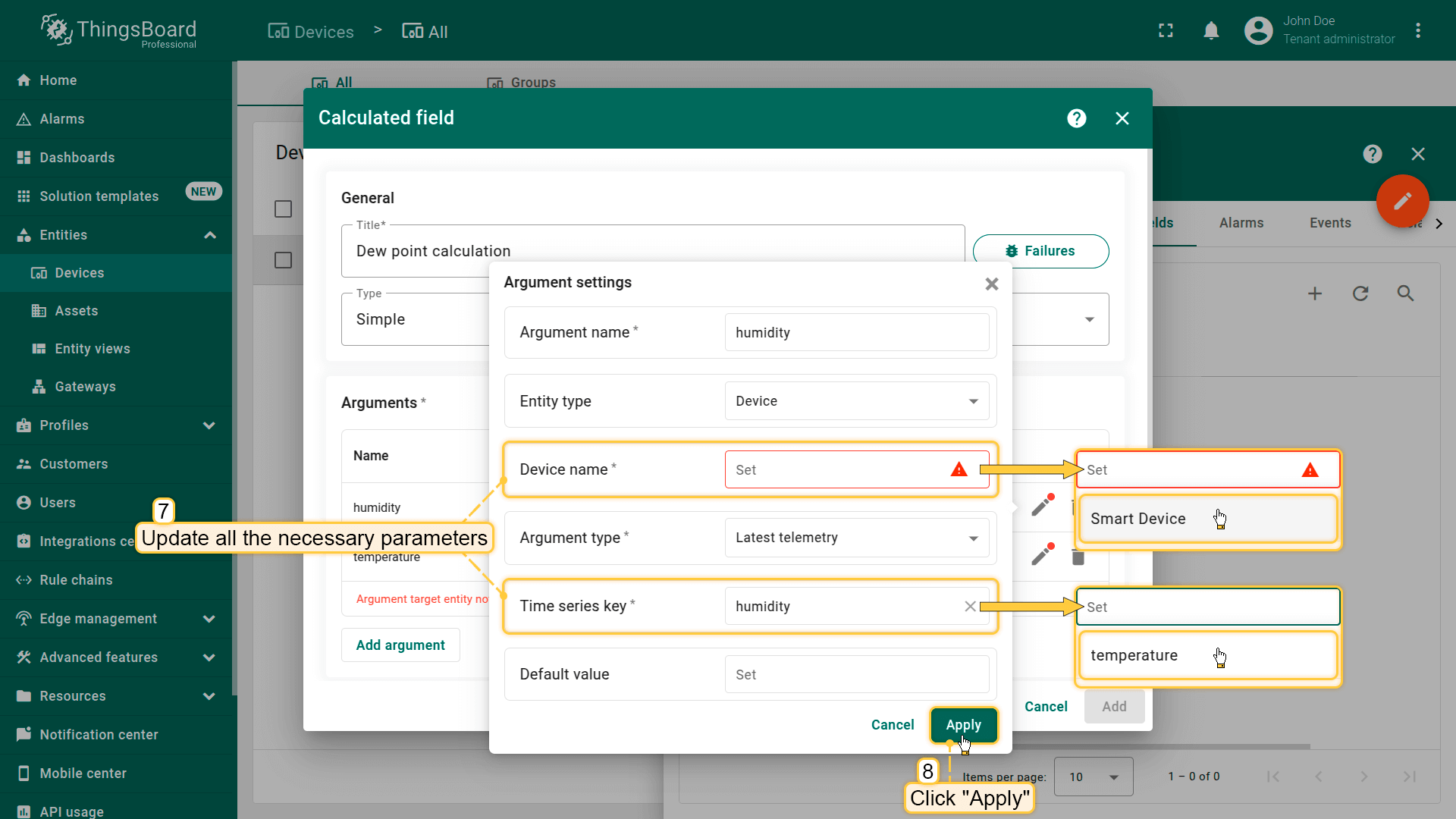
If there are any problems with arguments, they will be highlighted.
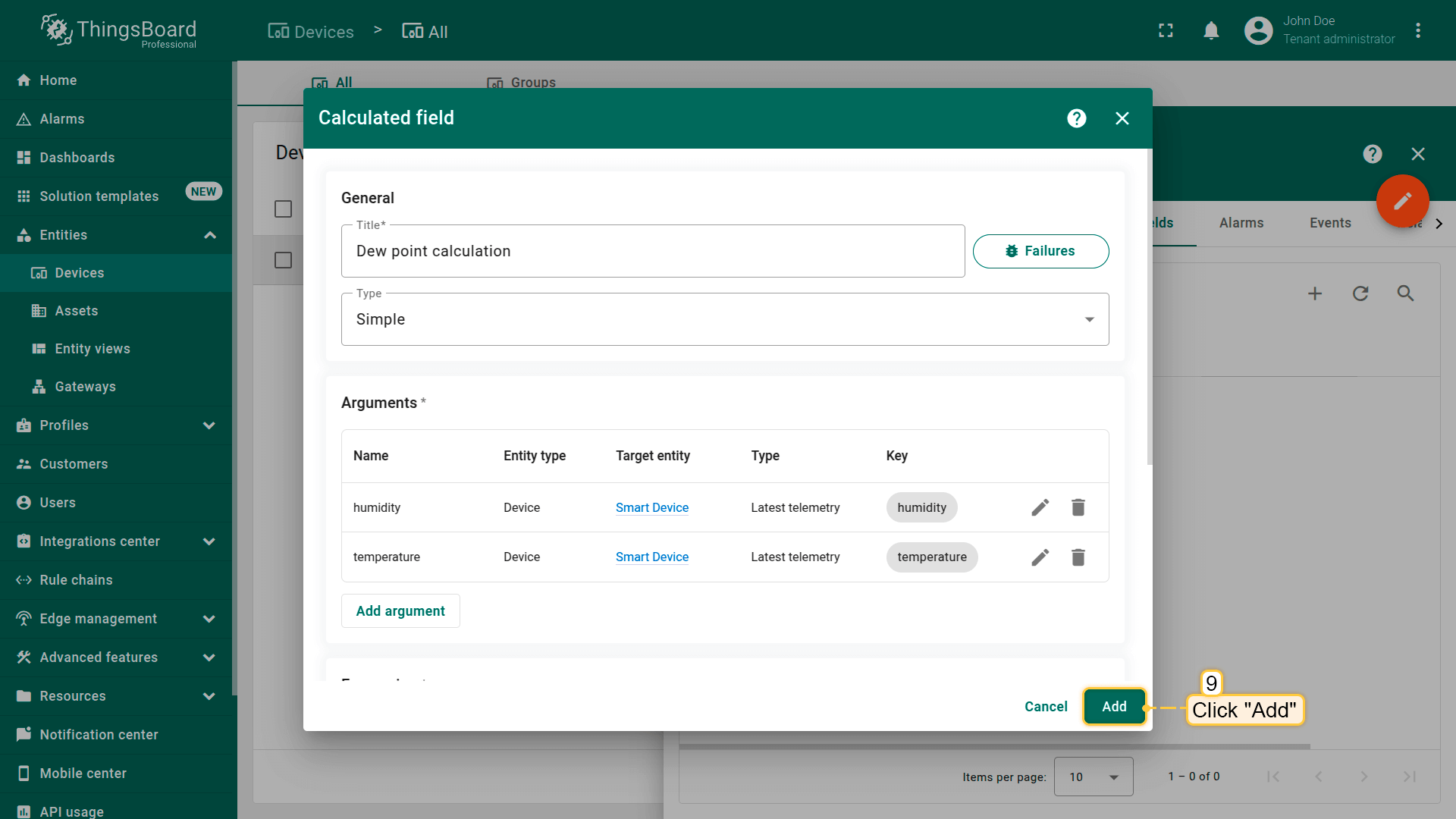
Ensure the imported field is correctly applied and update any necessary parameters.
Click Add to complete the import.
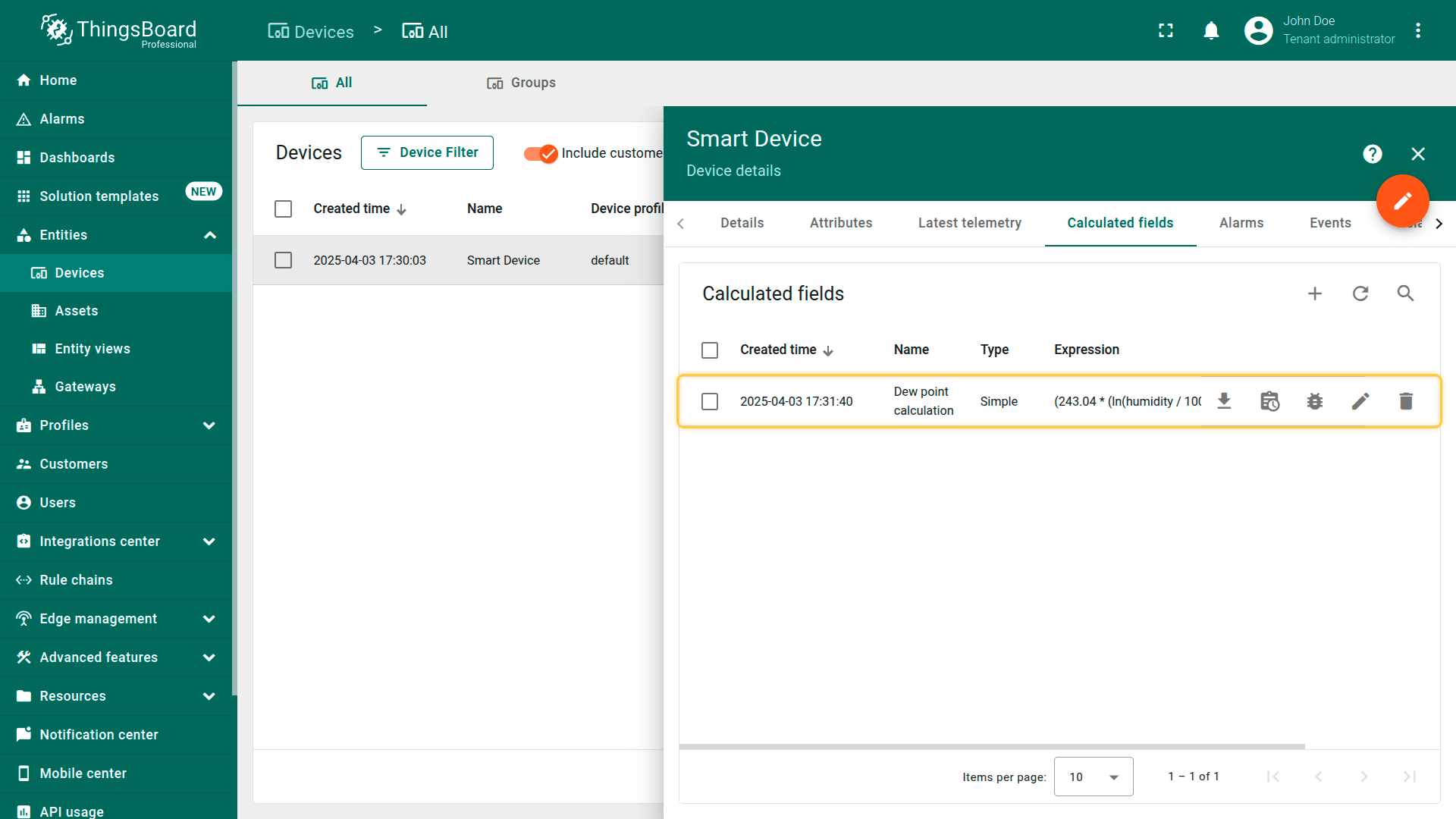
You have imported the calculated field configuration.
Note: ensure the imported field is correctly applied and update any necessary parameters:
- if the referenced entity is the current entity, no error occurs.
- if a referenced entity does not exist in your tenant, it will be highlighted as an error in the argument where it is used.
- if the referenced entity is the current tenant and you import it into another tenant, it will automatically adjust to the new tenant without errors.
Managing calculated fields
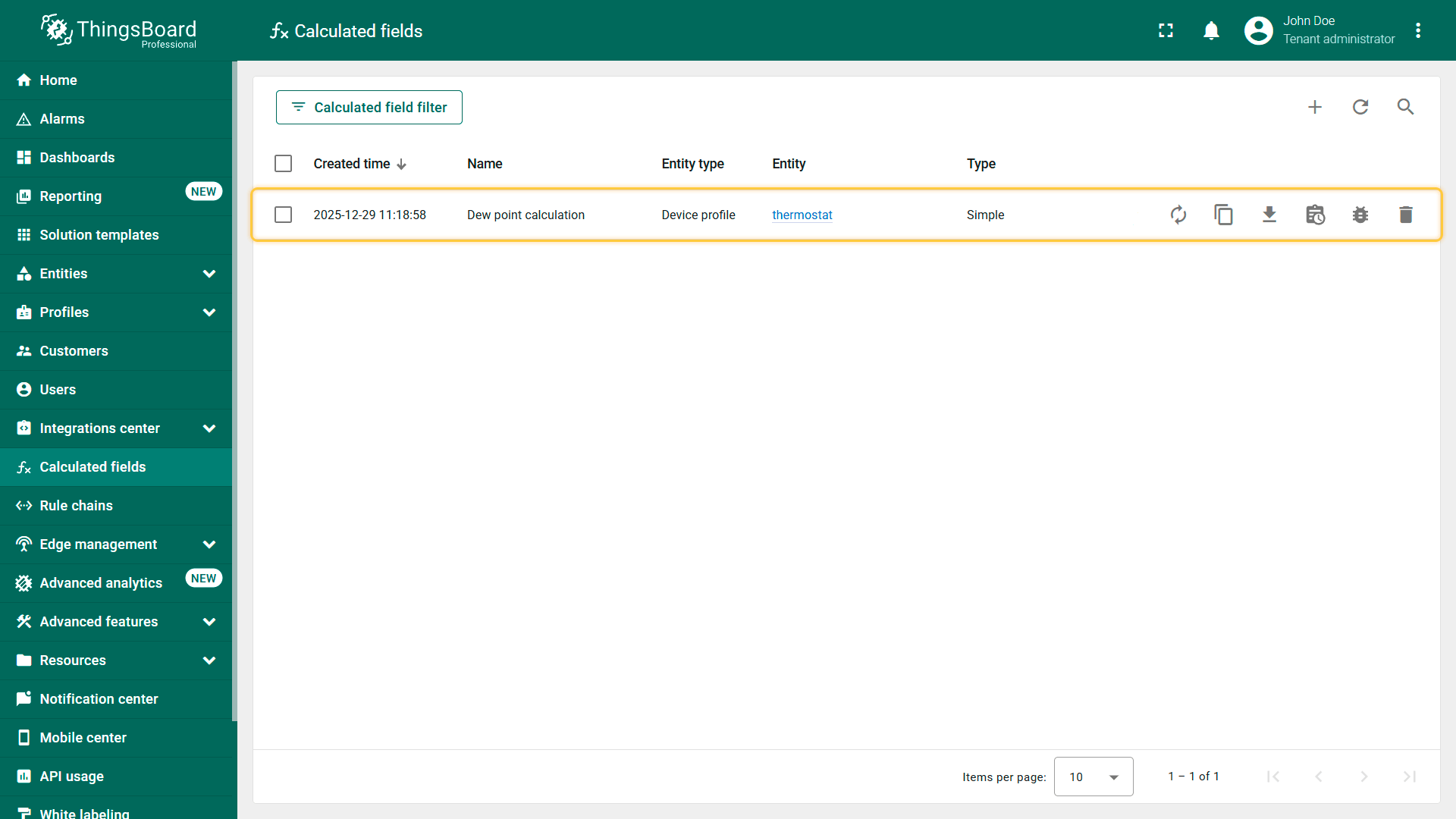
Use the “Calculated fields” page to manage all calculated fields from a single place.
Each calculated field includes an action panel for managing the field:
- Data reprocessing - applying the calculated field logic to historical data.
- Copy — duplicate the configuration to quickly create a new calculated field.
- Export — download the configuration as a JSON file for backup or migration.
- Events — view execution events, including state changes and errors.
- Debug — enable debug mode and inspect detailed execution data.
- Delete — remove the calculated field from the system.
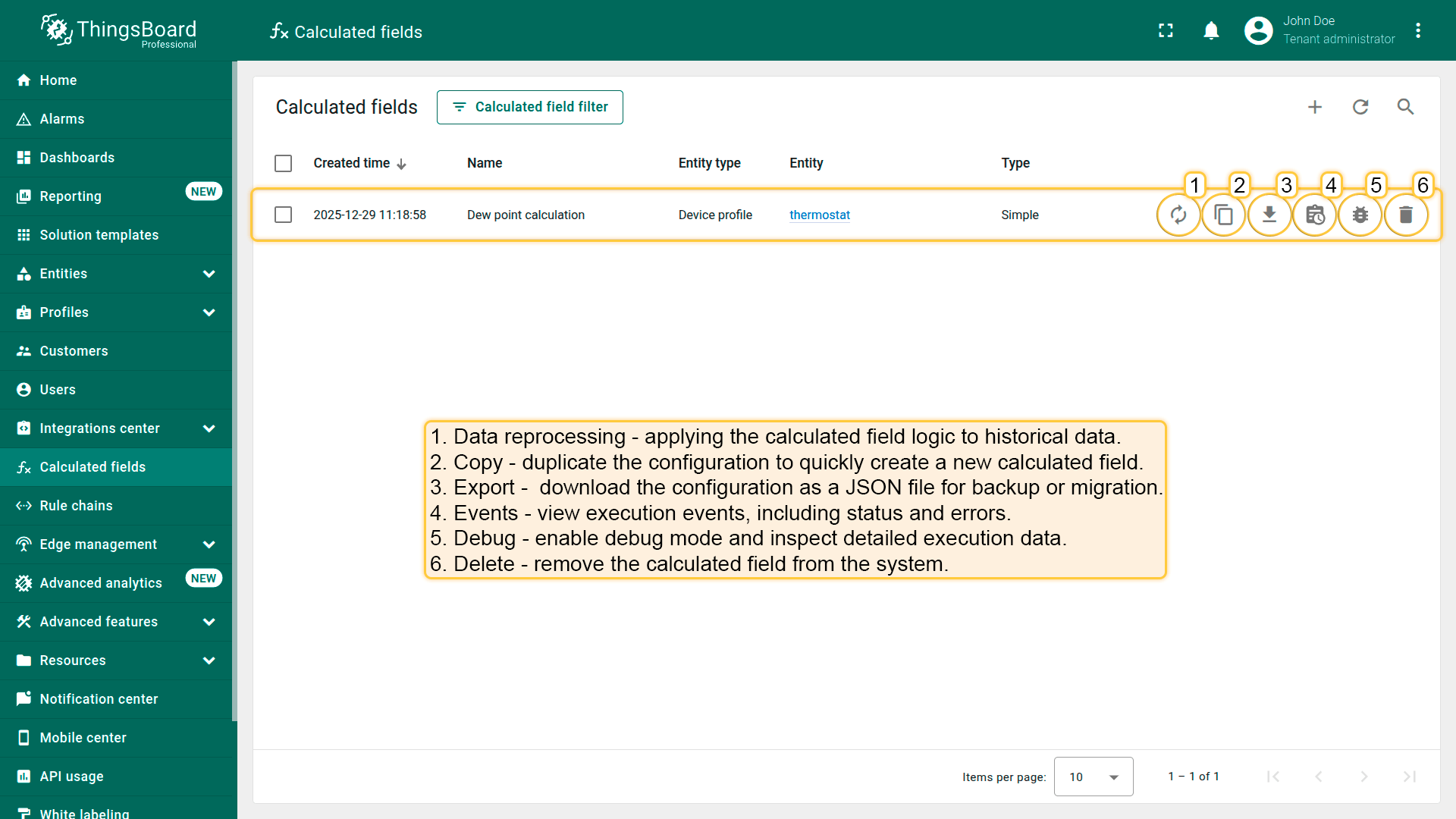
Each calculated field includes an action panel for managing the field.
View detailed information of the calculated field
Click the calculated field to view its details.
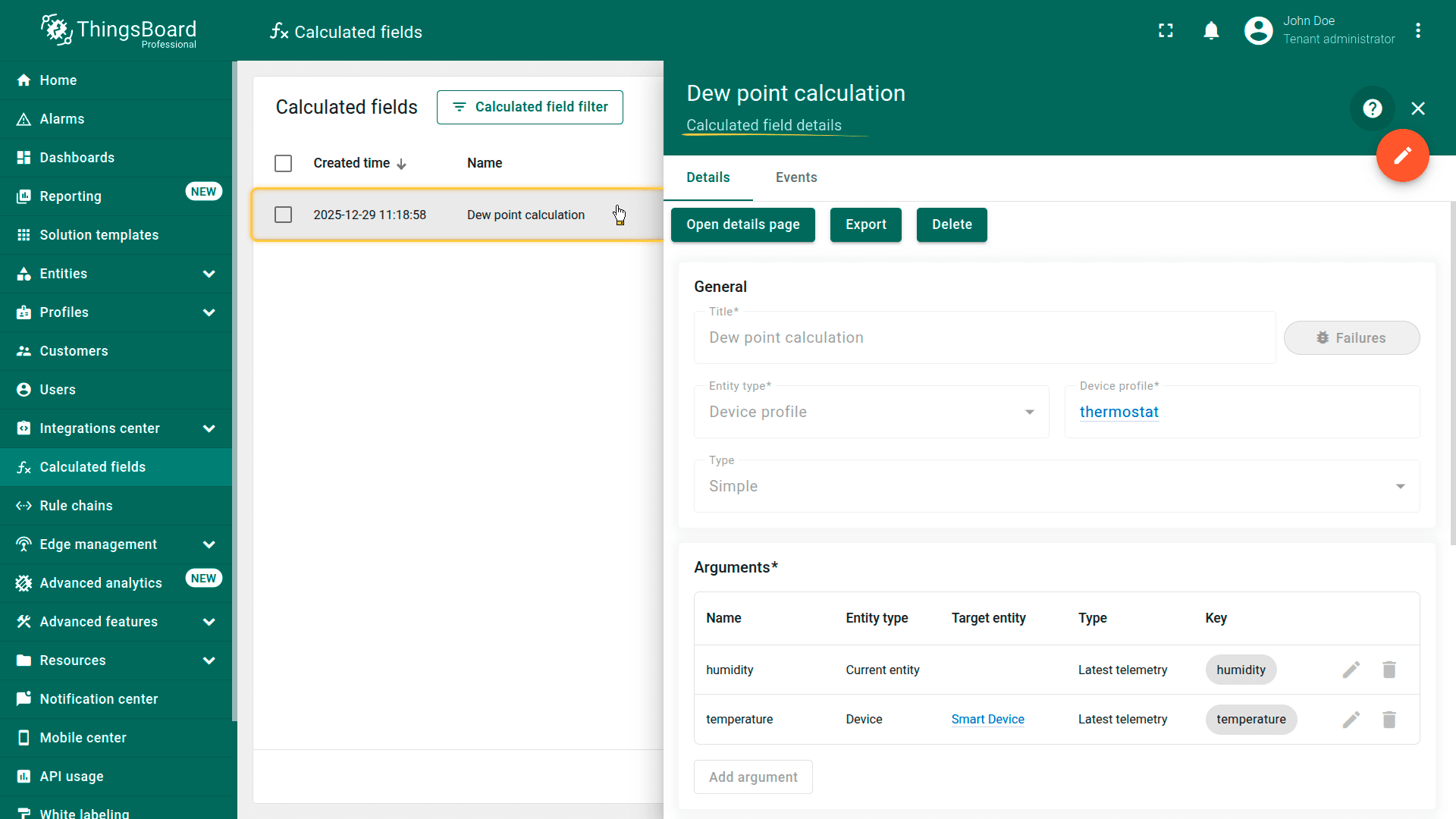
Click the calculated field to view its details.
Modify the calculated field
To modify the calculated field, click it to open the details view, then click the orange pencil button.
After making your changes, click the orange check button to apply the updates.
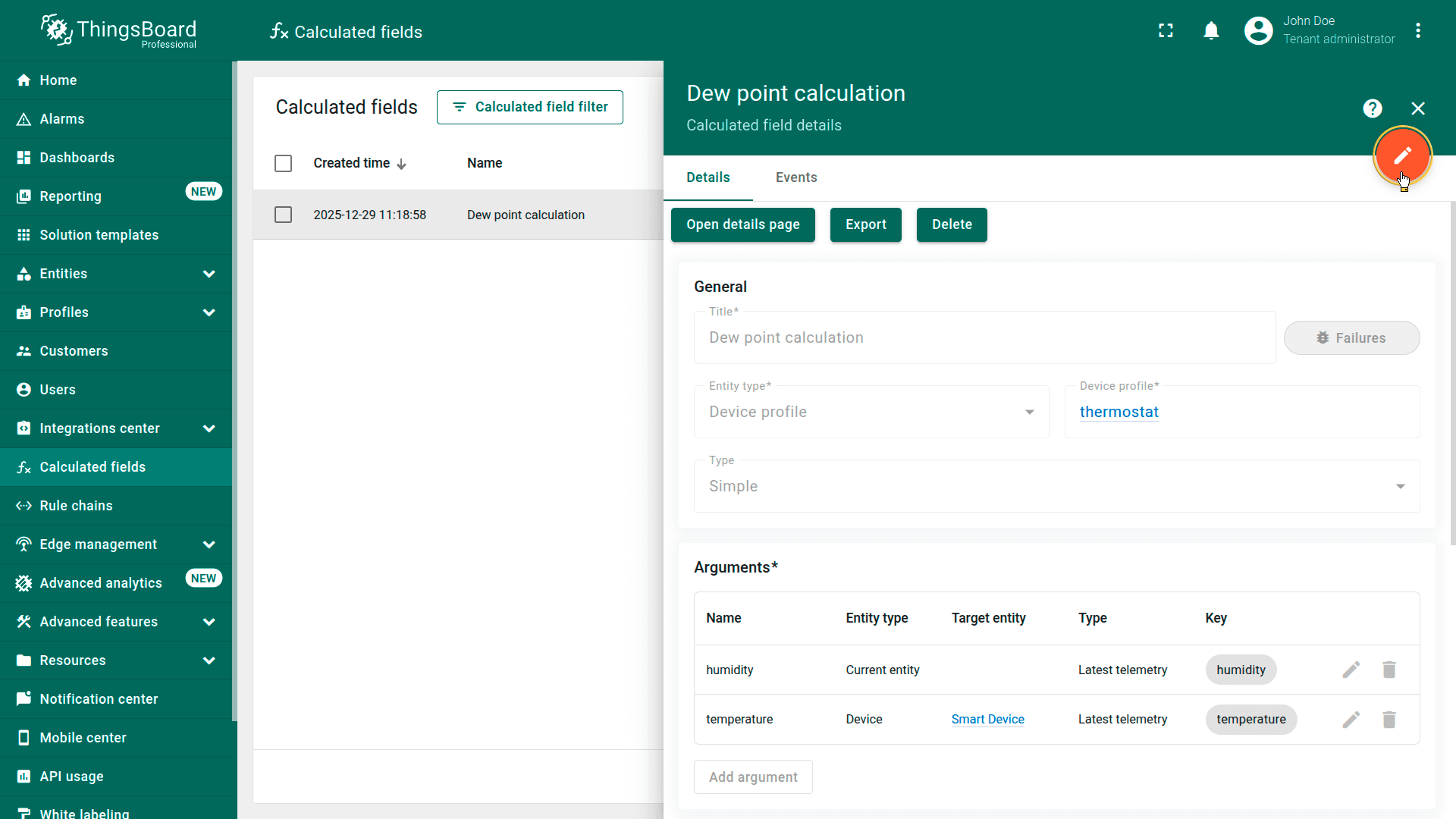
To modify the calculated field, click it to open the details view, then click the orange pencil button.
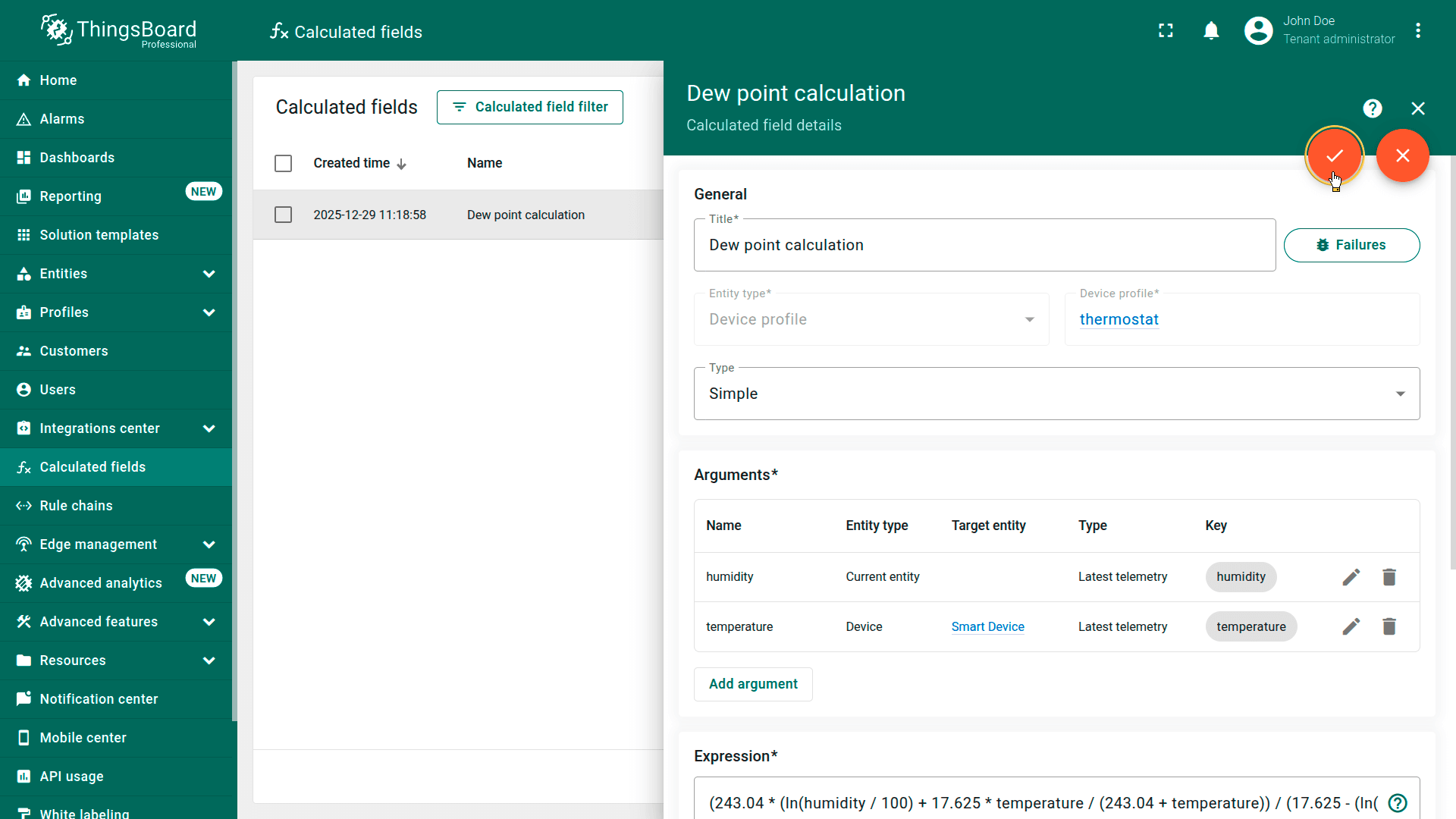
After making your changes, click the orange check button to apply the updates.
Calculated fields overview video
Prefer visual learning? Watch this short video for a quick introduction to Calculated fields in ThingsBoard.
It covers the core concepts, supported calculation types, and practical examples for processing and transforming data in real time.
Your feedback
Don't hesitate to star ThingsBoard on github to help us spread the word. If you have any questions about this sample, please contact us.