To make Trendz ready for use, complete the following post-installation setup steps.
Signing Key
You can read more about signing key here
Acquiring Signing Key
Follow these steps to configure the signing key:
-
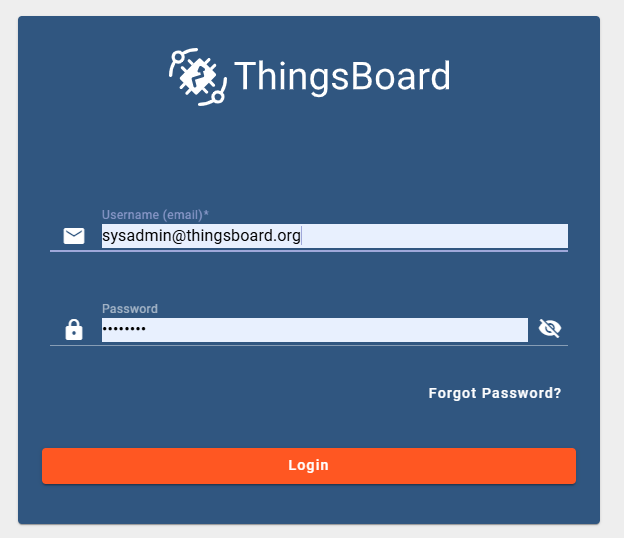
Log in to ThingsBoard as a System Administrator
-
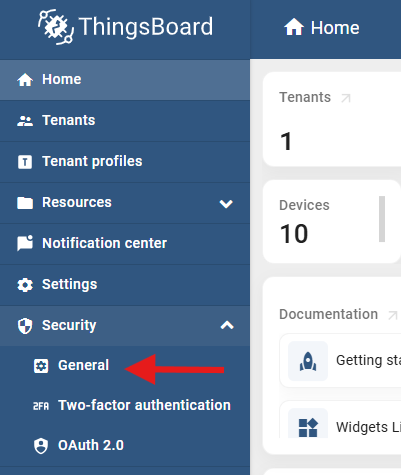
Go to Security → General
-
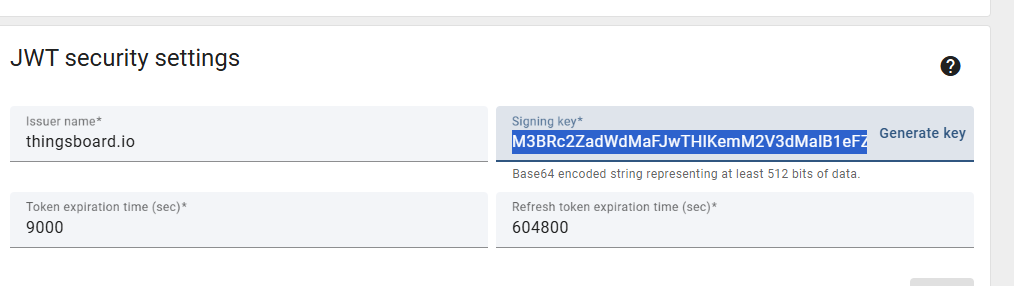
Scroll to the JWT Security Settings section
-
Copy the value from the Signing key field.
Installation-specific Instructions
Ubuntu Installation
-
SSH into the server running Trendz.
-
Open the Trendz configuration file:
1
sudo nano /etc/trendz/conf/trendz.conf -
Add the signing key to the end of the file:
1
export JWT_TOKEN_SIGNING_KEY=<signing-key>
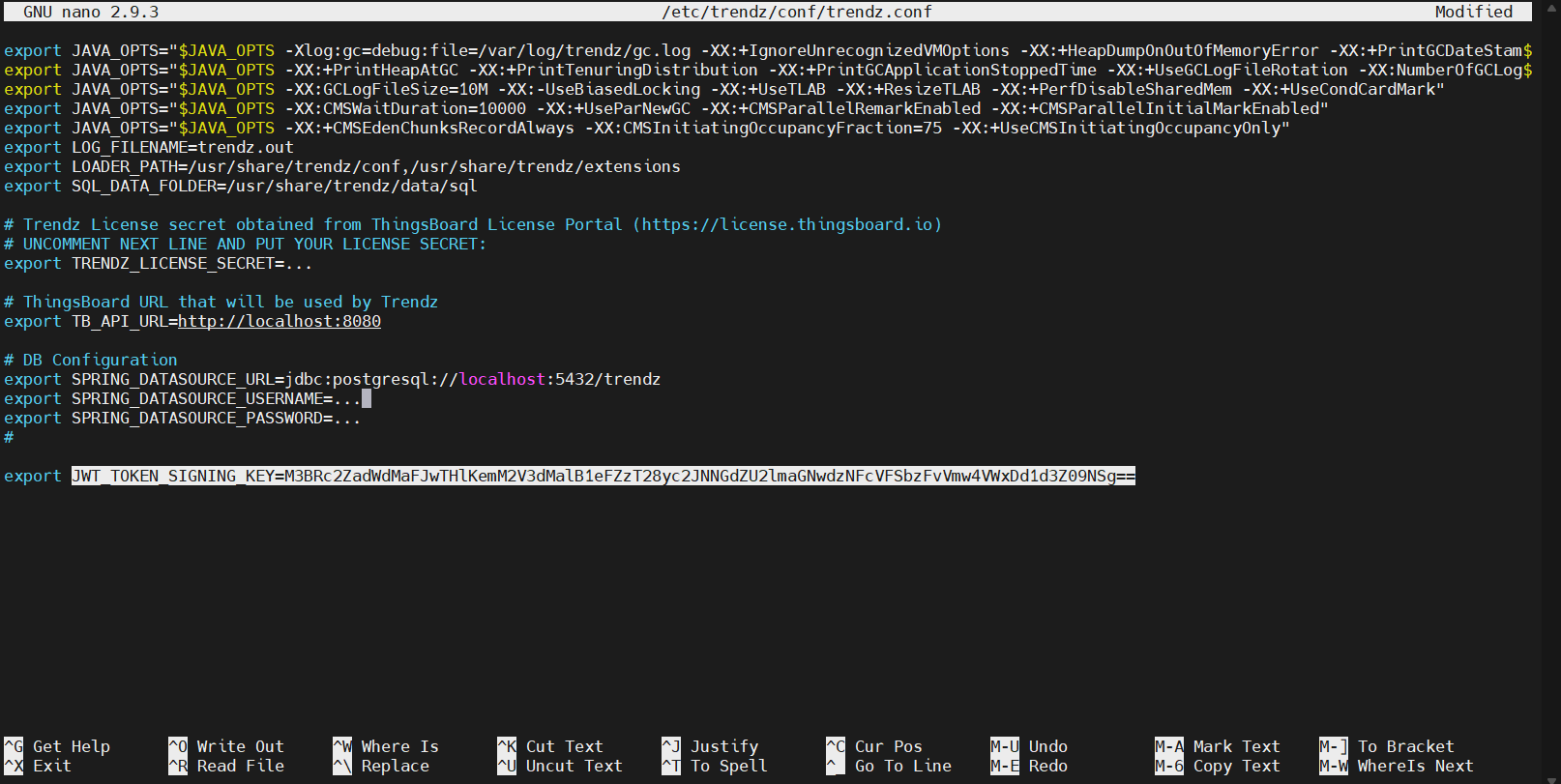
-
Save the file and restart the Trendz service.
Docker Compose Installation
-
Open your
docker-compose.ymlfile. -
Add a new environment variable under the Trendz service:
1
2
environment:
  - JWT_TOKEN_SIGNING_KEY=<signing-key>
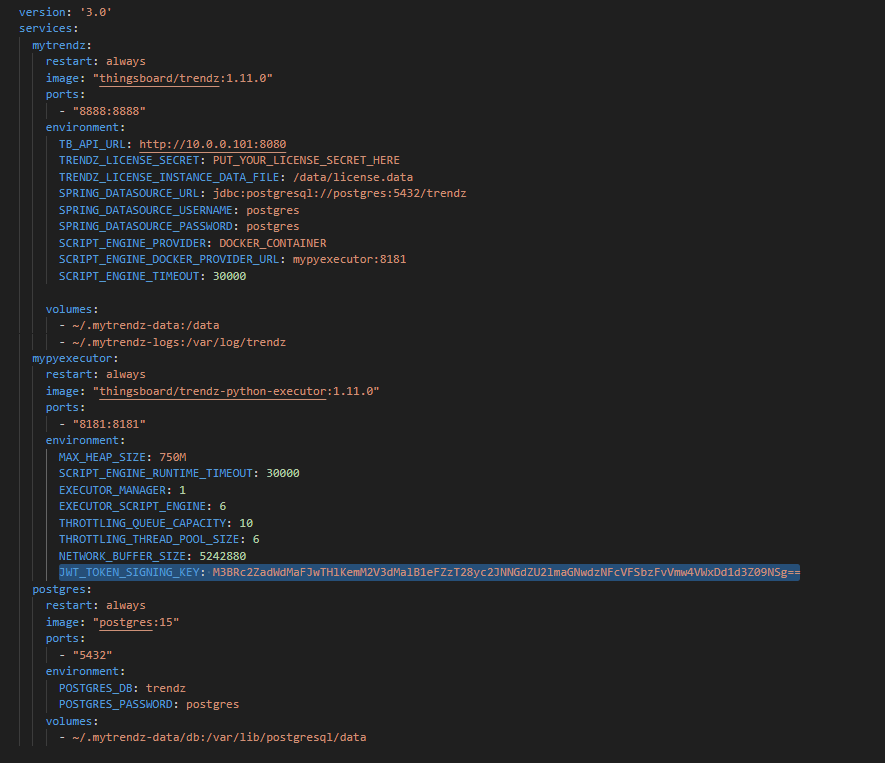
-
Save the file and restart the Trendz container.
Verifying Successful Installation
To validate that the signing key was installed correctly, you need to:
- Log in as a Tenant Administrator.
-
Go to the Settings.
-
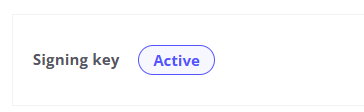
If everything was done correctly, you will see Active status in the Signing Key field.
Required Actions in Trendz Settings
Note: These actions affect ThingsBoard.
You need to complete the following actions to add all necessary add-ons to ThingsBoard:
- Trendz Widget Bundle:
- Click the Upload bundle button.
- You will see Latest version installed afterward.
- Read more about the Trendz Widget Bundle here.
- Trendz JS Summary Module:
- Click the Upload module button.
- You will see Latest version installed afterward.
- Read more about the Trendz JS Summary Module here.
Link to ThingsBoard
To simplify the process of adding Trendz views to ThingsBoard dashboards, we have introduced the ability to open the dashboard where the view was added in a new tab. Configure the link to your ThingsBoard instance in Settings to use this feature. Follow these steps:
-
Log in to Trendz and navigate to the Settings page.
-
Enter the URL of your ThingsBoard instance (e.g., https://your-link-to-platform) in the designated field.
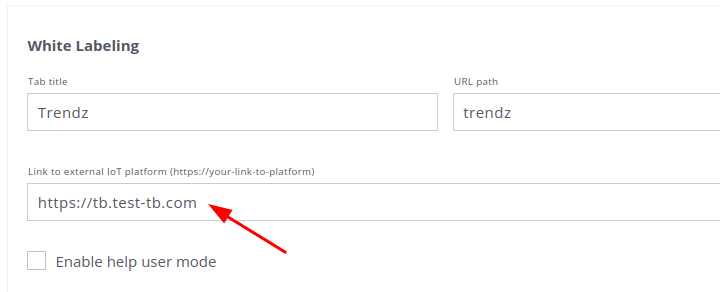
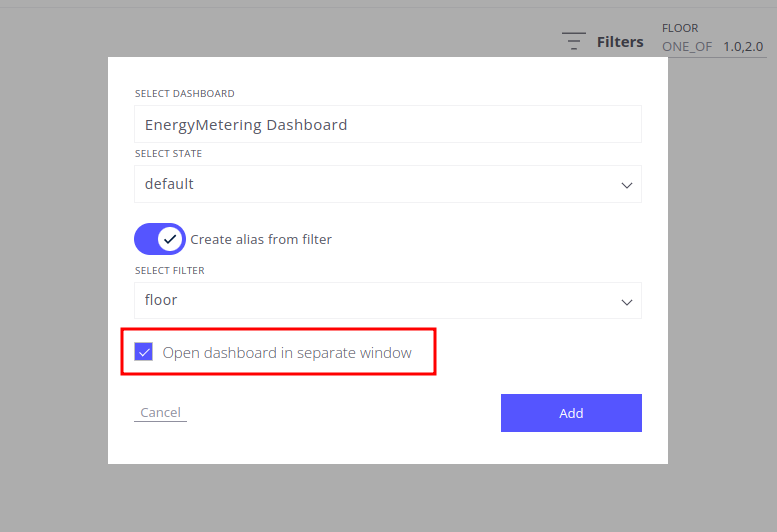
After this, you can open your modified or newly created dashboard in a new tab by enabling the Open dashboard in a separate window field.