
- Introduction
- Try Live Demo
- Install TBMQ PE locally
- Configure client authentication & authorization
- Publishing and Subscribing to Topics
- Next Steps
Introduction
The goal of this tutorial is to showcase the fundamental usage of TBMQ. Through this tutorial, you will gain knowledge and proficiency in the following areas:
- Establishing connections between MQTT clients and the broker.
- Publishing MQTT messages.
- Subscribing to topics to receive published messages.
- Configuring authentication and authorization mechanisms for MQTT clients.
For more comprehensive information regarding the architecture of TBMQ, navigate to the following document. This resource provides detailed insights into the underlying structure and design principles of the broker.
Try Live Demo
The fastest way to get started with TBMQ is to use our free public MQTT broker at demo.tbmq.io. This sandbox environment allows you to explore TBMQ features without any installation.
MQTT connection details:
| Parameter | Value |
|---|---|
| Host | demo.tbmq.io |
| TCP Port | 1883 |
| TLS Port | 8883 |
| Username | demo |
| Password | (leave empty) |
You can start publishing and subscribing to topics immediately using these credentials. To access the TBMQ UI and explore sessions, subscriptions, and other features, sign up for a free account.

The demo instance provides read-only access to the UI. You can observe all sessions, subscriptions, and broker statistics, but cannot modify configurations. If you prefer to run TBMQ locally with full administrative access, proceed to the Install TBMQ locally section.
Install TBMQ PE locally
For full control over your TBMQ PE instance, you can install it locally. For detailed instructions on different platforms, see the Installation options documentation.
Follow the instructions below for a quick local installation.
|
For Linux or macOS users who have Docker installed, the execution of the following commands is recommended: |
|
For Windows users who have Docker Desktop installed, the execution of the following instructions is recommended. Note: make sure the downloaded PowerShell scripts are allowed to run on your system.
|
Before proceeding, make sure you’ve selected your subscription plan or chosen to purchase a perpetual license. If you haven’t done this yet, please visit the Pricing page to compare available options and obtain your license key.

Update your docker-compose.yml file with the license secret you obtained earlier. Open the file, find the TBMQ_LICENSE_SECRET environment variable, and replace YOUR_LICENSE_KEY_HERE with your actual license secret. After updating the file, restart TBMQ by running the following command.
1
./tbmq-install-and-run.sh
Once the installation process is complete for local deployment, you can access TBMQ UI by visiting the following URL: http://localhost:8083. Wait patiently until the services are up and running. To log in, utilize the following default credentials.
Username:
1
sysadmin@thingsboard.org
Password:
1
sysadmin
Configure client authentication & authorization
If you are using the demo instance, skip this section. Demo credentials are pre-configured and ready to use.
To secure the connection to the broker, enable Basic authentication.
Once Basic authentication is enabled, create MQTT Client Credentials of type Basic to authenticate connecting clients:
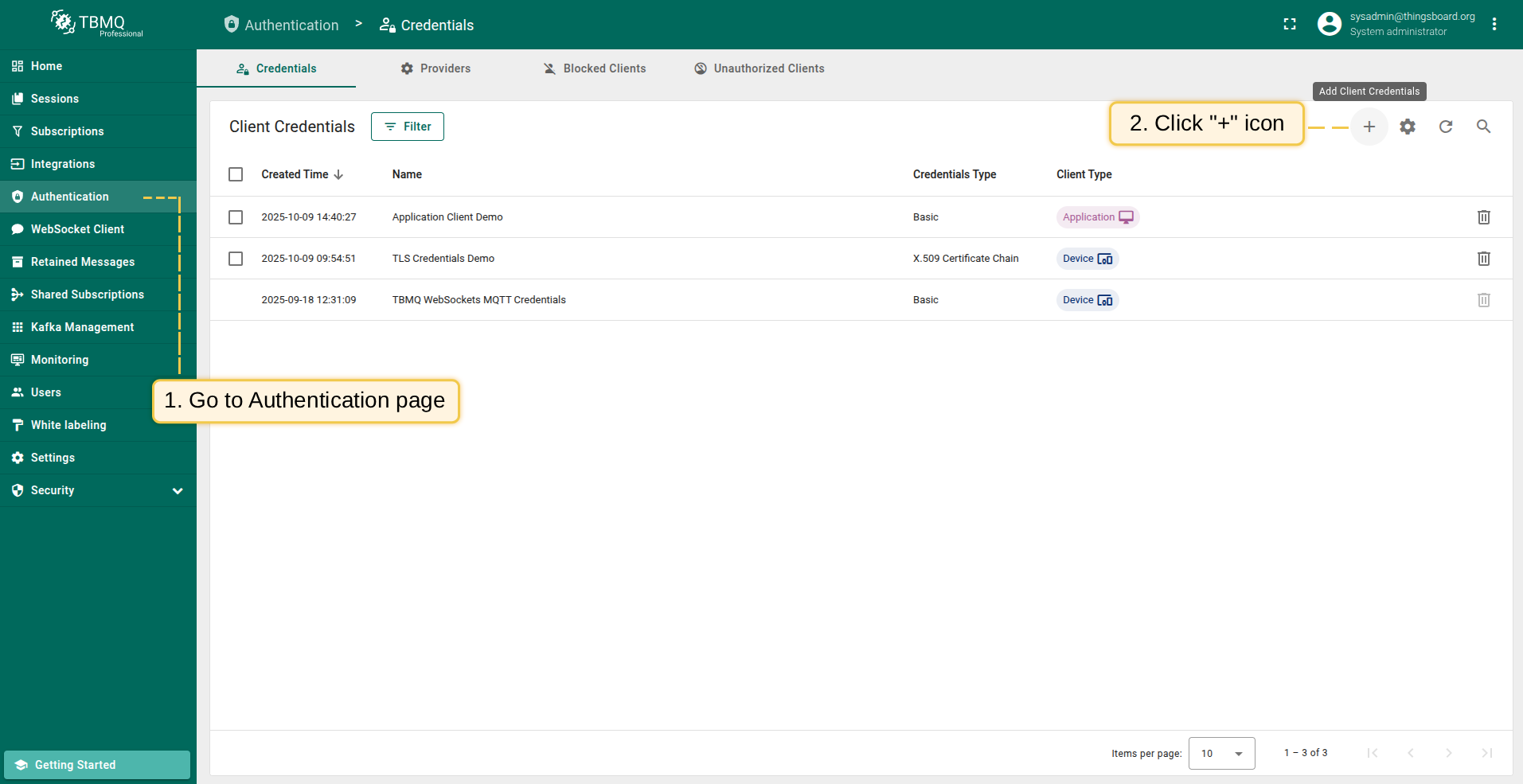
- Navigate to Authentication - Credentials tab, click “+” in the top right corner of the table.
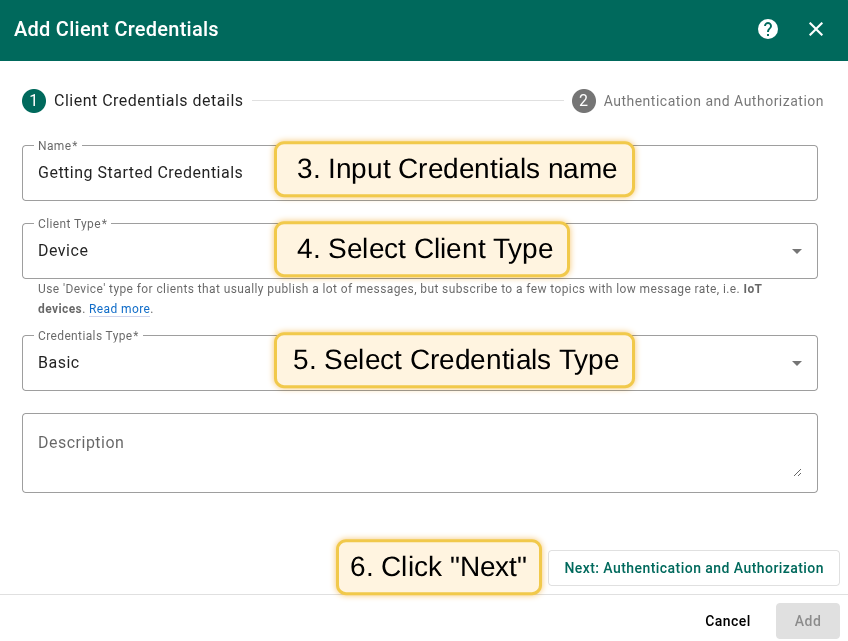
- Input credentials name. For example, “Getting Started Credentials”.
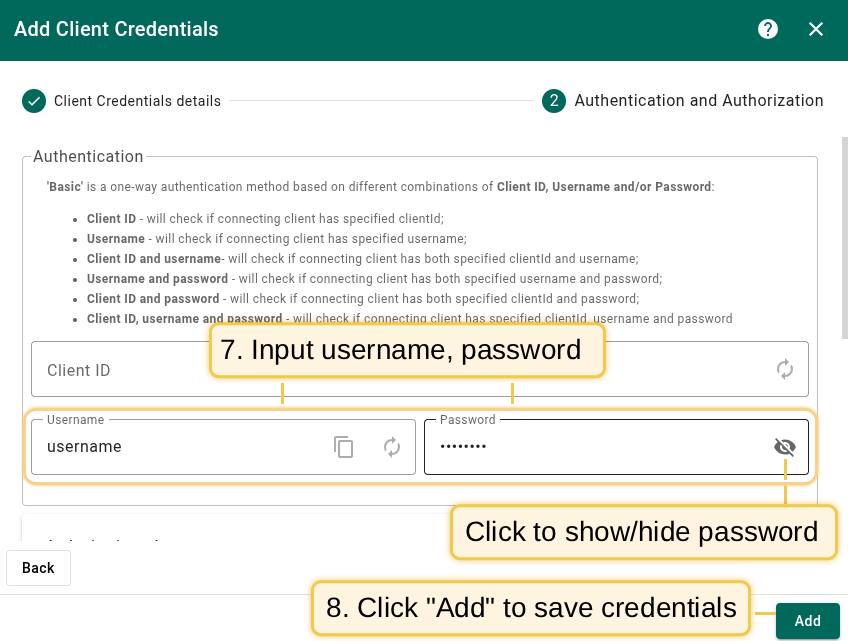
- Input “username” and “password” with chosen values. For example, use
usernameandpasswordvalues respectively. - Authorization rules are set to allow publishing/subscribing to any topic by default.
- Click “Add” to save credentials.
For additional authentication methods, refer to the security guide.
Publishing and Subscribing to Topics
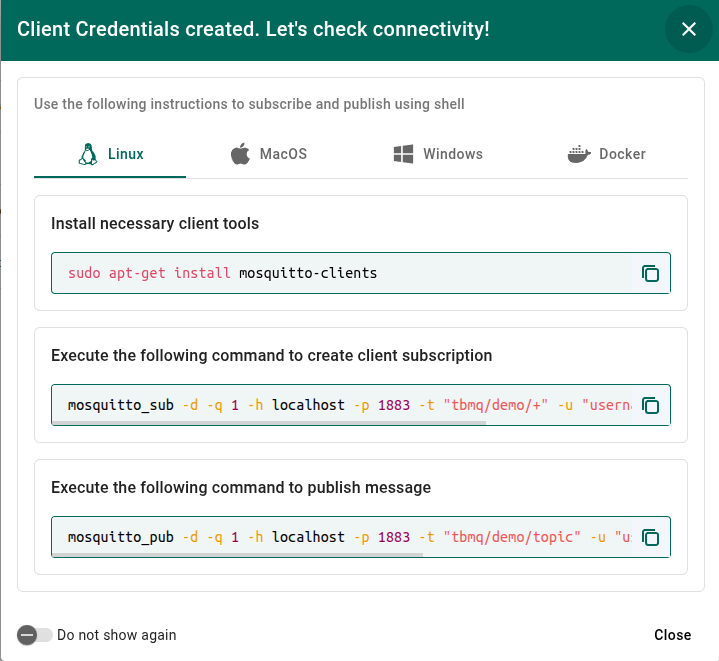
Now, let’s publish messages and subscribe to topics to observe the flow of messages. This tutorial uses Mosquitto clients. See the documentation for mosquitto_pub and mosquitto_sub for more details.
Subscribe to topicTo subscribe to the sensors/temperature topic and start receiving messages, use the following command: Once connected, you can view the session information in the UI by navigating to the Sessions page. If you have signed up for a demo account, log in to demo.tbmq.io and navigate to the Sessions page to see all active sessions, including your newly created session. Publish messageTo publish a message to the sensors/temperature topic, use the following command: |
Subscribe to topicTo subscribe to the sensors/temperature topic and start receiving messages, use the following command: Note: Replace Once connected, you can view the session information in the UI by navigating to the Sessions page. 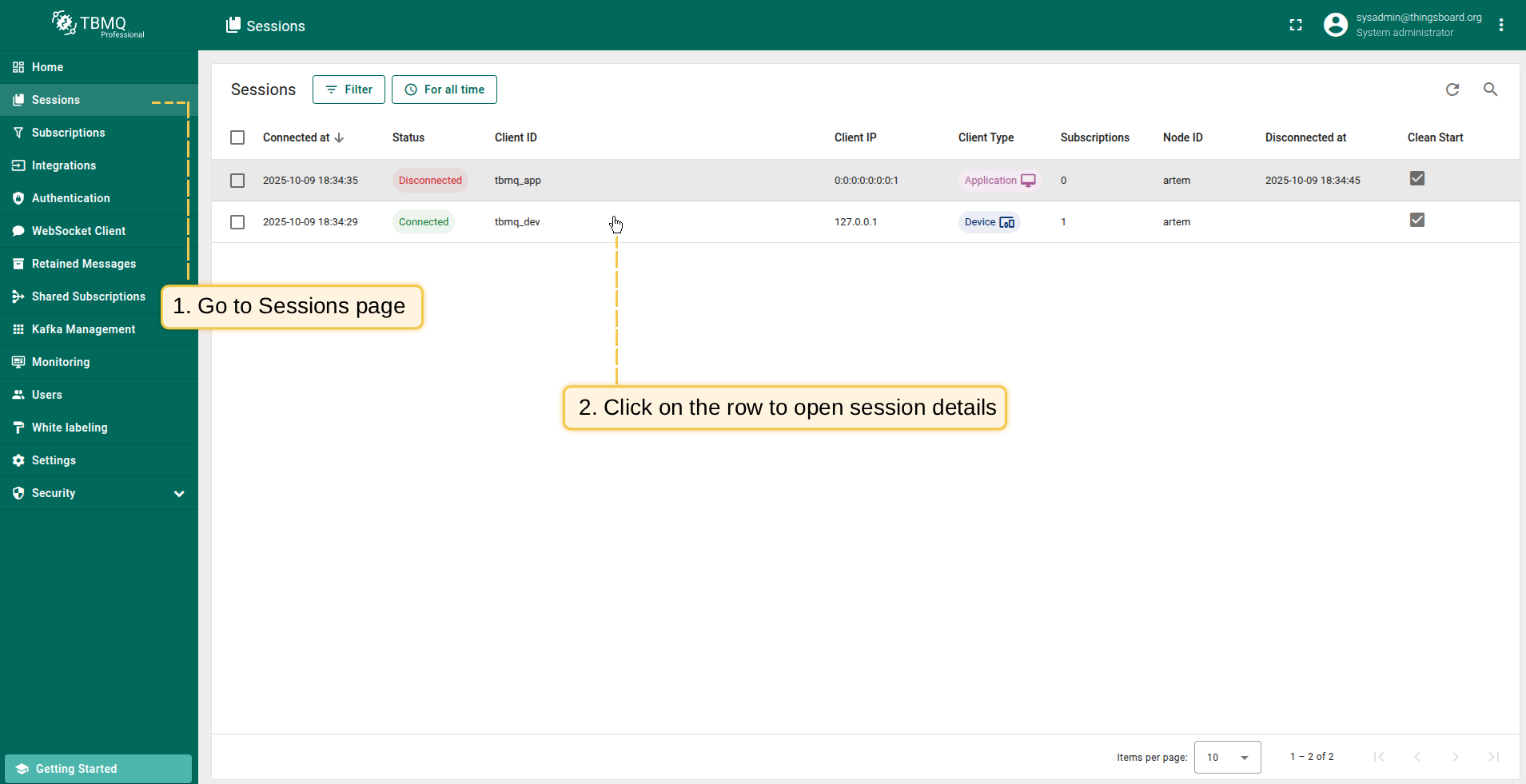 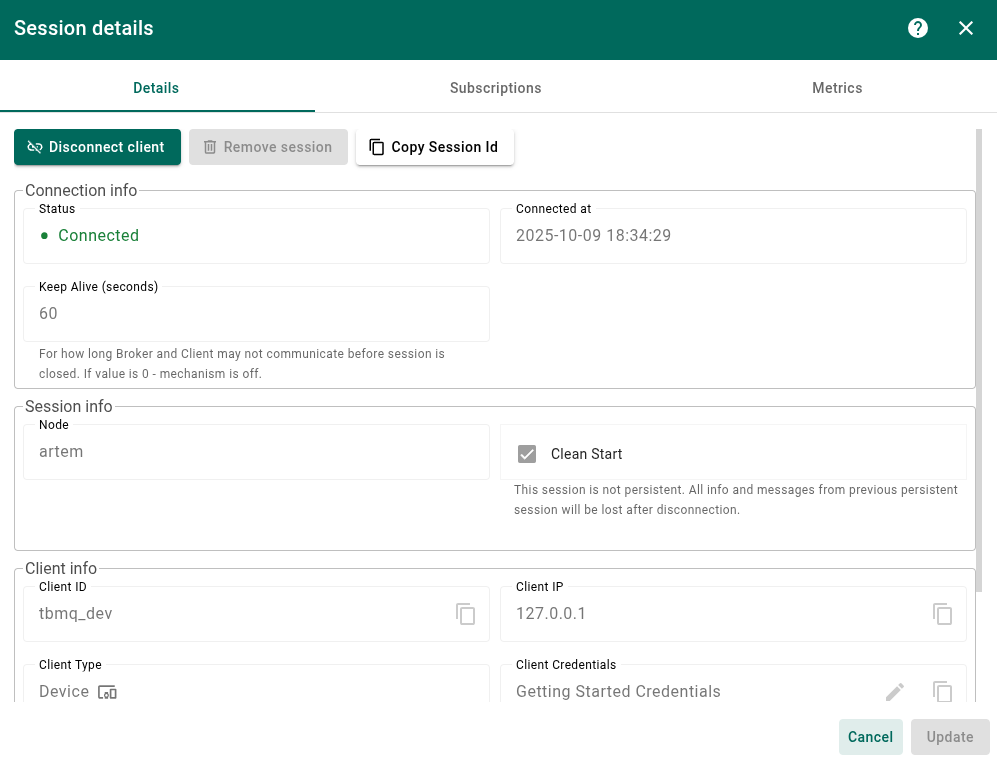 Publish messageTo publish a message to the sensors/temperature topic, use the following command: Note: Replace |
Result
You should see the published message received by the subscribed client:

Next Steps
-
Installation guides - Learn how to set up TBMQ using Docker or deploy it in K8S environments on AWS, GCP, and Azure.
-
Security guide - Learn how to enable authentication and authorization for MQTT clients.
-
Configuration guide - Learn about TBMQ configuration files and parameters.
-
MQTT client type guide - Learn about TBMQ client types.
-
Integration with ThingsBoard - Learn about how to integrate TBMQ with ThingsBoard.