
- Two-factor authentication methods
- Configure two-factor authentication
- Enable 2FA for a user account
- Next steps
Two-factor authentication (2FA) adds an extra layer of security to user sign-in. When 2FA is enabled, users must complete an additional identity verification step in addition to entering their password.
This approach significantly reduces the risk of unauthorized access, even if user credentials are compromised.
ThingsBoard supports multiple 2FA verification methods, which can be enabled and configured by administrators and selectively activated by tenants.
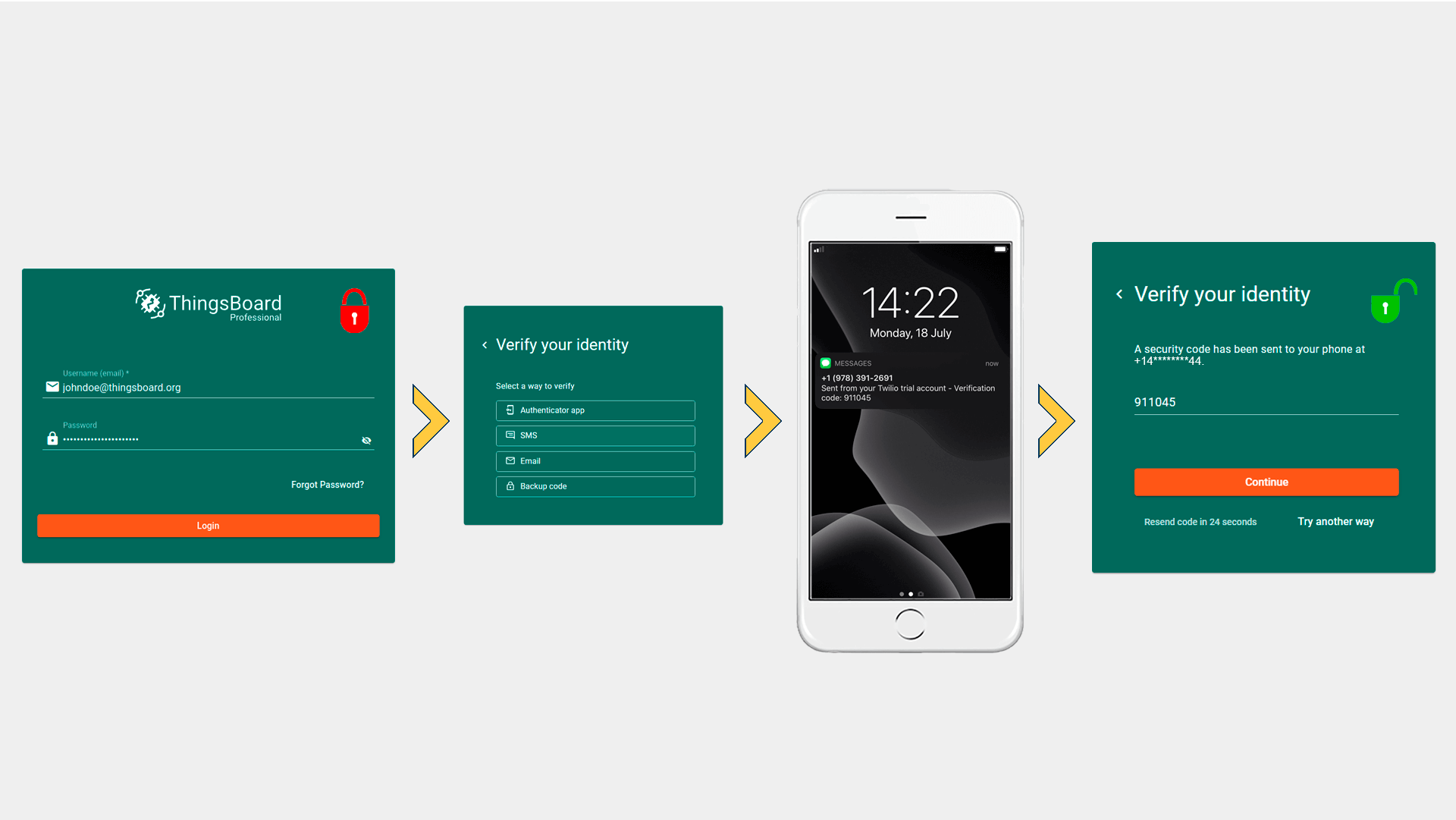
Two-factor authentication methods
- Email. A one-time verification code is sent to the user’s email address after entering valid credentials. To use email-based 2FA, a system administrator should configure an outgoing mail server.
- SMS. A one-time verification code is sent to the user's phone number via SMS. To use SMS-based 2FA, an SMS provider must be configured by the system administrator.
- Authenticator app (TOTP). A time-based one-time password (TOTP) is generated using an external authenticator application. Users can use popular apps such as Google Authenticator, Authy, or Duo.
- Backup code. Backup codes are single-use codes generated by the user and stored securely (downloaded or printed). Backup codes can be used only in combination with at least one other enabled 2FA method and cannot be configured as a standalone authentication option.
Configure two-factor authentication
Tenant administrators can either use the system administrator's 2FA configuration or define a custom 2FA configuration for themselves and their users.
To configure 2FA:
- Log in to ThingsBoard as a Tenant Administrator.
- Navigate to “Security” ⇾ “Two-factor authentication”.
- Clear “Use system two factor auth settings” to configure tenant-specific settings.
- Enable one or more verification methods:
- Authenticator app
- SMS
- Backup codes
- Configure provider-specific options such as:
- Verification limitations
- Verification code check rate limit
- Click “Save” to apply the configuration.
Note: The 2FA methods available to end users depend on the configuration defined on this page.
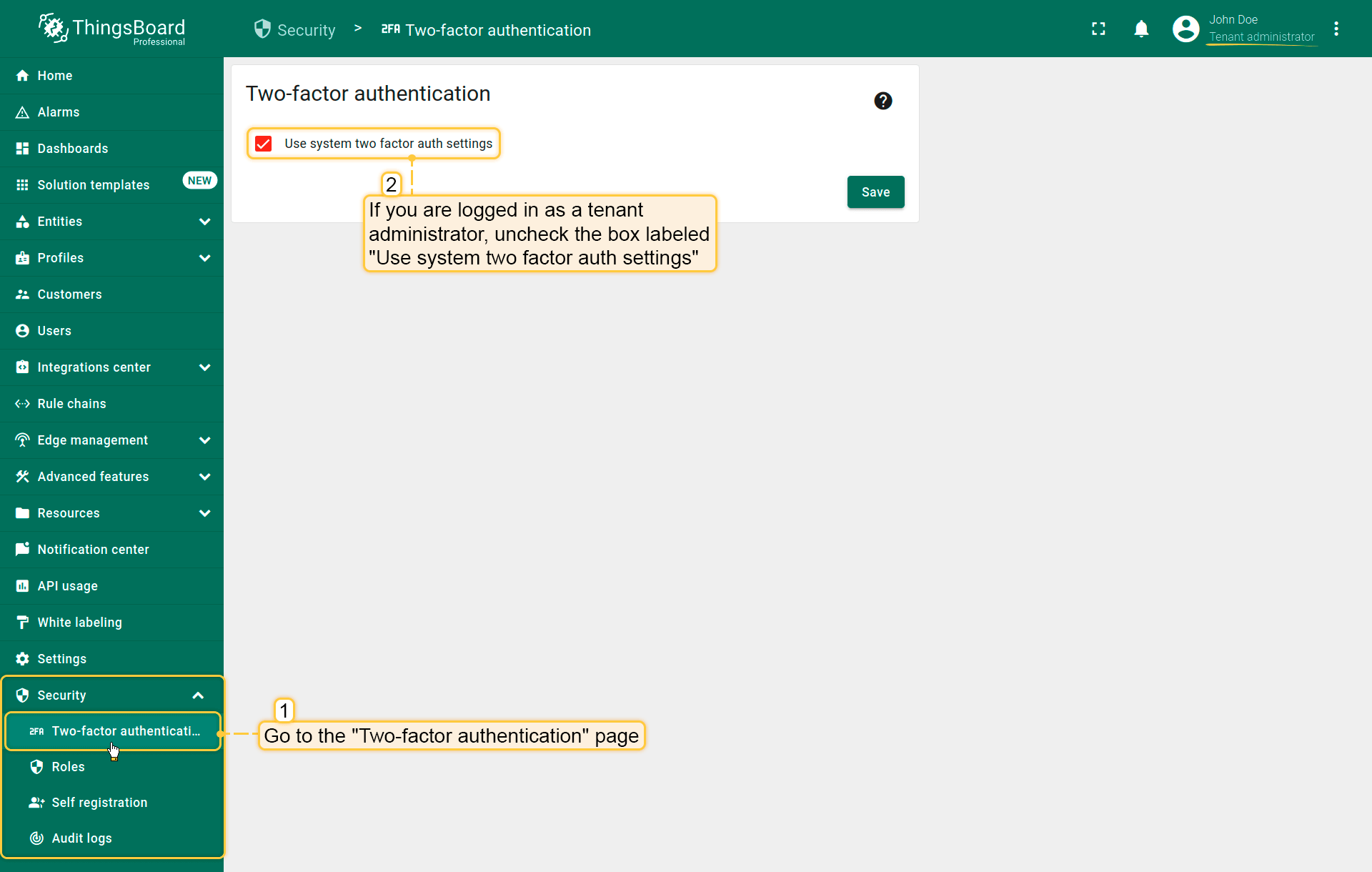
- Navigate to Security ⇾ Two-factor authentication (1).
- Uncheck the box labeled "Use system two factor auth settings" (2).
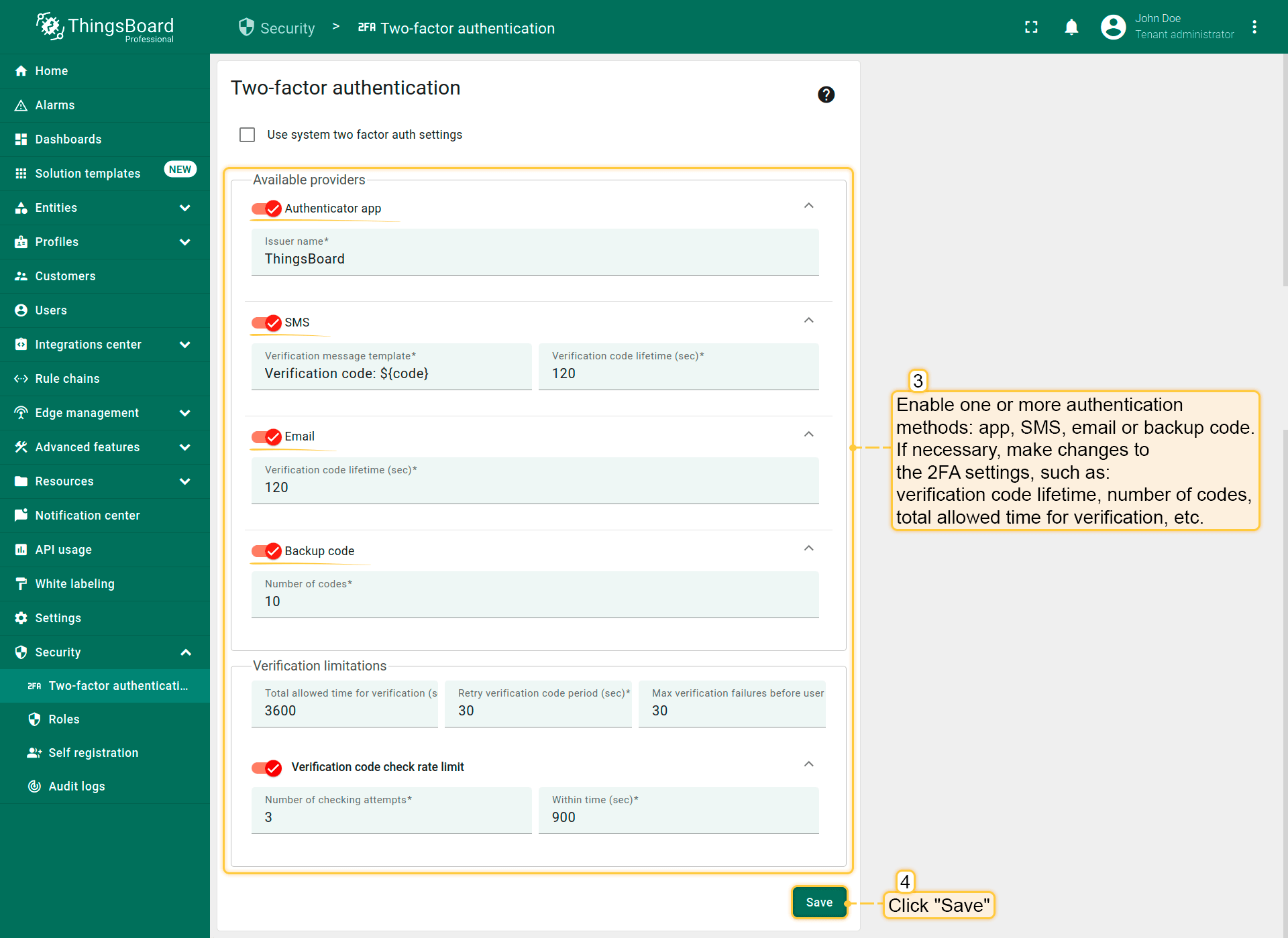
- Save changes (4) to apply the configuration.
Enable 2FA for a user account
Users can enable 2FA for their own accounts using one or more methods configured by the administrator.
To enable 2FA as a user:
- Log in to ThingsBoard.
- Open the user menu (three dots) in the top-right corner and select “Account”.
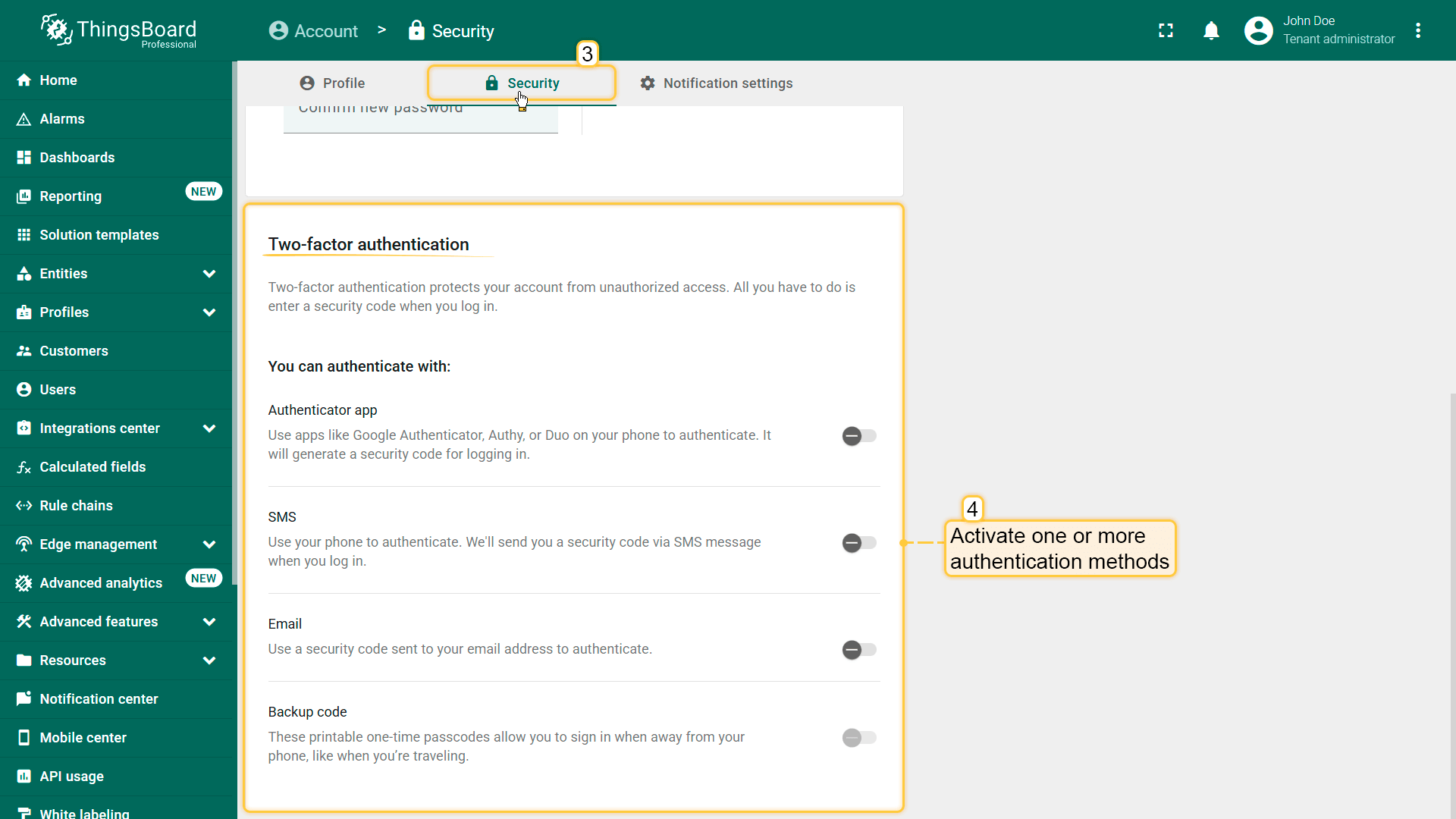
- Navigate to the “Security” tab.
- Enable one or more available 2FA methods and complete the setup steps.
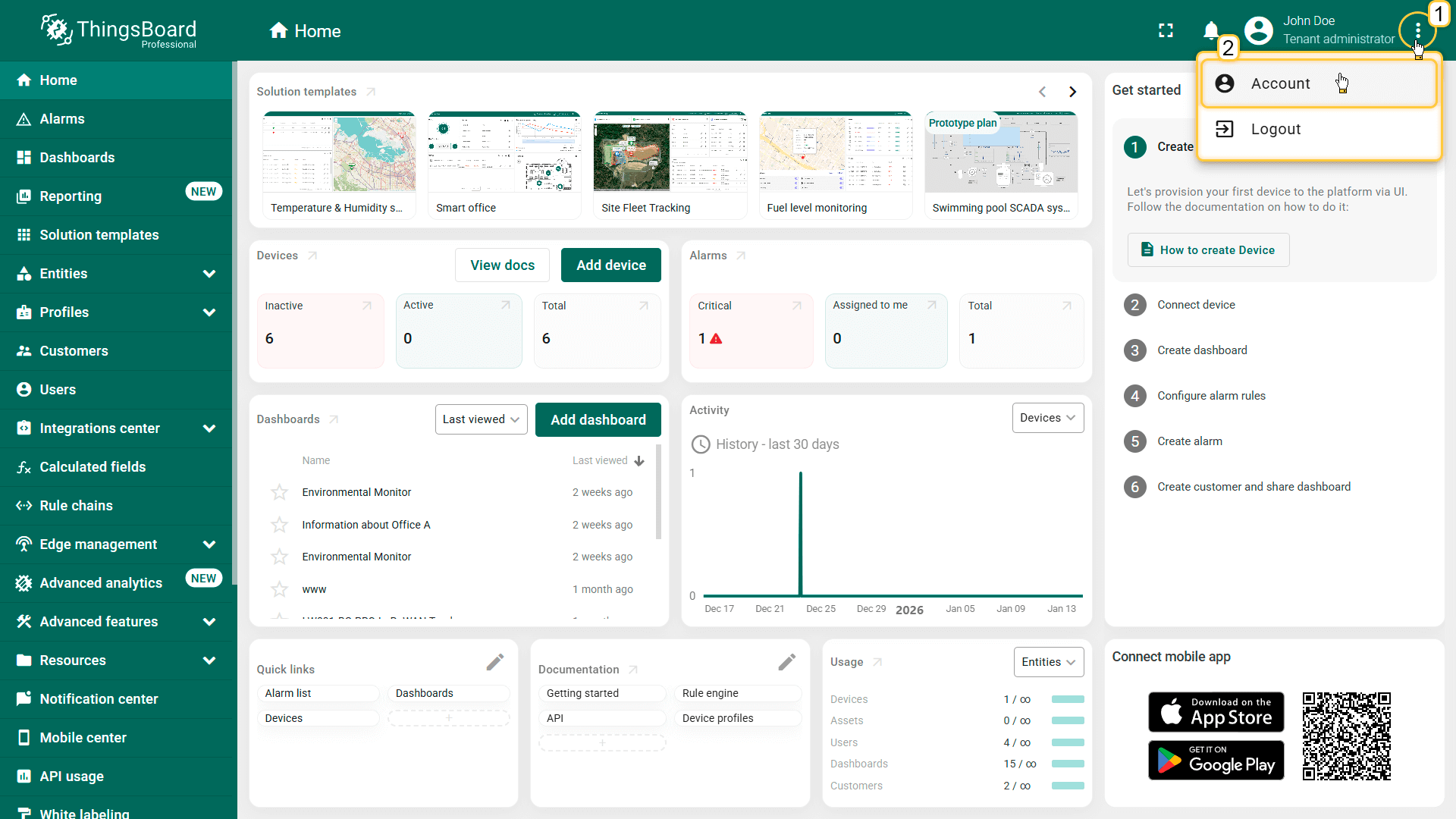
Open the user menu (three dots) (1) in the top-right corner and select "Account" (2).

Important! The list of 2FA options available depends on the settings on the “Two-factor authentication” page.
Authenticator app
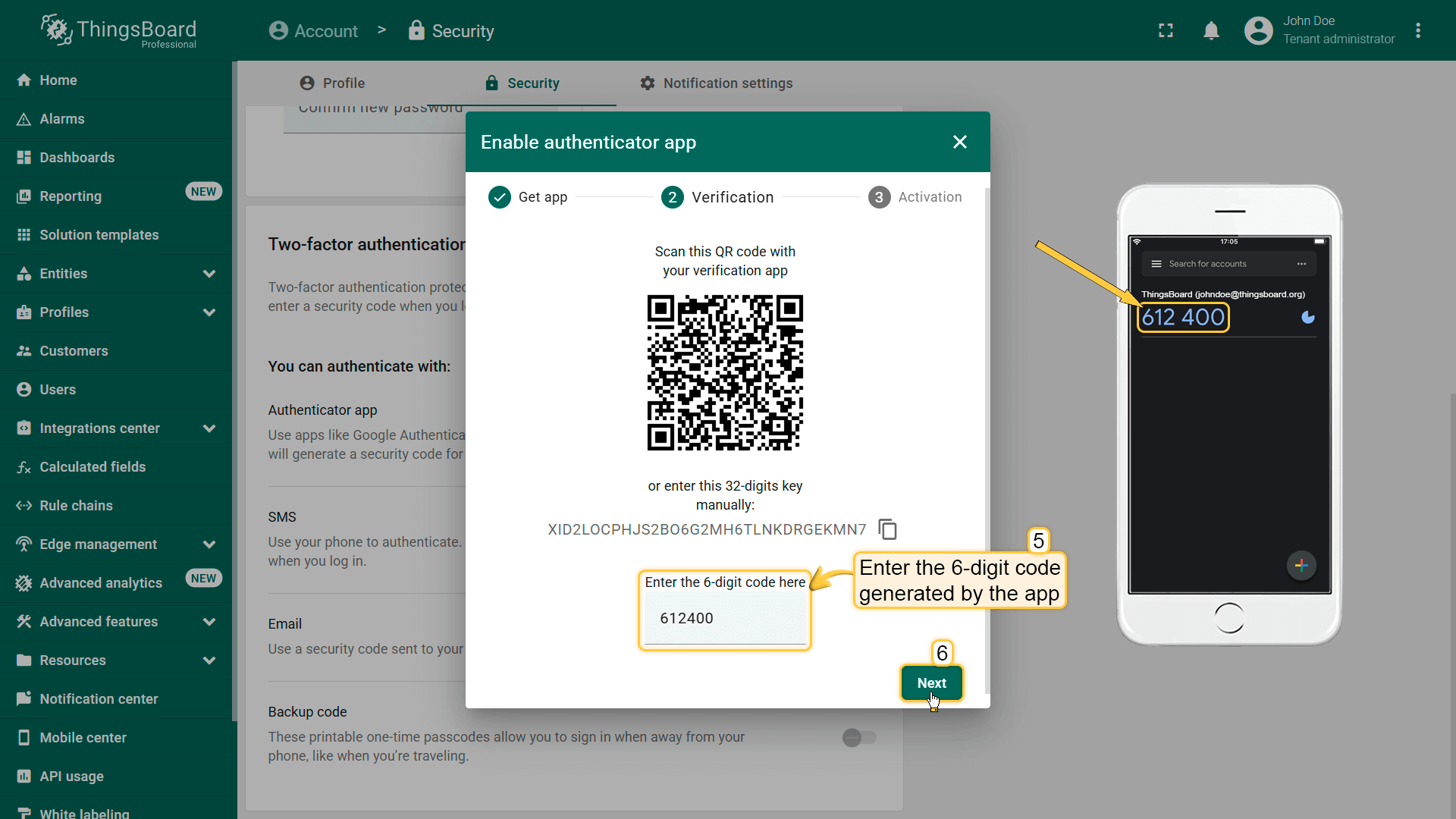
Enable authenticator app verification:
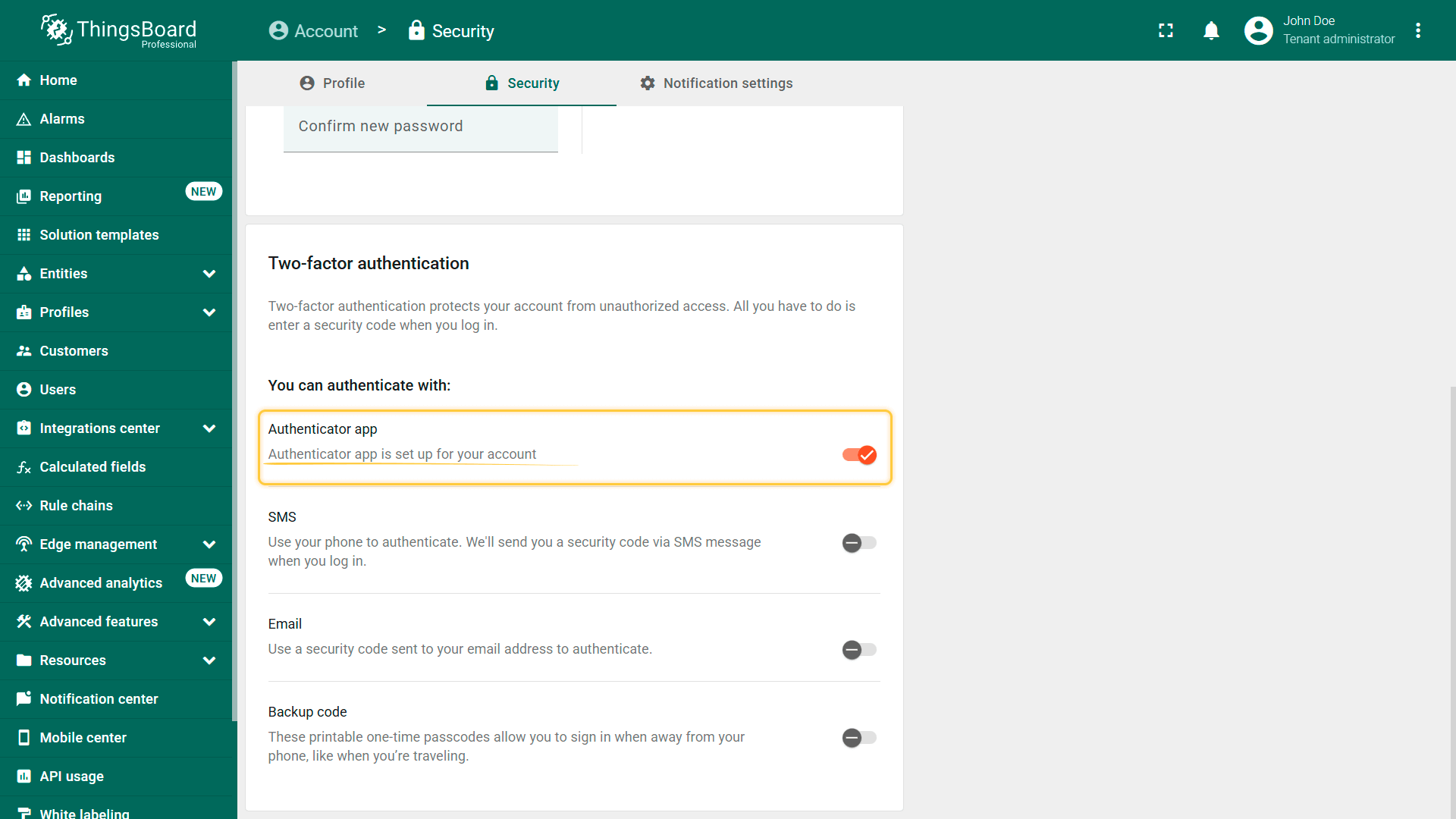
- Open “Account” ⇾ “Security”.
- Enable authentication via Authenticator app.
- Open the authenticator app on your mobile device.
- Scan the displayed QR code.
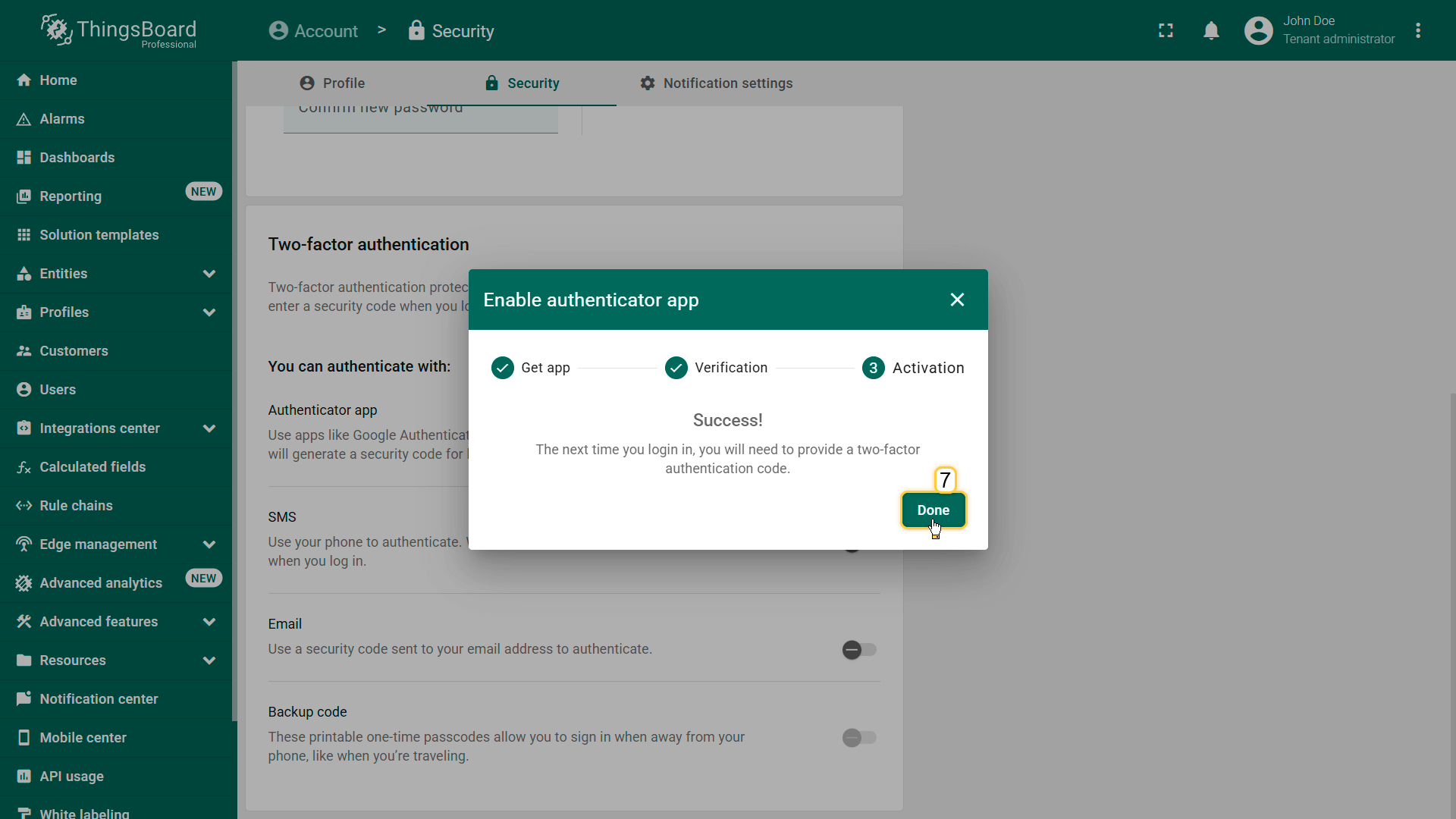
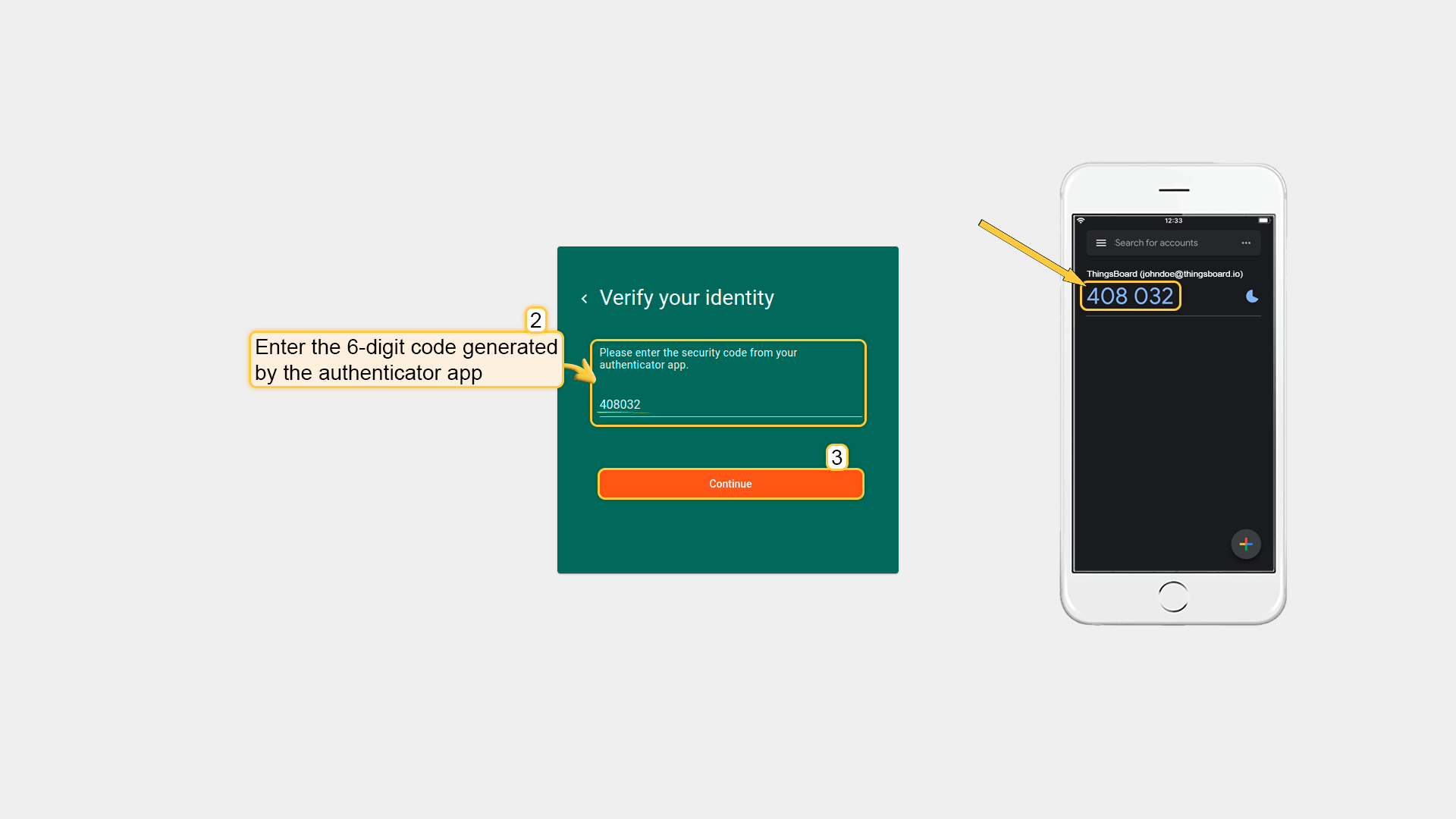
- Enter the 6-digit code generated by the app.
- Click “Done”.
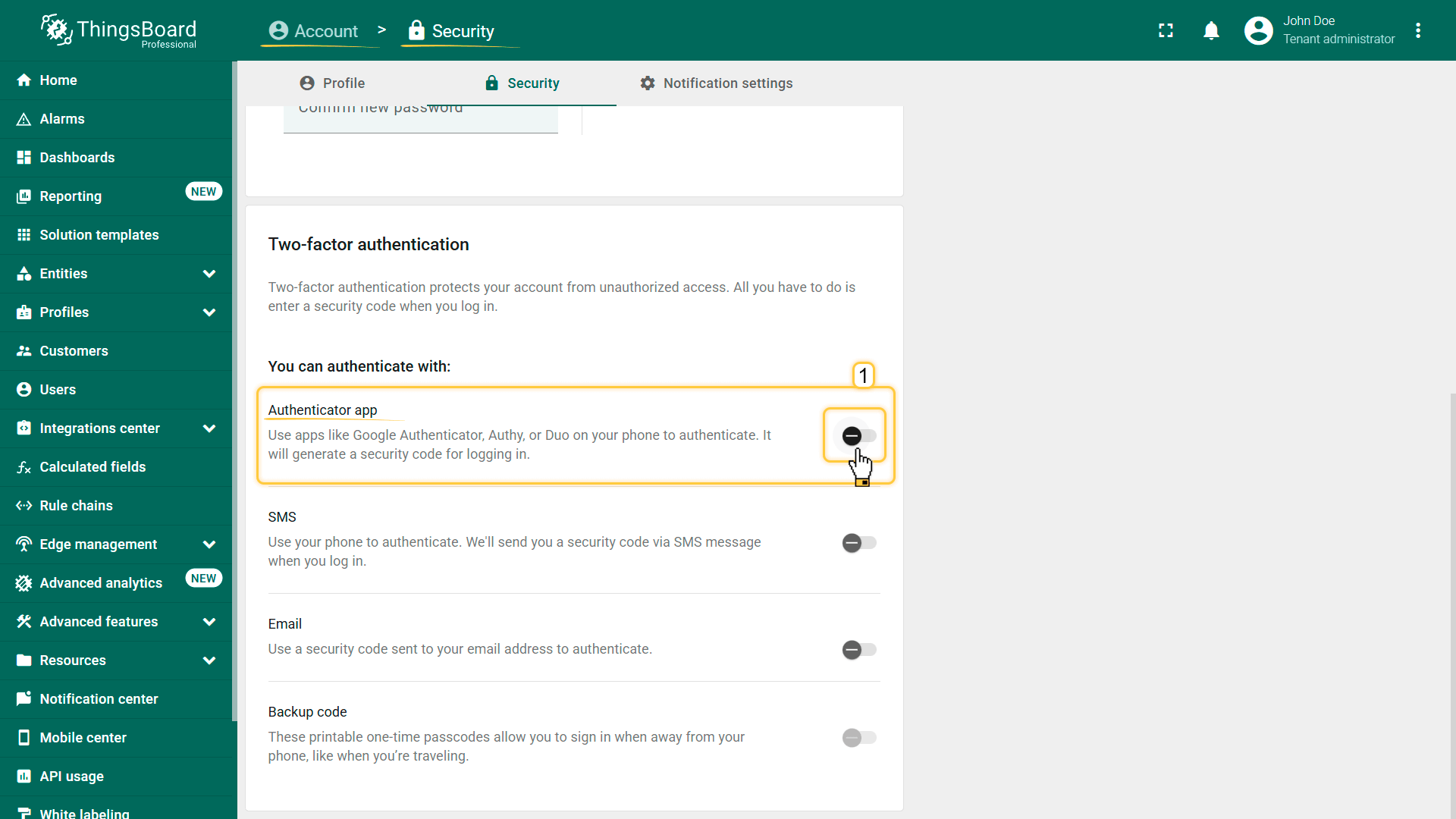
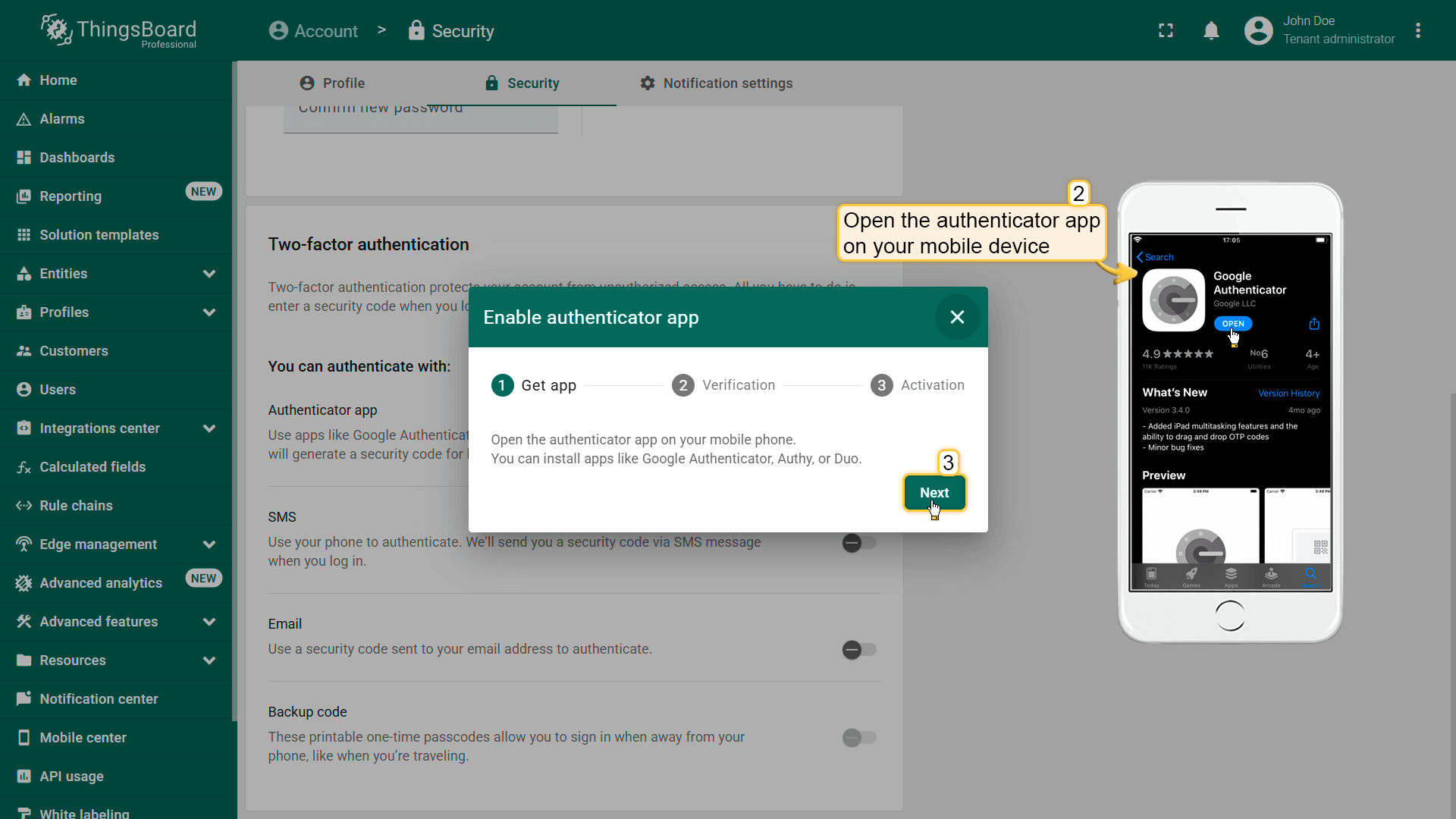
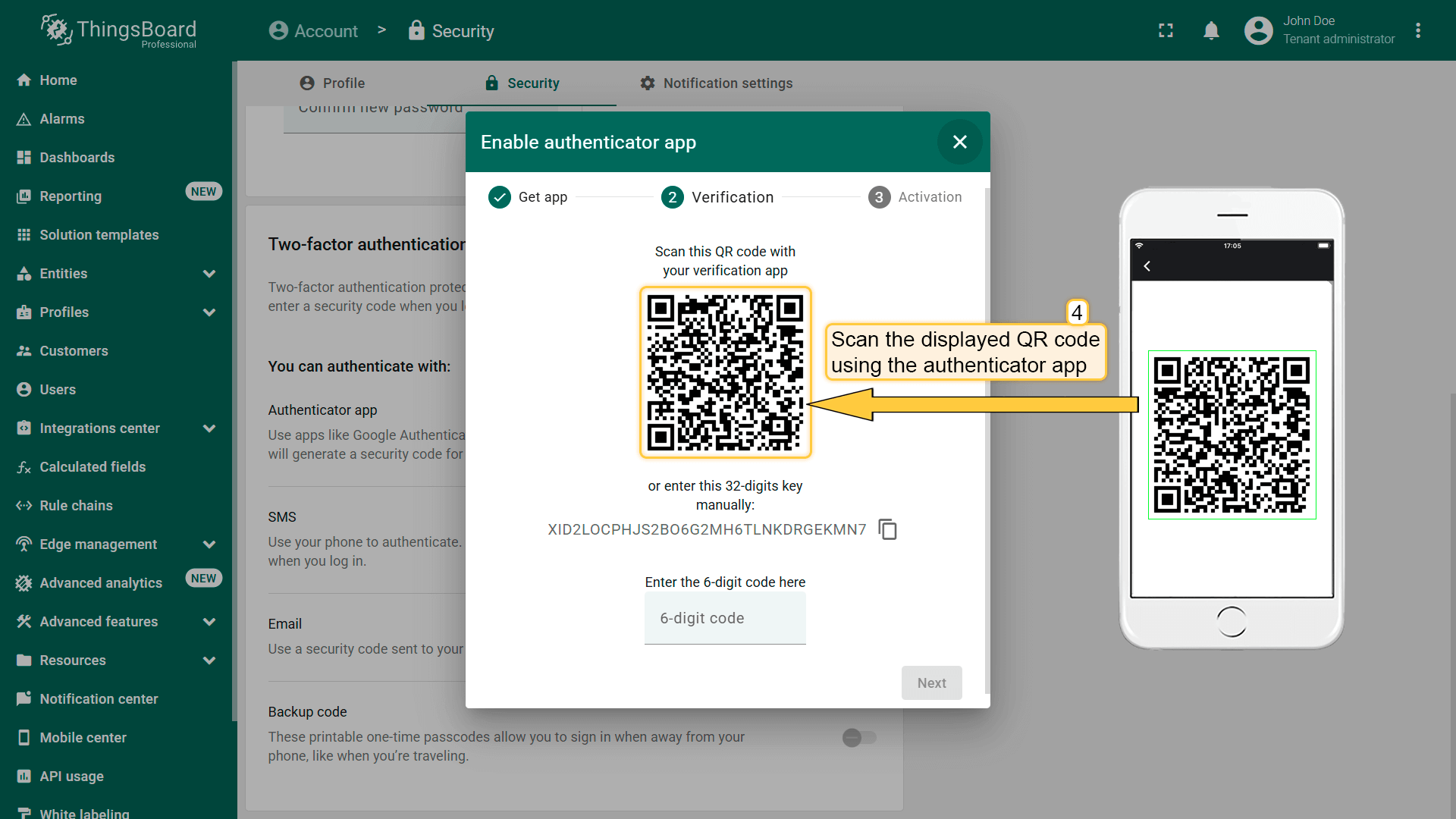
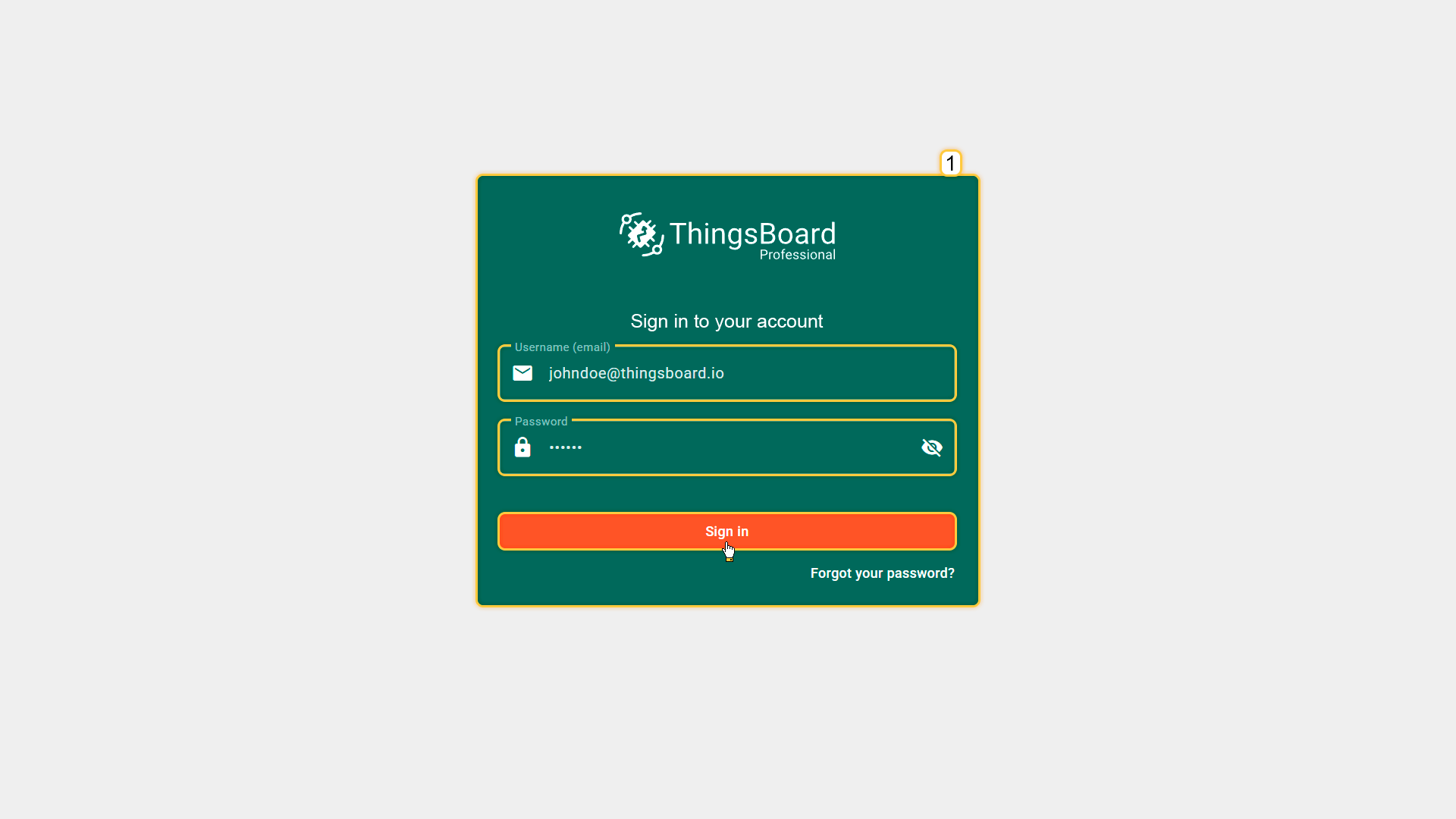
Sign-in with authenticator app:
- Enter your username and password.
- Enter the 6-digit code generated by the authenticator app.
SMS verification
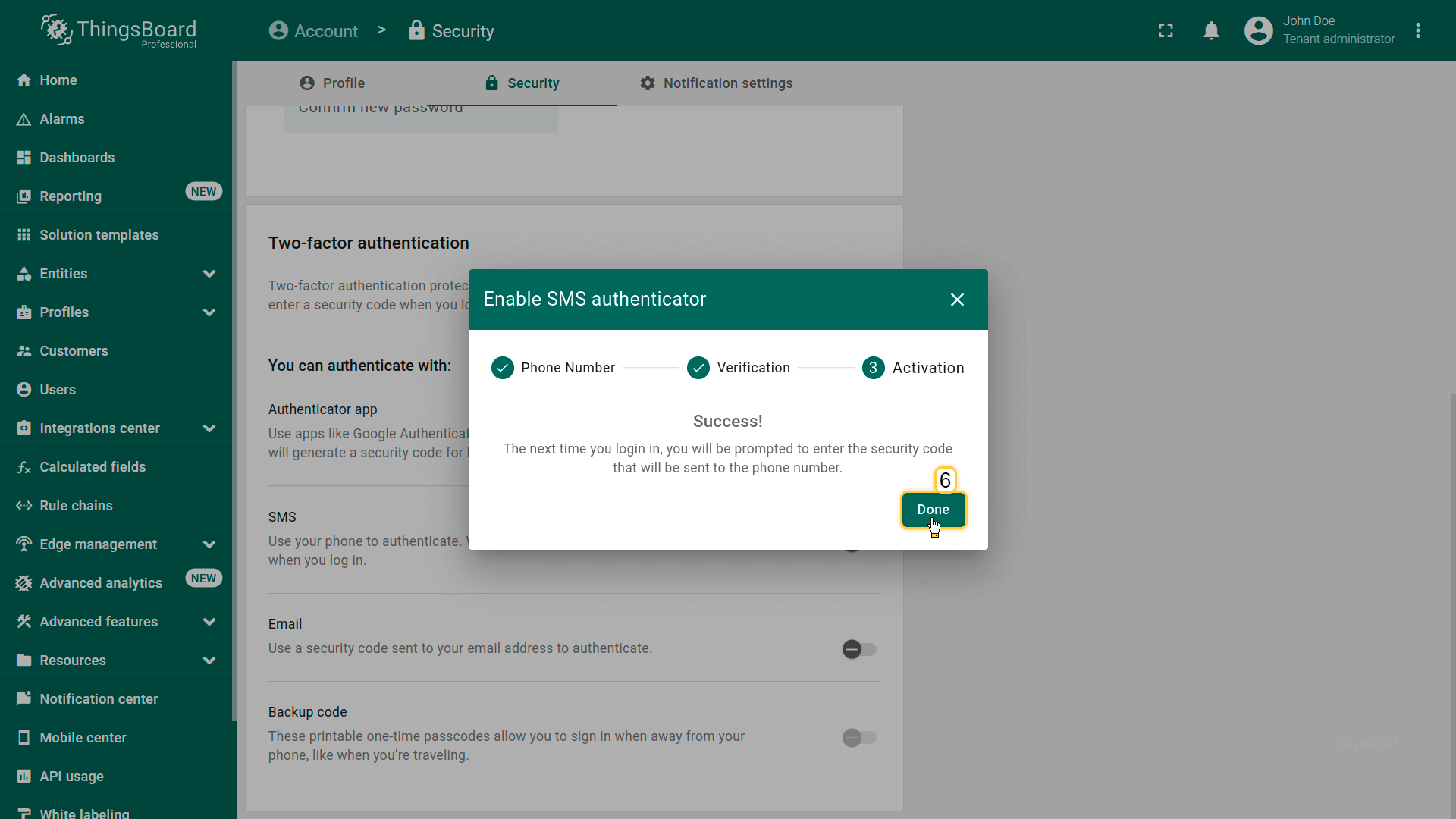
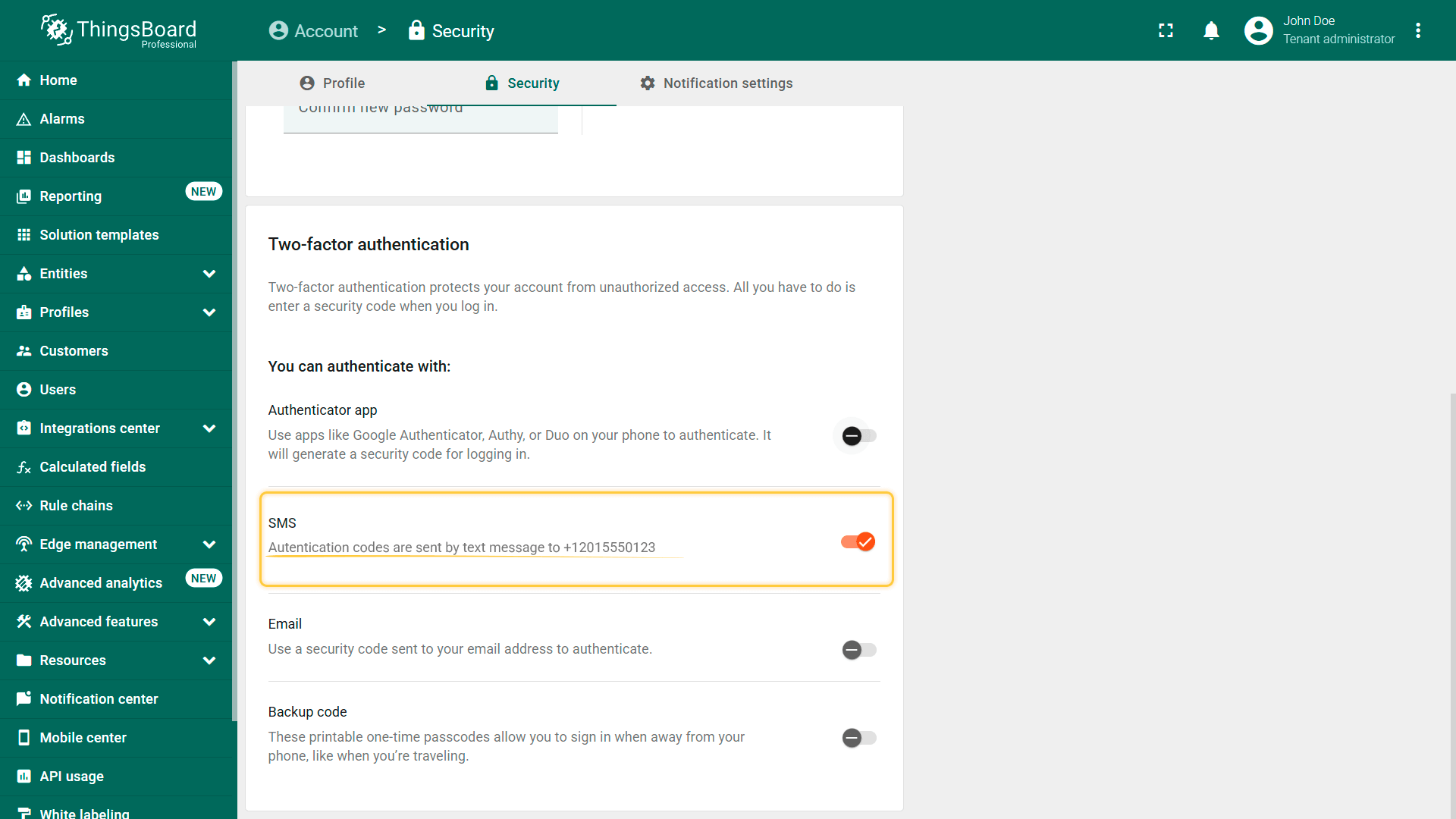
Enable SMS verification:
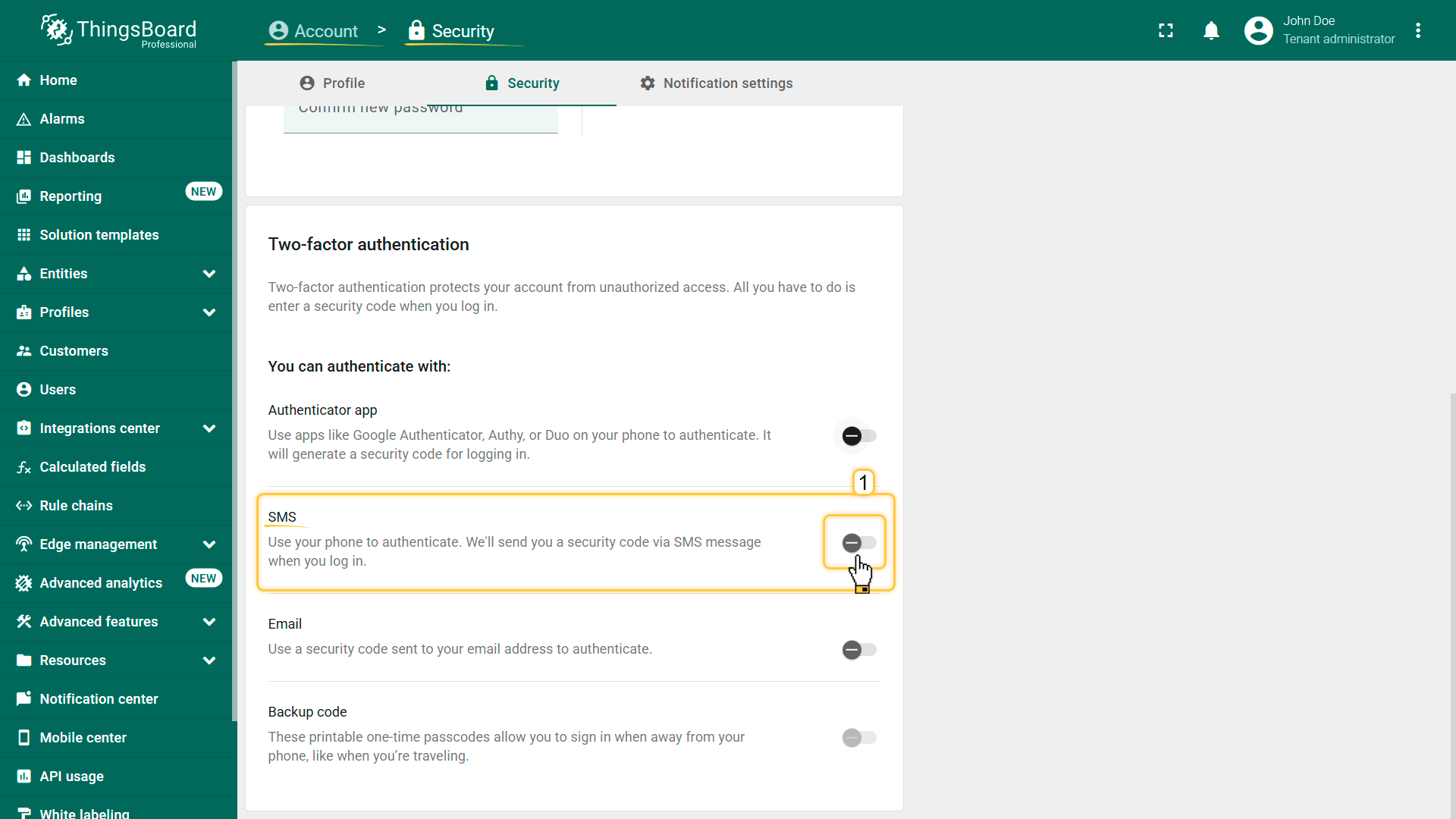
- Open “Account” ⇾ “Security”.
- Enable authentication via SMS.
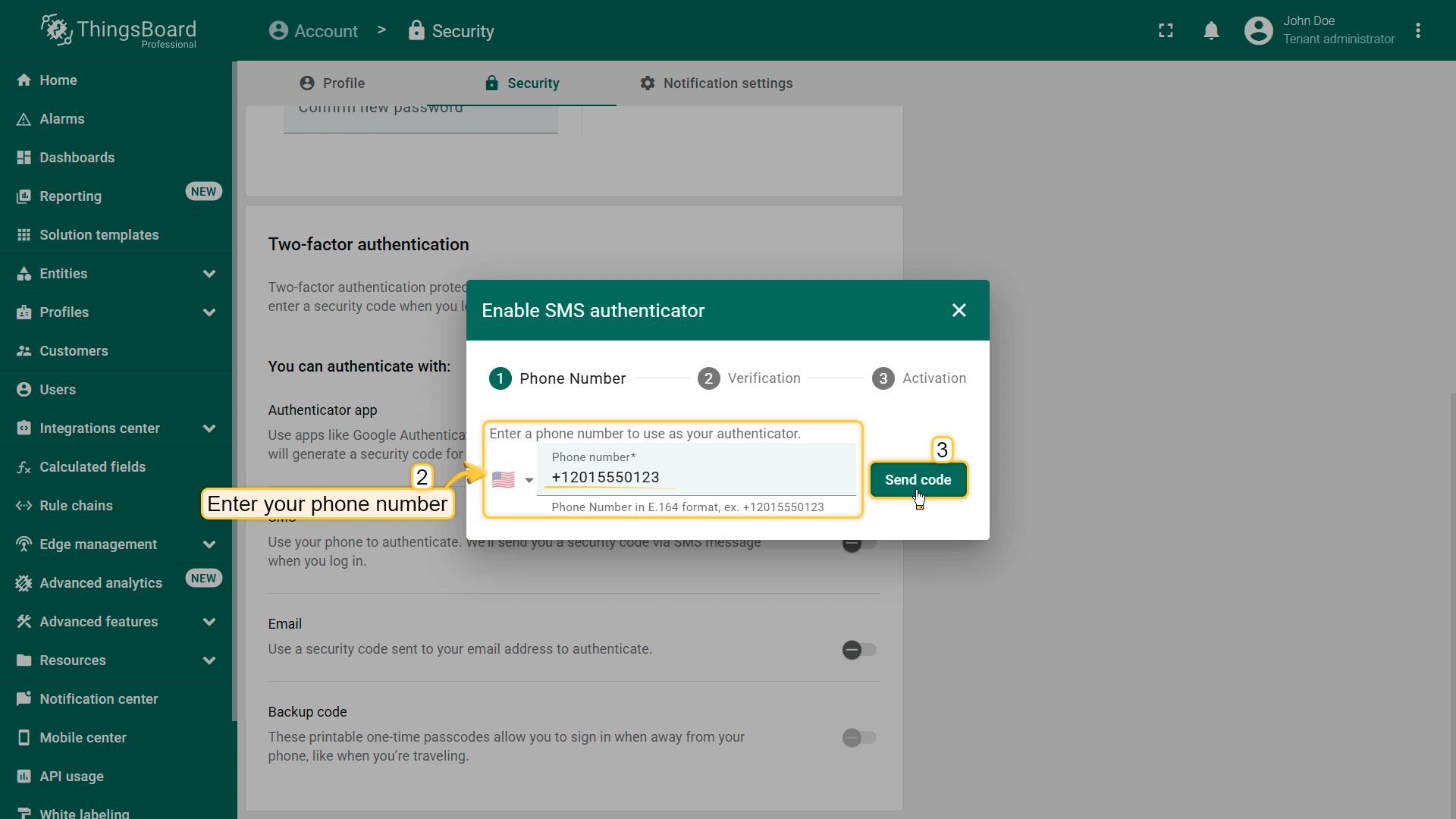
- Enter your phone number.
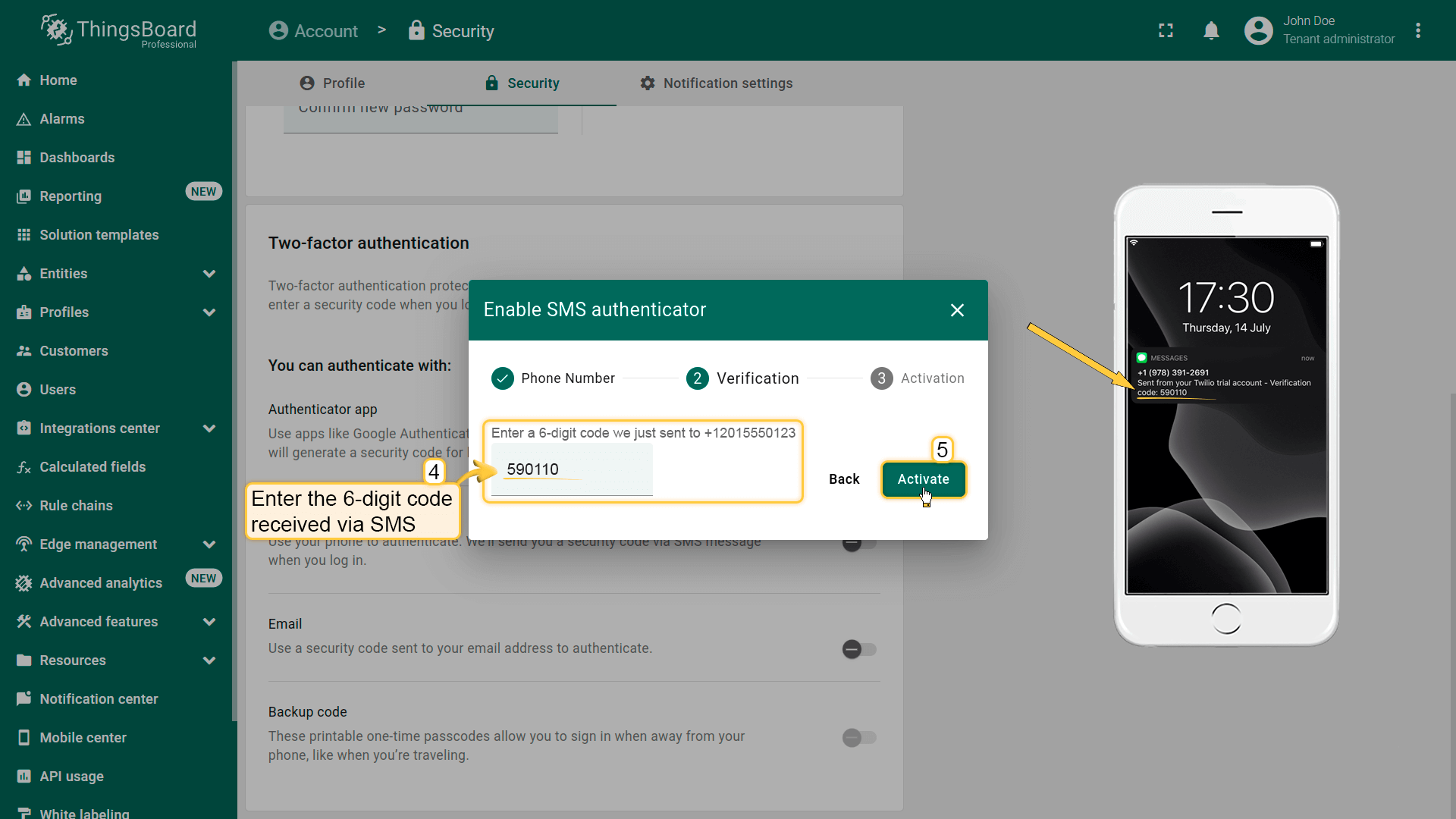
- Enter the 6-digit code received via SMS.
- Click “Done”.
Sign-in with SMS
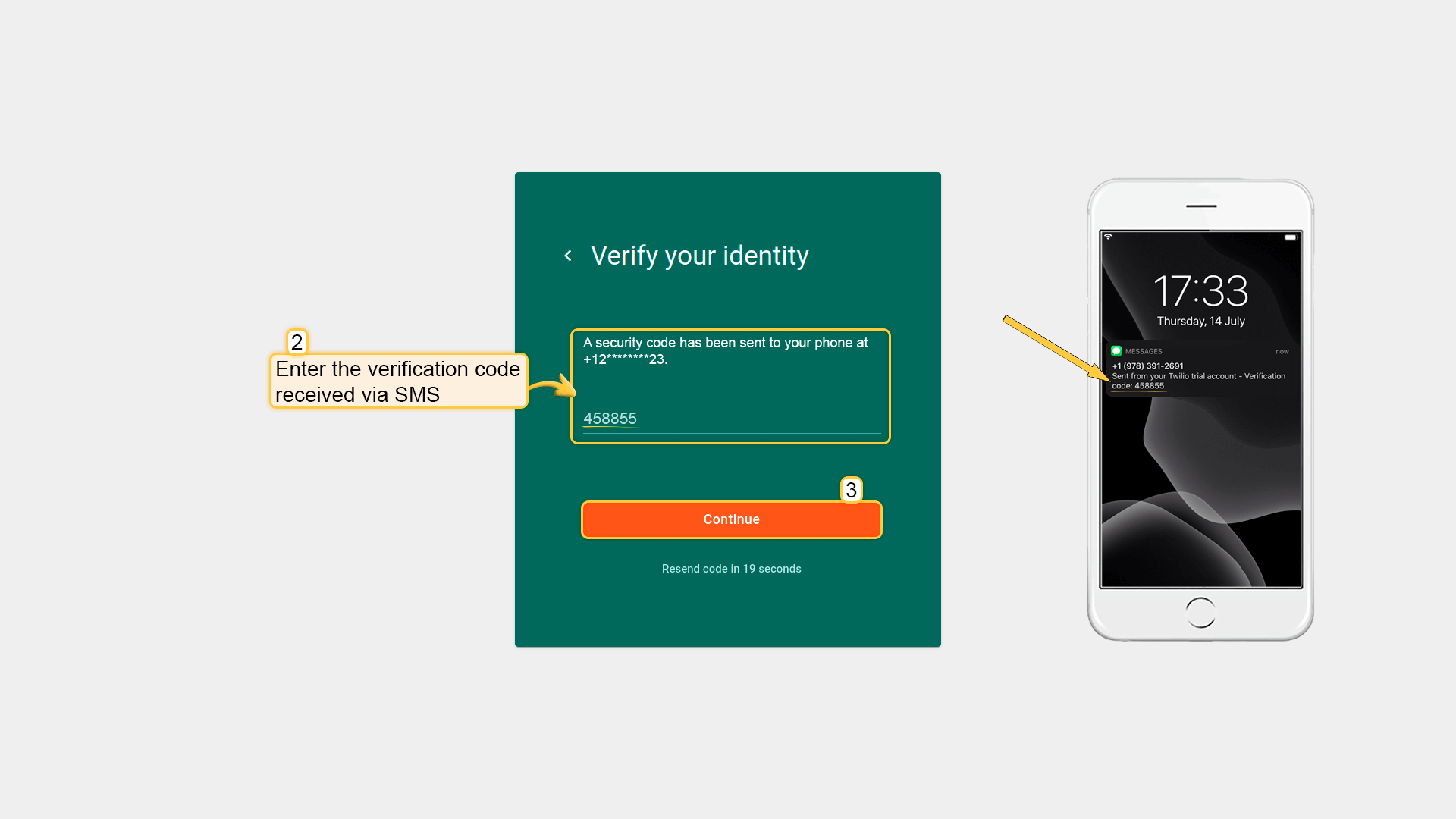
During sign-in:
- Enter your username and password.
- Enter the verification code received via SMS.
Email verification
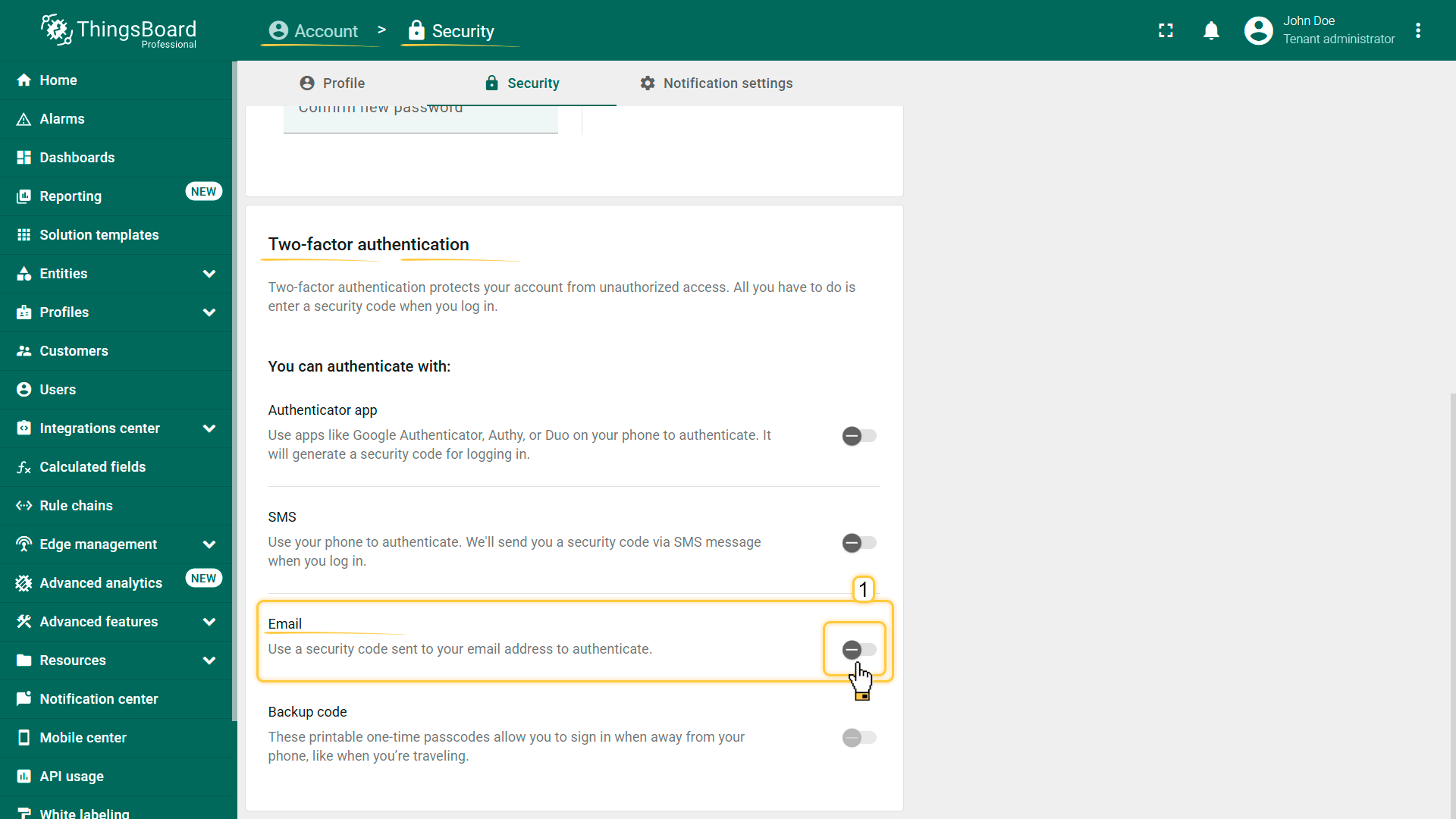
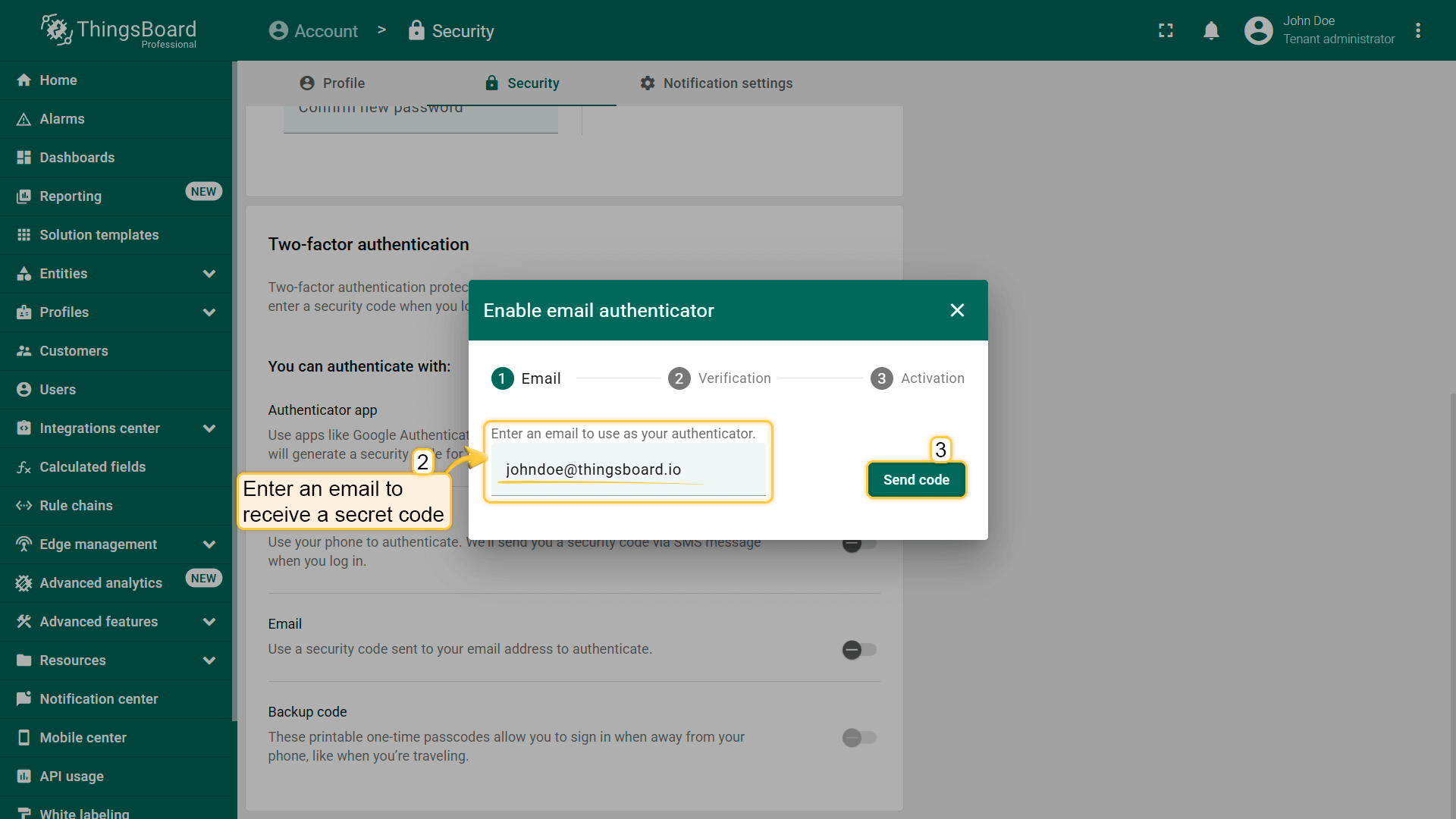
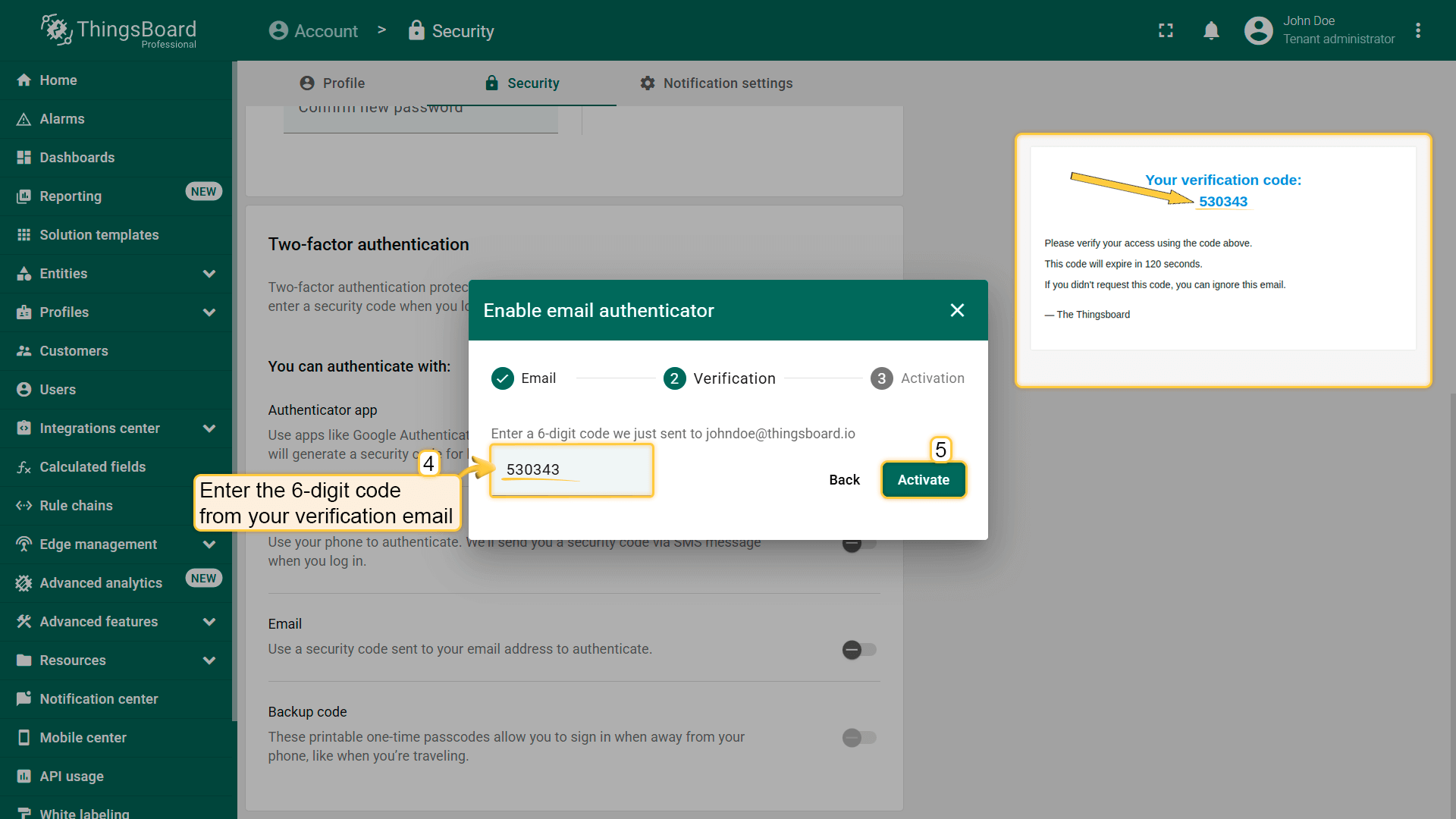
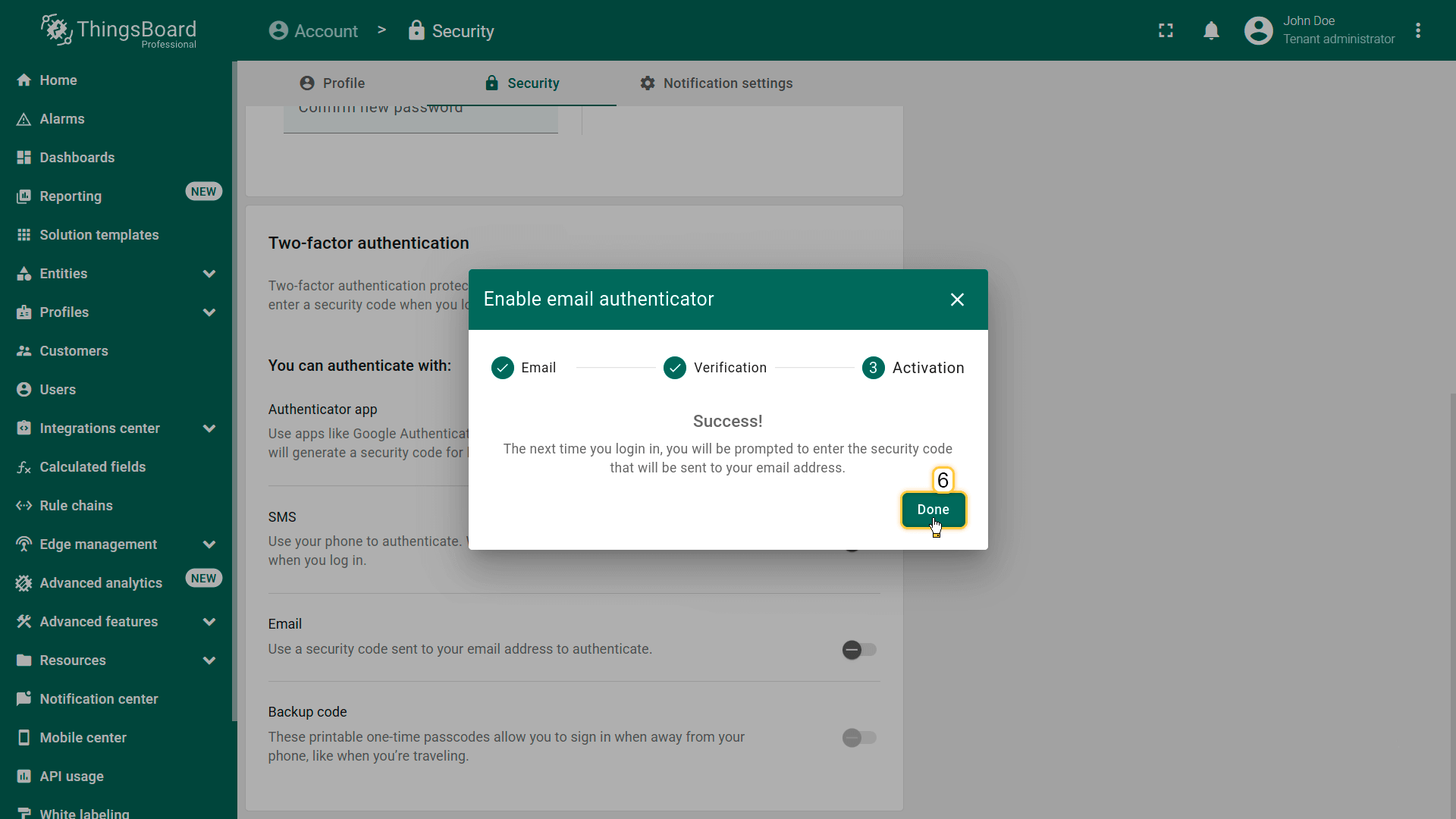
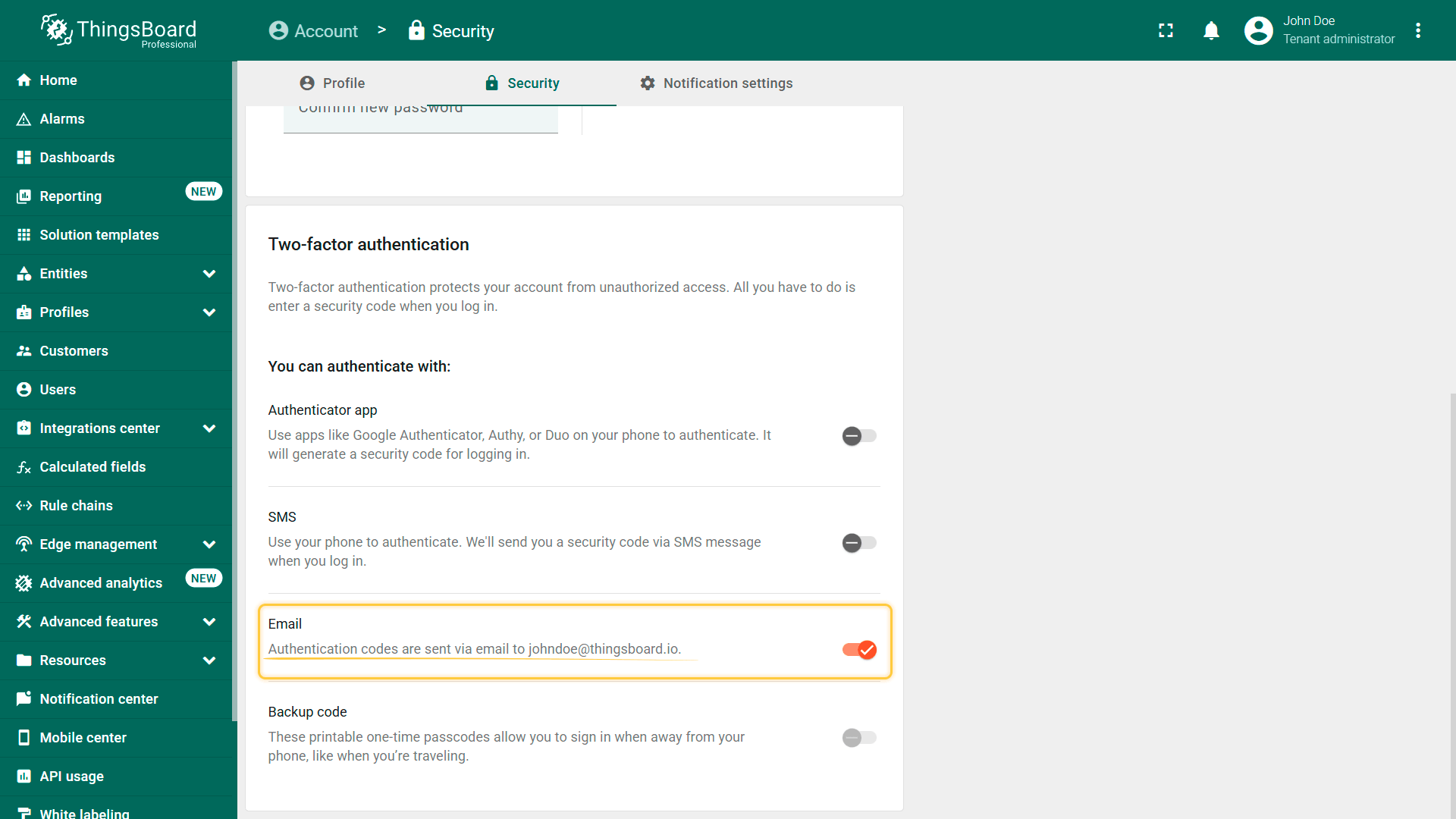
Enable email verification:
- Open “Account” ⇾ “Security”.
- Enable authentication via Email.
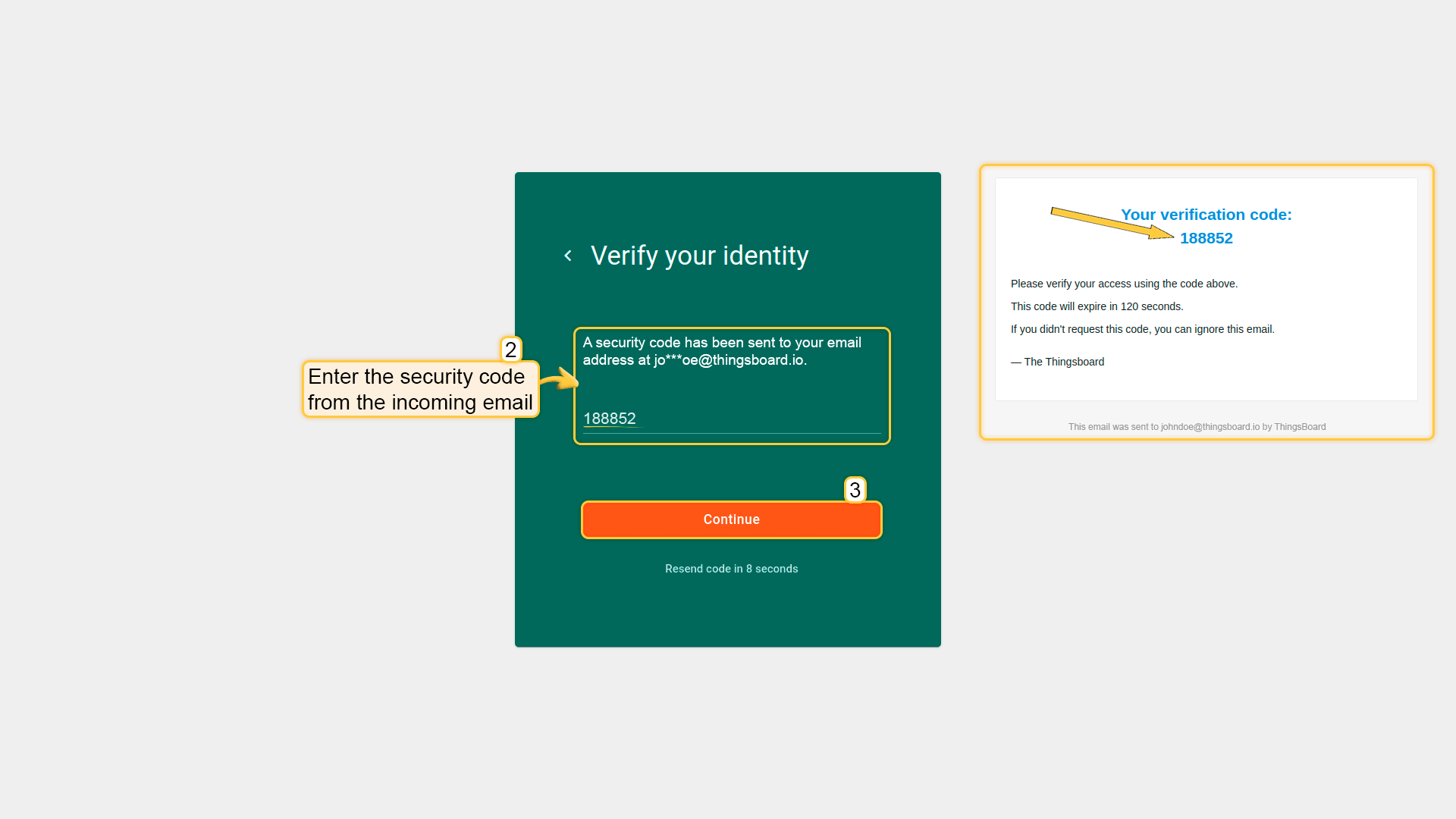
- Enter the 6-digit code received via email.
- Click “Done”, then “Save”.
Sign-in with email:
- Enter your username and password.
- Enter the verification code received via email.
Backup codes
Backup codes provide an alternative authentication method when other 2FA methods are unavailable (for example, if the mobile device is lost).
Note: this method can be used only in combination with at least one other enabled 2FA method and cannot be configured as a standalone authentication option.
Generate backup codes:
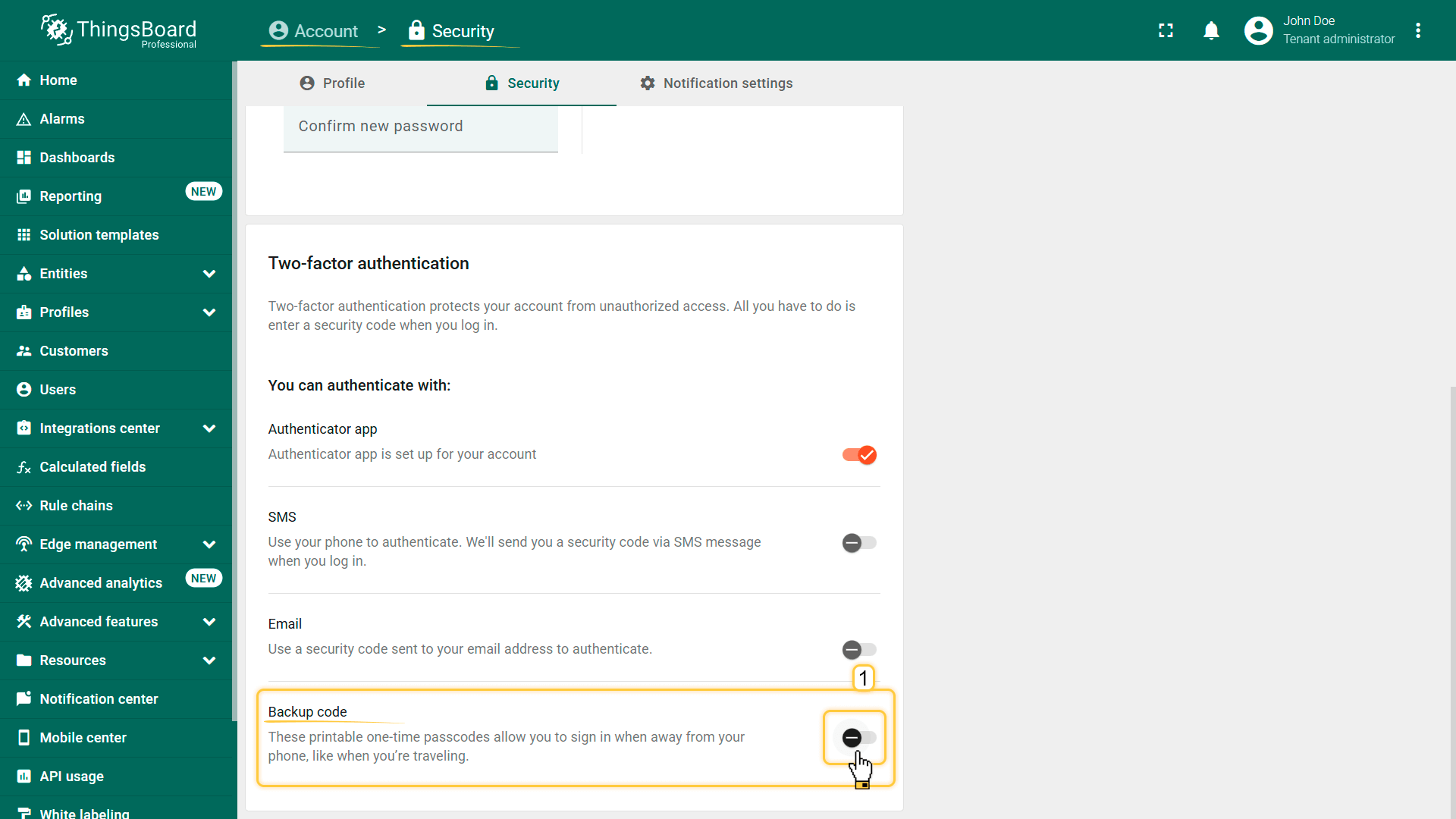
- Open “Account” ⇾ “Security”.
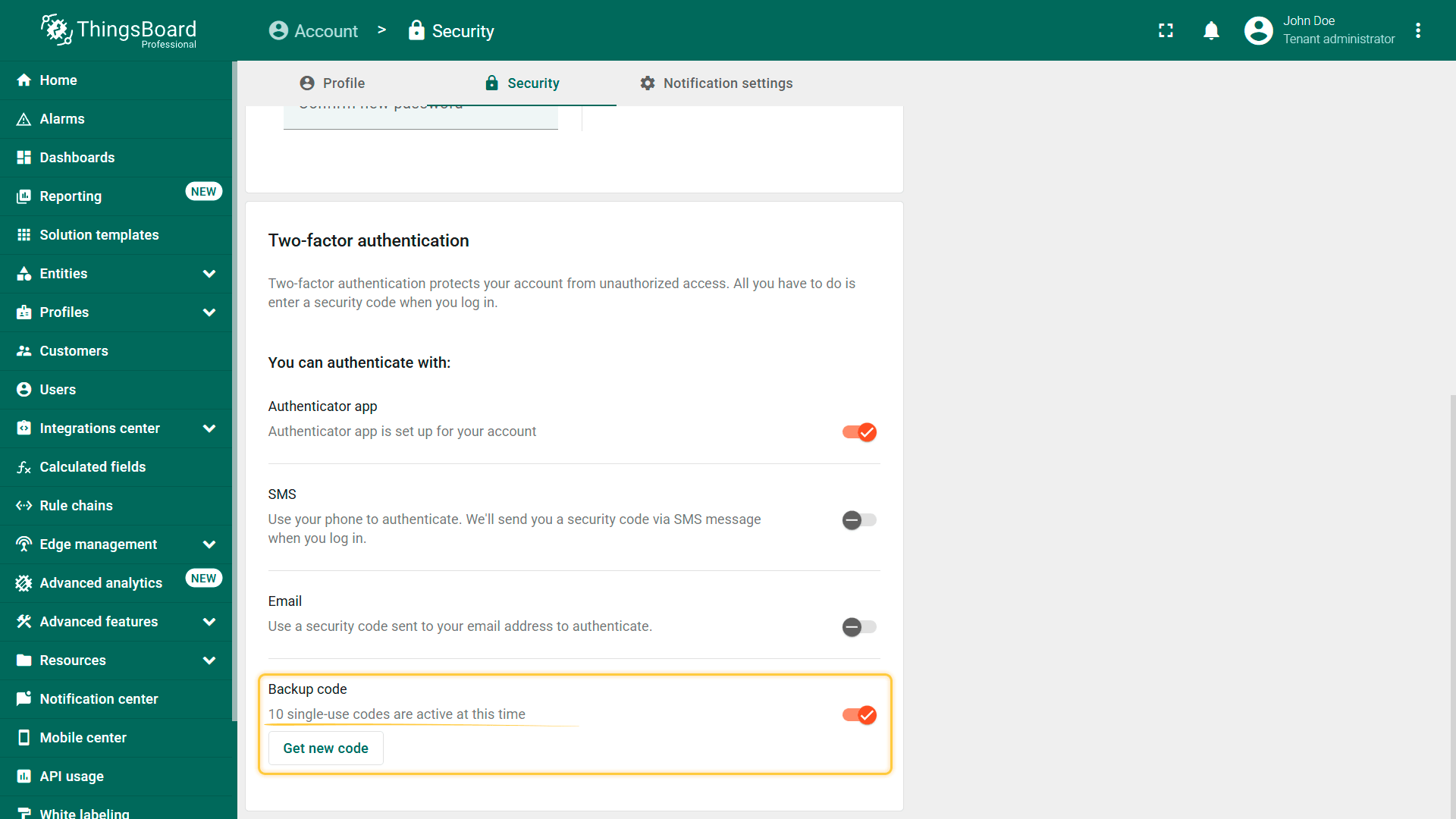
- Enable authentication via backup codes.
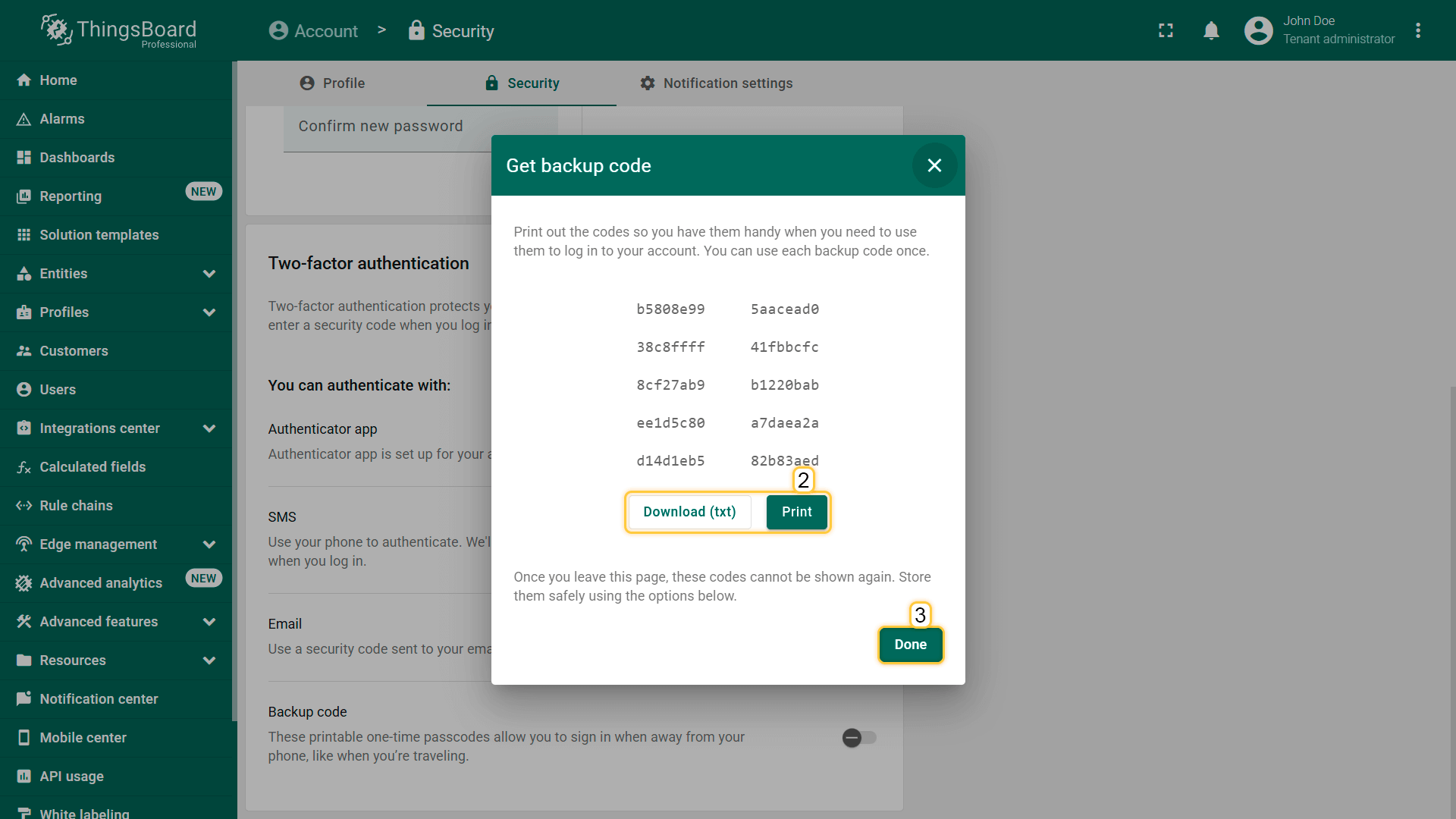
- Download or print the generated backup codes and store them securely.
- Click “Done”.
Each backup code can be used only once.
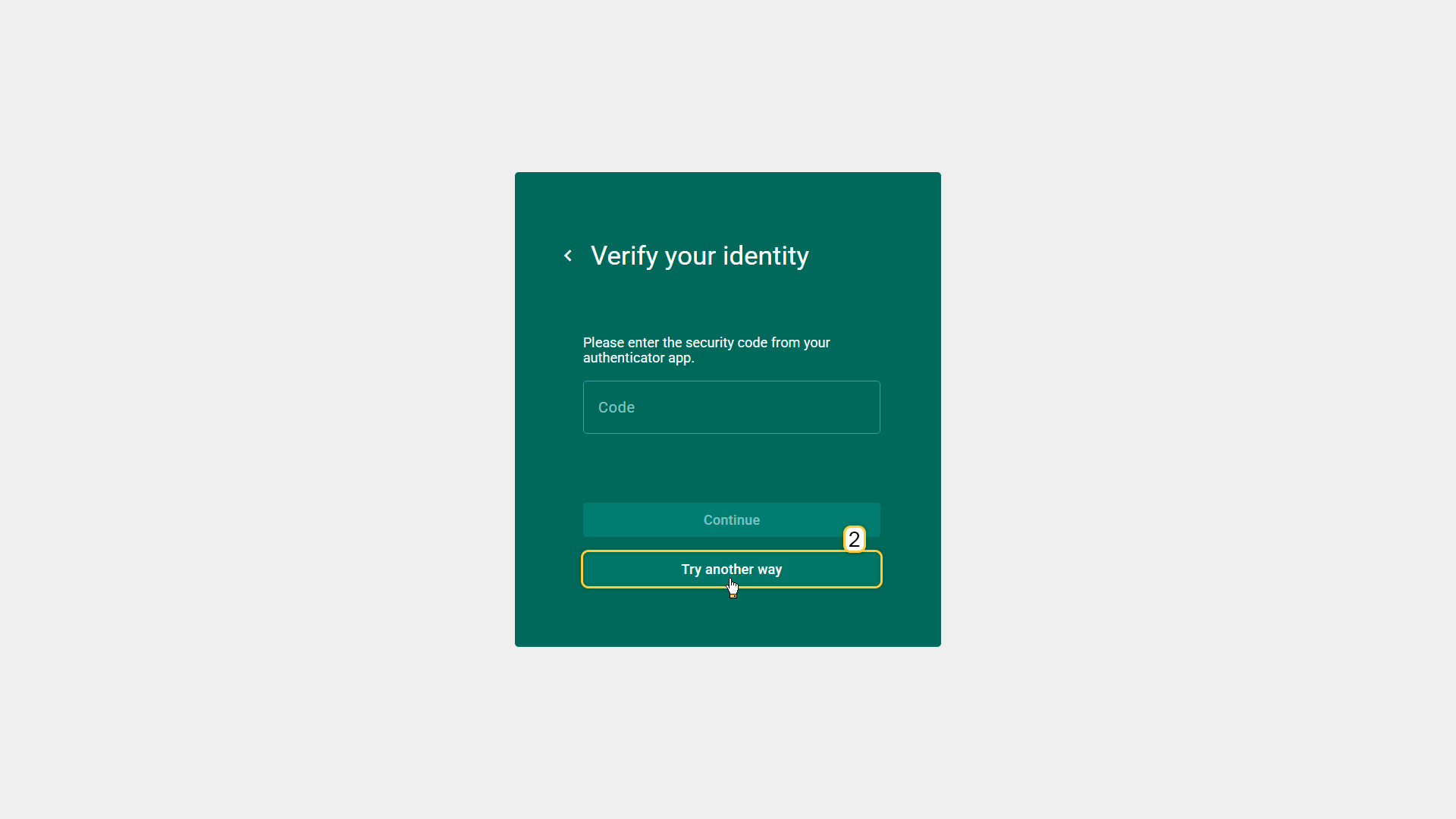
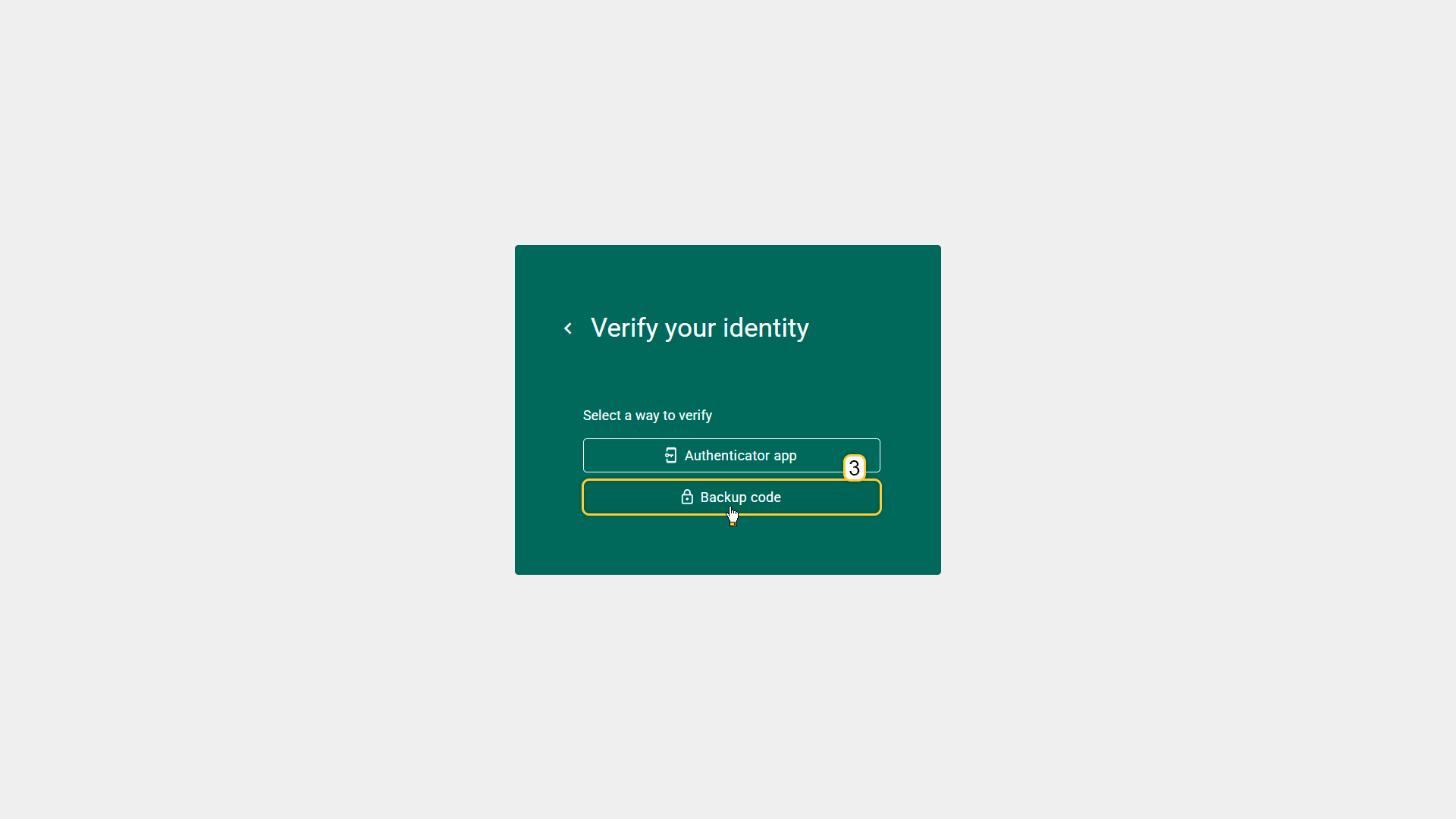
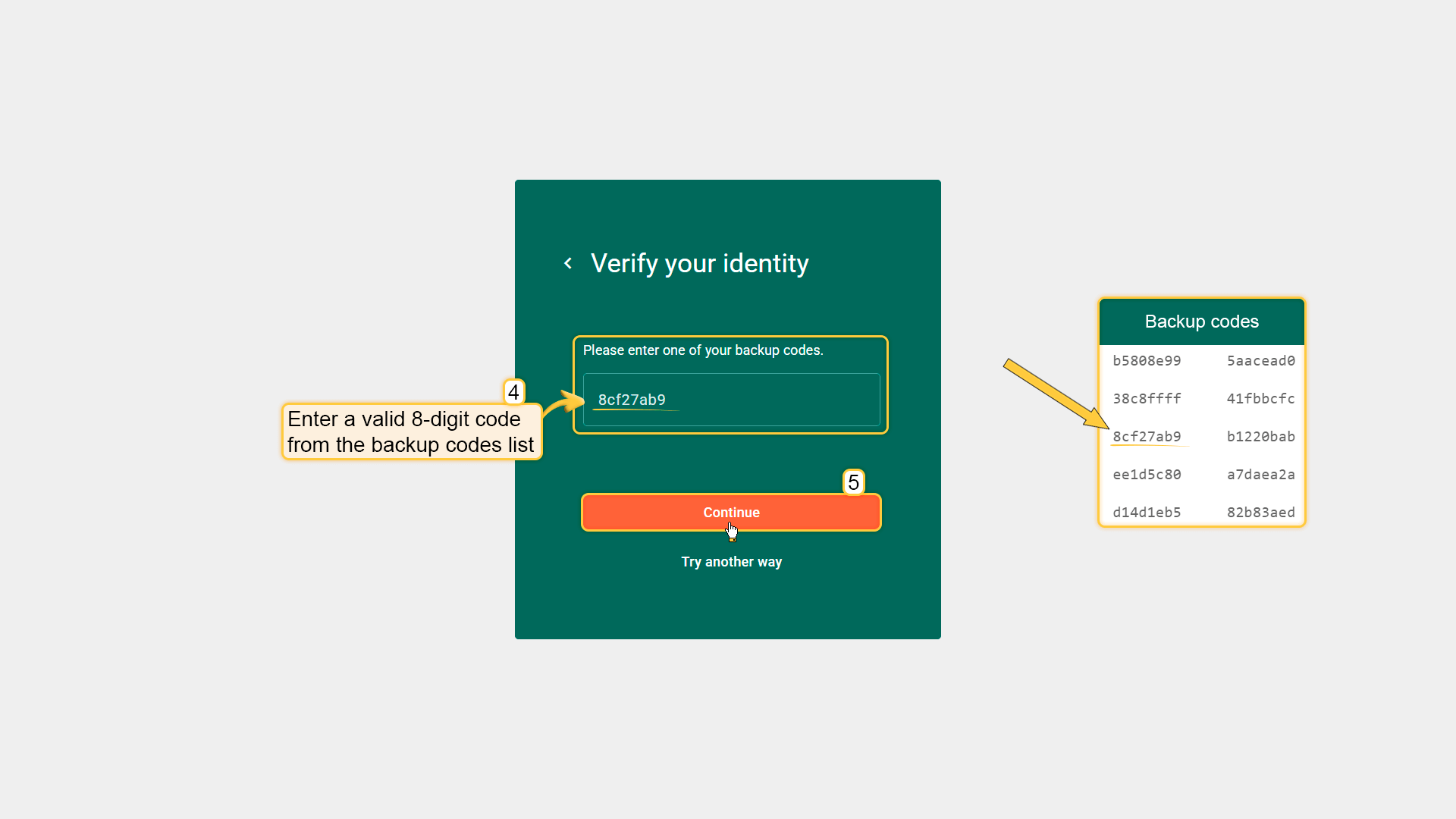
Sign-in with a backup code:
- Start sign-in by entering your username and password.
- Click “Try another way”.
- Select “Backup code”.
- Enter an unused backup code from your list.
- Click “Continue”.
Next steps
-
Getting started guides - These guides provide quick overview of main ThingsBoard features. Designed to be completed in 15-30 minutes.
-
Connect your device - Learn how to connect devices based on your connectivity technology or solution.
-
Data visualization - These guides contain instructions on how to configure complex ThingsBoard dashboards.
-
Data processing & actions - Learn how to use ThingsBoard Rule Engine.
-
IoT Data analytics - Learn how to use rule engine to perform basic analytics tasks.